1.8. My Work Guide
My work at the top of the left menu gathers the tasks assigned to you and your personal tasks in one screen, whether they belong to a project, your department or your company. Overdue and today's tasks come first, so it's a good place to start your day.
💡 Stuck right now?
- If tasks are missing, check that the kind chips at the top aren't turned off, and turn on Show done for finished tasks.
- If you can't create department, company or project tasks, check your license. Without one you can use personal tasks only.
- Company tasks are created only by the master and work managers. Assignees can change only the status and progress.
1. The My work screen
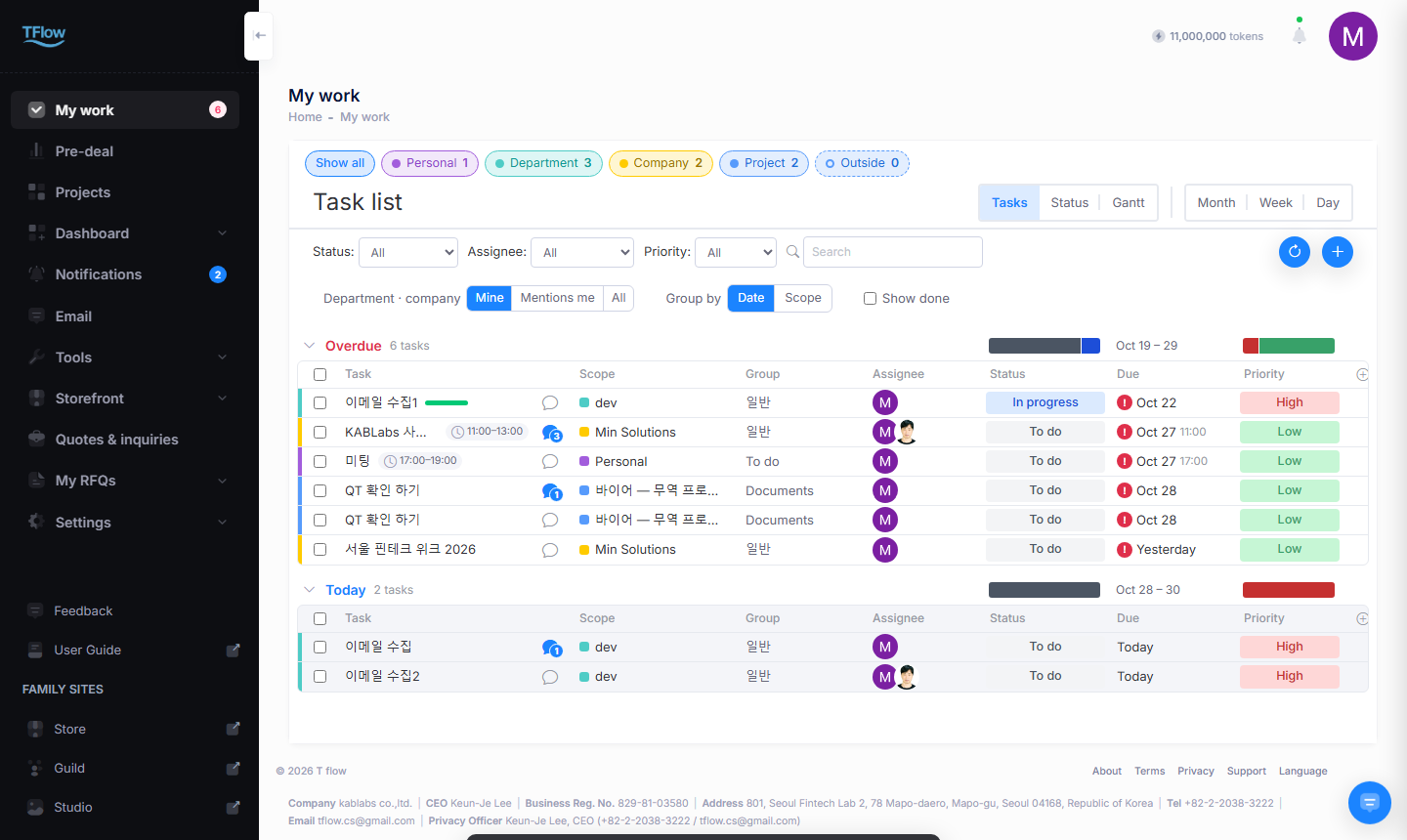
- Number in the left menu: the red number next to My work is how many tasks are overdue; the blue number is how many are due today. When something is overdue, only the red number shows.
- Date groups: the list is grouped as Overdue · Today · This week · Next week · Later · No date. Switch Group by to Scope to group by personal, department, company and project instead.
- Columns: Task · Scope · Group · Assignee · Status · Due · Priority. Click a project name in the Scope column to go to that project's Tasks tab.
- Show done: shows finished tasks in a Done group at the bottom.
- Views: switch between Tasks · Status · Gantt · Month · Week · Day. Each view works as described in the Project Tasks guide; the Gantt is grouped by scope.
- Round buttons on the right: Category management (folder icon — in the Tasks view) · Refresh · New task (+). See Category management.
2. Which tasks appear — kind chips
Turn kinds of tasks on and off with the chips at the top. Each chip shows how many tasks it has, and tasks of a chip that is off disappear from every view.
| Chip | Tasks shown |
|---|---|
| Personal | Personal tasks you created (only you see them) |
| Department | Your department's tasks — at first only the ones assigned to you |
| Company | Your company's tasks — at first only the ones assigned to you |
| Project | Tasks assigned to you in your company's projects |
| Outside | Tasks you were given in another company's project that you joined as an outside invitee (marked Outside · company name) |
- Show all · Hide all: turn every chip on or off at once.
- Department · company Mine · Mentions me · All: choose how much of the department and company tasks to see. Mentions me adds tasks whose updates
@mention you; All shows every task in your department and company, and Person filters it by assignee (or Unassigned).
3. Scope — who sees and who edits
The scope you choose when creating a task decides who sees it and who can edit it.
| Scope | Who sees it | Who creates and edits it |
|---|---|---|
| Personal | Only you | You |
| Department | Your department members | Any department member. Only the creator or the master can delete it or move it to another scope |
| Company | Everyone in the company | The master and work managers. Assignees can change only the status and progress |
| Project | Your side (your company plus outside people invited to your side). The counterparty and the forwarder don't see it | People with an edit role in that project (owner, manager, editor, approver) |
- Your department comes from your membership, so you don't choose it. Without a company you can use personal and project tasks only.
- Updates on a personal task are notes only you can see.
- Without a license you can create and edit personal tasks only, and the screen shows No license — personal tasks only.
4. Creating a task — where should it go?
Click New task (+) at the top right. A new task card opens on the right; first choose Where should it go?
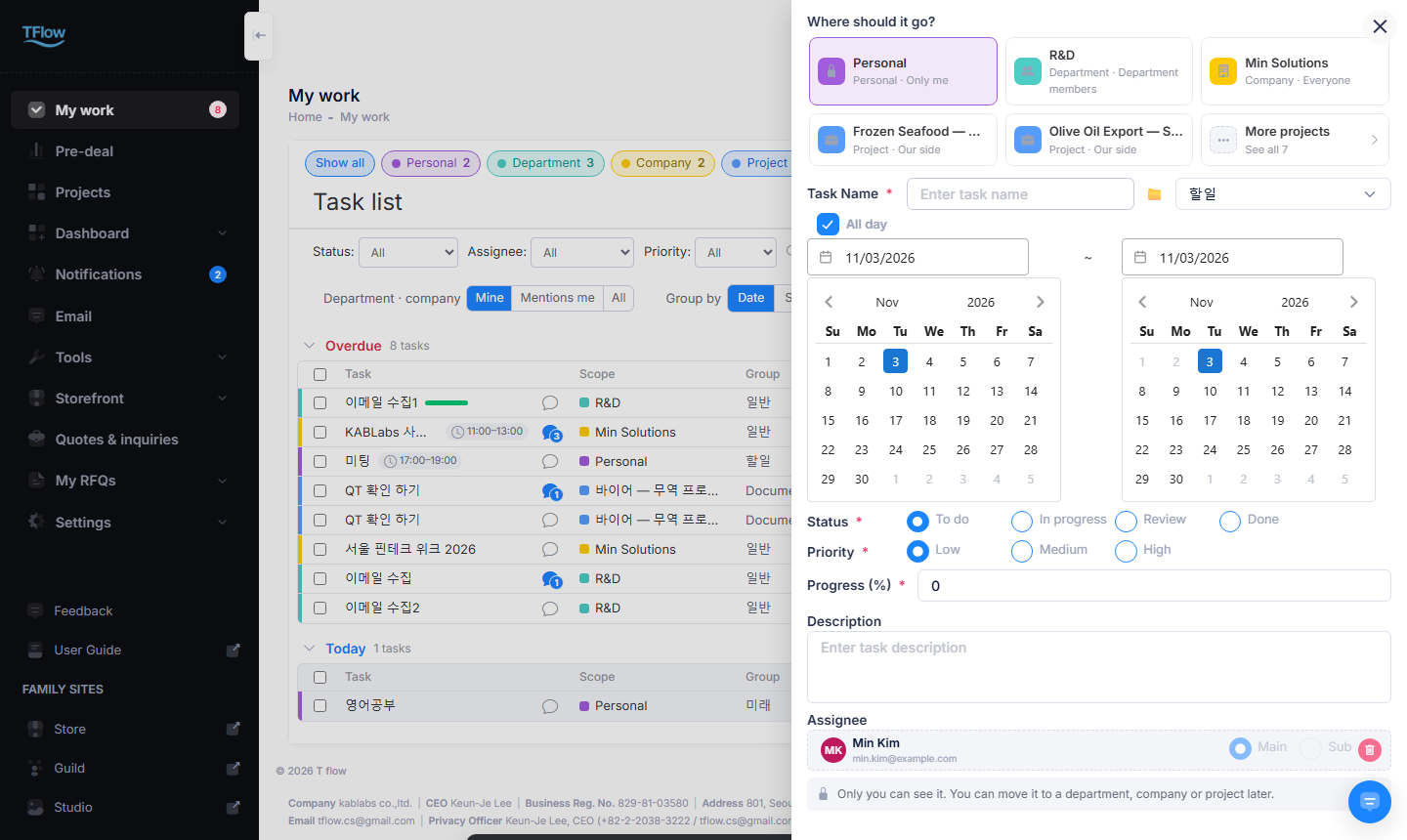
- Choices: Personal (only me) · your department (department members) · the company (everyone) · a project you joined (our side). Places you can't use are faded; hover to see why (no license, or company tasks are created by managers).
- Project order: newest first. With three or more projects you see the two newest plus More projects. See More projects.
- Then fill in the task name, 📁 group, dates, status, priority, progress, description and assignee. The fields are the same as in the task card of Project Tasks. There is no Save button — the task is saved automatically once it has a name.
- When you add someone else as an assignee, the task appears in their My work too and they are notified (see 8. Notifications).
- Clicking an empty date in the Month · Week · Day calendar also opens a new task for that date.
- Two tasks in the same scope can't share a name. A notice appears under the task name and the task isn't created.
Many projects — More projects
With three or more projects, Where should it go? shows only the two newest, and the third spot becomes More projects · See all N.
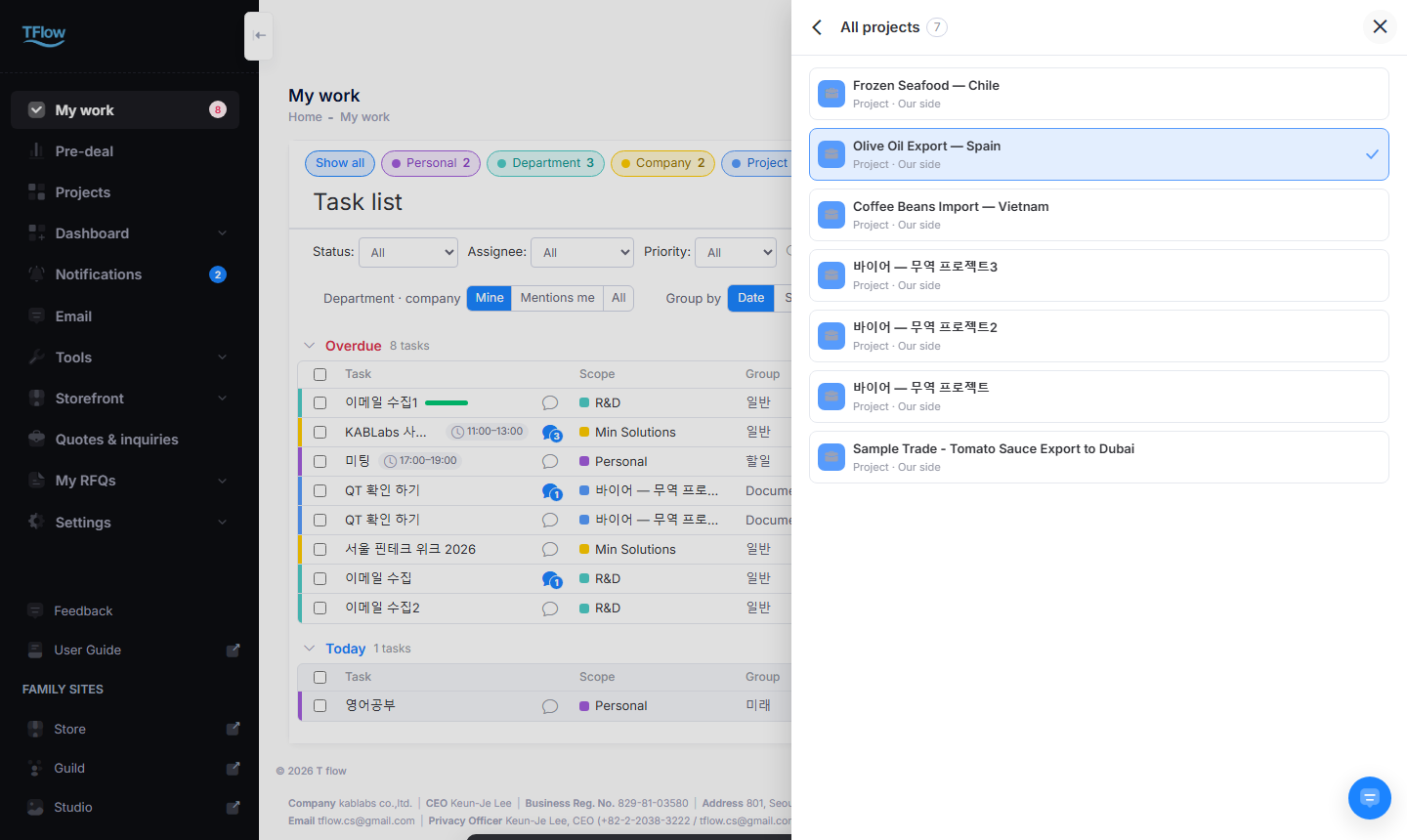
- Click More projects and an All projects list opens inside the card, newest first. Whatever you already typed, such as the task name, stays.
- Click a project once to tick it (✓), then click Back (‹) at the top left to return with that project chosen. Double-click a project to choose it and go back at once. Esc works like Back.
- If the chosen project isn't one of the two newest, it is shown in the third spot; click it to open the list again.
- While the list is open, the task isn't saved automatically. It is created in the chosen project after you go back.
- Faded projects can't be chosen (no license, or no edit role).
Saved automatically — no Save button
A new task is saved automatically, just like edits on a task card.
- Type a task name and pause for a moment (about 1.5 seconds): the task is created and a short created message appears.
- The card stays open and becomes the new task's card: the scope and group line and the Info, Updates and Activity tabs appear at the top, and Delete at the bottom. Later edits are saved automatically too.
- Press Enter in the task name field to create it right away. If you close the card (X, Esc or a click outside) or click another task or date while a name is filled in, the task is created first.
- Choose the scope before typing the name. Once the task exists, change it with the Scope field at the top of the Info tab — see moving to another scope.
- If the name is empty, or the task wasn't created because of a duplicate name, and you changed other fields, closing the card asks There is unsaved content. Would you like to close it? Clicking OK discards what you entered.
- A new task opened from a project's Tasks tab isn't saved automatically; there you create it with Save.
5. Opening a task and moving it to another scope
Click a task and its task card opens on the right. The Info, Updates and Activity tabs work as described for the task card and updates in the Project Tasks guide.
- Where the task lives: the top line of the card shows its scope and group. For a project task, click the project name to go straight to that project's Tasks tab. Your pending edits are saved before you leave, and Ctrl-click opens it in a new tab.
- Moving to another scope: pick another place in the Scope field at the top of the Info tab. The task moves there and the people who can see it change — for example, from a personal task to a department task.
- When you can't move it: project tasks linked to documents, AI or follow-ups; tasks in another company's project (outside invitee); and moving a task to personal when other people have posted updates on it.
- 🔗 Copy link copies the task's address; when someone opens it, the task card opens on their screen (if they are allowed to see it).
6. Handling several tasks at once
Tick tasks with the checkboxes at the left and a selection bar appears at the bottom: Mark done · Move · Duplicate · Delete.
- Move: moves the selected tasks to another scope (personal, department, company or project) in one go. Tasks can't be moved into another company's project.
- Duplicate: makes copies in the same scope and group with the same assignees. Copies start as To do.
- Tasks you can't edit, or that are linked, are skipped and you are told how many were not processed. Without a license, department, company and project tasks are skipped.
7. Category management — by kind
Click Category management (folder icon) at the top right of the Tasks view to open the same window as category management in Project Tasks. My work mixes tasks of several kinds, so first choose at the top whose categories you want to manage.
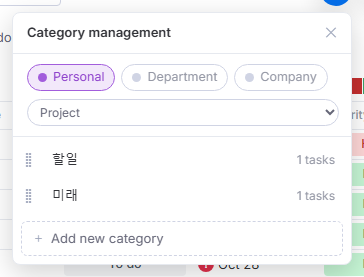
- Choosing the kind: click the Personal · Department · Company chip, or pick a project in the Project box below them. If only one of the kind chips at the top of My work is on, the window opens on that kind.
- Add · rename · reorder · delete: the same as in Project Tasks. Type a name in + Add new category at the bottom and press Enter, click a name to edit it in place, and drag the handle on the left or use the ↑ · ↓ keys to reorder. The trash icon appears only on categories with no tasks.
- 'N tasks': counts every task in that kind, including other people's department and company tasks that don't appear in your My work list.
- Who can edit: personal — you; department — department members; company — the master and work managers; project — people with an edit role in that project (owner, manager, editor, approver). Without a license you can edit personal categories only. Fields are locked for kinds you can't edit, with a one-line reason.
- Changed categories show up right away in the 📁 group field of new tasks and task cards. Changing project categories notifies members on your side; department and company category changes appear on other people's screens after they refresh.
8. Notifications — assignment and mentions
| Notification | When | Clicking it |
|---|---|---|
| Task assigned | Someone creates a task with you as an assignee, or adds you as an assignee of a personal, department or company task | Opens that task card in My work |
| Task Updated | Someone edits a project task assigned to you | Opens the task card in that project's Tasks tab |
| Mentioned you | Someone @mentions you in an update | Opens the task card on the Updates tab with that post highlighted (project tasks open in the project's Tasks tab) |
- Mentioning everyone with
@alldoesn't send notifications.@allis available to department members on department tasks and to the master and work managers on company tasks; it isn't available on project tasks. - Phone and desktop push follow your Web Push settings.
9. For the master — assigning work managers
Company tasks (tasks everyone in the company sees) are created and edited only by the master and work managers. To let someone other than the master run company tasks, make them a work manager.
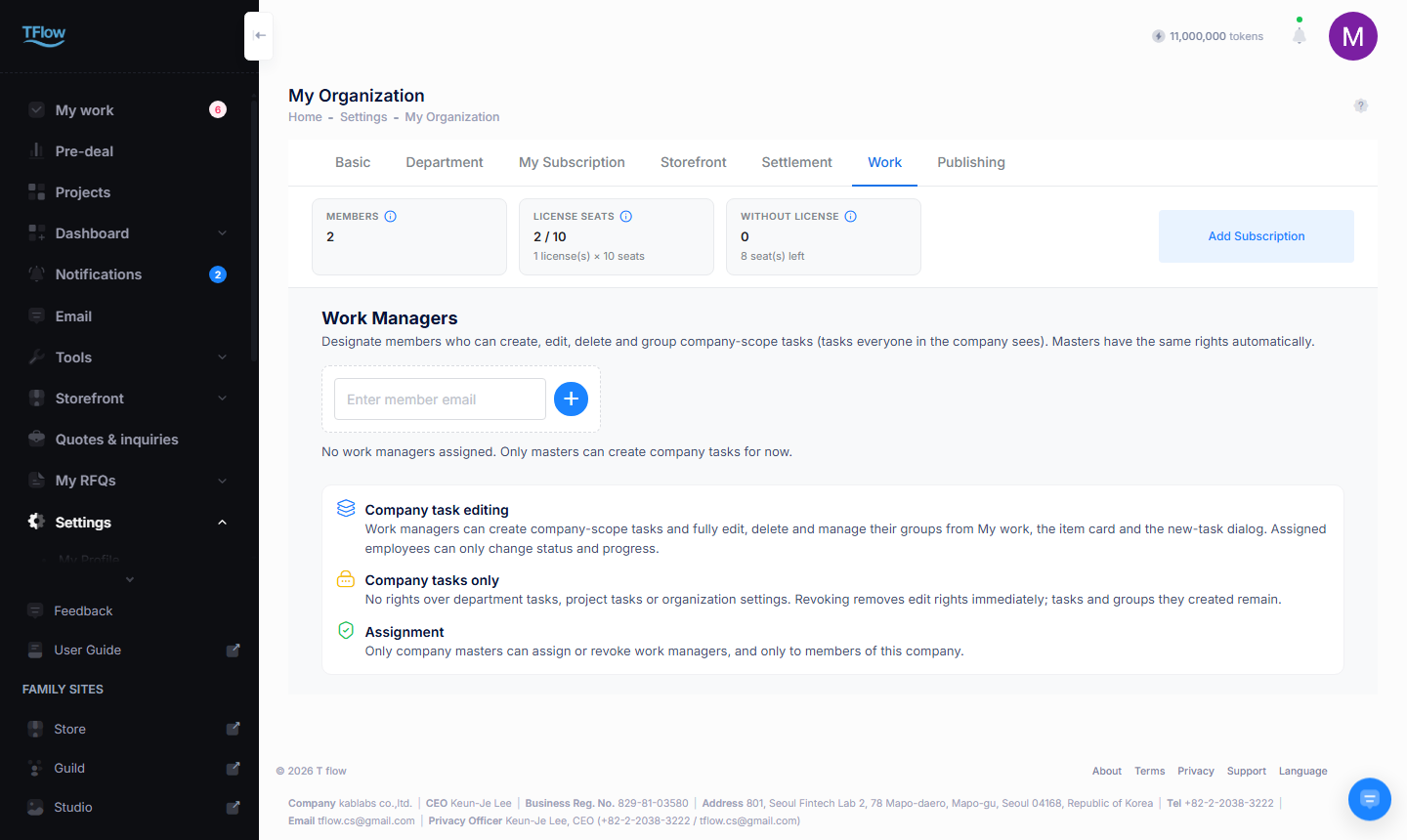
- Open the Settings > Organization > Work tab.
- Type the member's email in Work Managers and click +.
- That person can now create, edit and delete company tasks and manage their groups from My work, the task card and New task.
- The permission covers company tasks only — not department tasks, project tasks or organization settings.
- Removing it takes effect immediately; tasks and groups that person created stay as they are.
- Only the company master can assign or remove work managers, and only members of this company can be assigned. The master already has the same permission without being assigned. Other members can see who the work managers are on this tab.
💡 Troubleshooting (FAQ)
Tasks missing or not editable
- Q: "My project tasks don't show up in My work."
- A: My work shows only project tasks assigned to you. See every task of a project on that project's Tasks tab. Also check that the Project chip is on, and turn on Show done for finished tasks.
- Q: "It says 'You do not have permission for this task.'"
- A: Who can edit depends on the scope (see the Scope table). Company tasks are edited only by the master and work managers; assignees change only the status and progress. Department tasks can be deleted only by their creator or the master. If it says 'This task belongs to another department or company.', the task isn't in your department or company.
- Q: "It says 'You have no company, so only personal and project tasks are available.'"
- A: Department and company tasks are for members who belong to a company. Ask your company master to invite you to the organization. → Account management
- Q: "I clicked a notification and it says 'The task does not exist or you cannot view it.'"
- A: The task was deleted, or it was moved to a scope you can no longer see.
- Q: "There's a 'Left' tag next to an assignee."
- A: That assignee has left the department, company or project. Assign someone else in the task card.
Moving tasks and @all
- Q: "I can't move a task to another scope."
- A: Project tasks linked to documents, AI or follow-ups can't leave the project, and tasks in another company's project (outside invitee) can't be moved. A task with updates from other people can't become personal.
- Q: "It says I can't use
@all."- A:
@allis for department members on department tasks and for the master and work managers on company tasks. It isn't available on project tasks — mention the people you need one by one with@.
- A:
Category management
- Q: "In Category management the fields are locked, or there's no trash icon."
- A: Locked fields mean you can't edit that kind's categories; the window shows why (company — master and work managers, project — edit role, no license — personal only). If you see 'N tasks' instead of the trash icon, the category still has tasks — move them to another category first, then delete it. See Category management.
For the master
- Q (master): "I'm deleting a department and it says 'This department still has open tasks. Move or delete them first.'"
- A: The department still has unfinished department tasks. Move them to another scope or delete them, then try again.