Introducing TFlow Studio
TFlow Studio is where your content gets made. Paste in a news article, a post, or a simple idea, and the AI generates marketing images + promotional copy, finishing them as card images, card series, and short videos for Instagram, Facebook, and YouTube.
💡 Who is it for? Anyone who wants to promote trade or export products on social media or their store, but finds design tools intimidating. Just paste text and out comes a ready-made promotional image. No design knowledge required.
🖼️ Screen capture Full Studio top header — navigation (Studio / Image Tools) · token balance badge · queue congestion badge · language toggle 📍
studio.tflowx.com· save locationimages/studio/header.png
1. Getting Started — Access & Login
If you were asked to log in — click Log In at the top right of the header. Studio has no sign-up of its own, so your TFlow main app account gets you straight in, and you are returned to the screen you were on. The intro screen is viewable without logging in, but the editor and Image Tools require a login.
Login (SSO)
Studio requires no separate sign-up. Just log in with your TFlow main app account.
- Click Log In at the top right of the header → you'll be taken to the main app login screen.
- Once logged in, authentication (SSO) is shared across all of
.tflowx.com, so you can move between Store, Guild, and Studio without logging in again. - After logging in, you're automatically returned to the Studio screen you were viewing.
ℹ️ The intro screen (
/) can be viewed without logging in, but the editor (/studio) and image tools (/tools) require login.
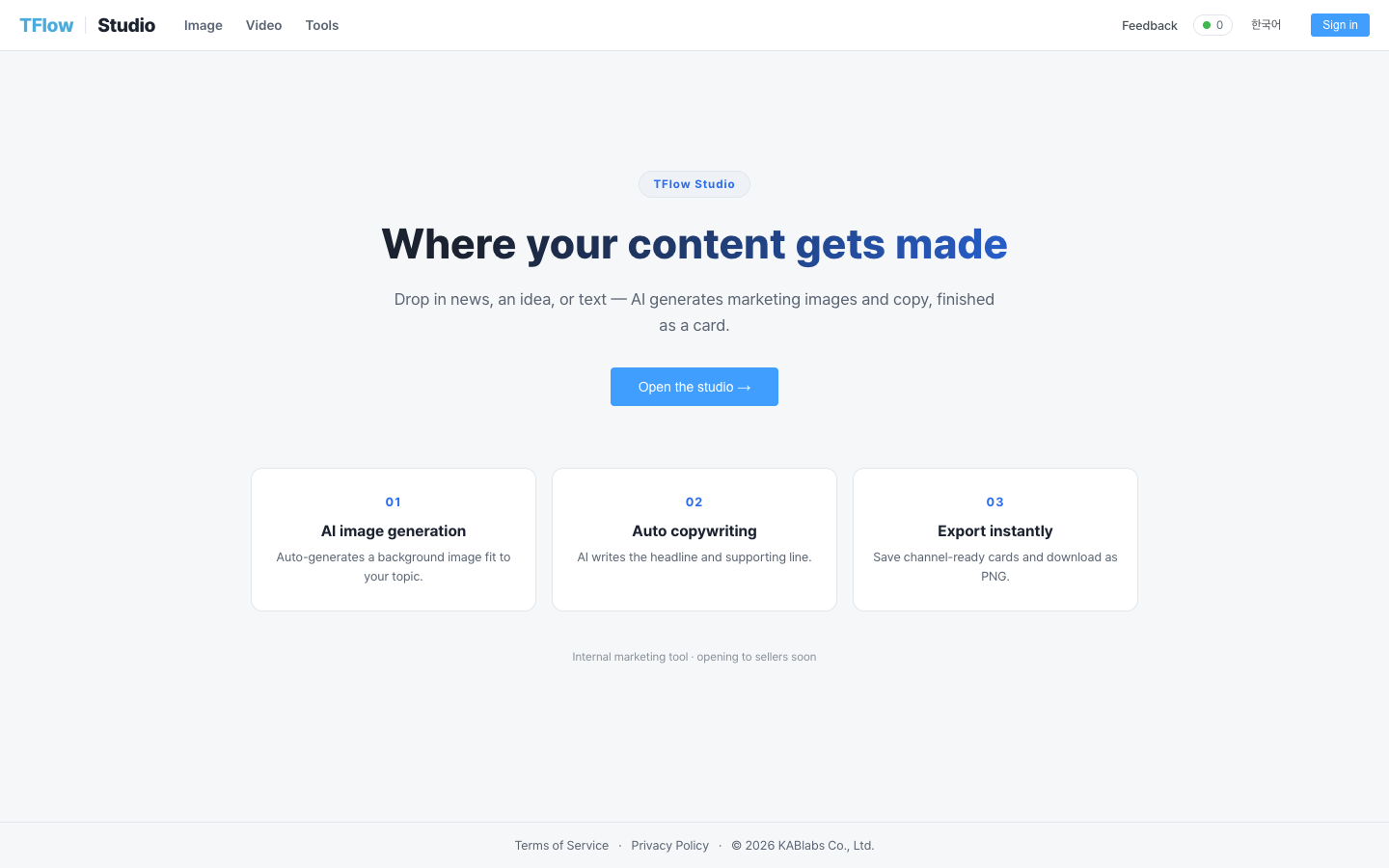
How to Access
| Method | Path |
|---|---|
| Direct access | studio.tflowx.com |
| From the main app | Click Family Sites → Studio (🖼️ icon) at the bottom of the left sidebar (opens a new tab) |
2. Screen Layout
After logging in and entering Studio, the screen is split into three vertical panels.
| Area | Position | Role |
|---|---|---|
| Input & Options | Left | Enter source text/links; choose channel, ratio, style, and template |
| Canvas | Center | Preview generated cards and edit them directly (text · images) + post body |
| Edit tabs | Left | Text/Image/Shape tabs — add elements and edit properties |
| Pages & canvas | Center | Vertical page list + editing canvas + post copy |
| Pictor chat | Bottom-right bubble button | Create/refine images by chatting (floating window ↔ docked panel) |
The rail menu is, in order: Library (everything you made, with folders) · Project (the editor) · Image (tools) · Video (video studio).
ℹ️ Project reopens the card or card series you were last editing. To start fresh, press Start over in the top bar (after that, entering Project starts with a blank card again).
📱 On narrow screens (under 1100px wide), the editor switches to view only. You can still open and view cards, share and export, and ask Pictor — but edit the canvas and save on a wider screen. See Creating cards → Screen width for details.
3. What Can You Make?
ℹ️ Library screen — organize work with folders (up to 2 levels) on the left; type/sort/thumbnail-size filters sit above the grid. Hover a card for move-to-folder / delete actions.
| Feature | Description | Guide |
|---|---|---|
| Cards / Card Series | Generate and edit one SNS promotional image, or several (card series), from text or links | Create Cards & Card Series |
| Image Tools | Background removal (cutout) · background replacement · upscaling · object generation | Image Tools |
| Pictor Chat | Generate and edit images conversationally, ask how-to questions | Pictor Chat |
| Object Library | Register, publish, and insert reusable stickers (objects) | Object Library |
| Video Studio | Card series → mp4 rendering, AI narration (script + voice), AI motion clips | Video Studio |
| Publishing Channels | Connect social channel API keys (Instagram, Threads, Facebook, X, LinkedIn, YouTube) for publishing | Publishing Channels |
4. Tokens · Free Usage · Subscription
Studio is structured so that image generation is free and only video generation deducts tokens. Accounts without a license get a daily free quota for image generation, while video splits between free renders and token-charged ones depending on the kind. Your remaining quota and balance are shown in the header badges.
Image Generation — Free (Daily Limit)
- Card generation, image tools (cutout · background replacement · upscaling), and object generation do not use tokens.
- Instead, accounts without a license have a daily free generation limit (10 by default, reset every midnight KST).
- The remaining count is shown in the
used/limitchip in the top bar (e.g.3/10) — it changes colour with 2 or fewer left, and clicking it opens the subscription page. Subscribed accounts are unlimited, so the chip is hidden. - When you exceed it, you'll see the message "You've used all of today's free generations. Please try again tomorrow." along with a Subscribe link.
- Licensed (subscribed) accounts get unlimited use + priority in the generation queue.
Video Generation — Depends on the Kind
- Card series → video rendering (Video Studio) is token-free, once per day (relaxed with a subscription). AI narration is included at no extra charge.
- AI motion clips (image → moving clip) use an external paid engine, so a set number of tokens is deducted per clip.
- If your balance is insufficient, those controls are locked and a 🔒 "Video generation is available after subscribing" + Subscribe button (which takes you to the main app) is shown.
Header Badges
- Token balance badge: Shows your remaining tokens by color (normal / orange / warning / critical). Click to refresh.
- Queue congestion badge: Shows the current number of pending generations in green / yellow / red.
🖼️ Screen capture Token balance badge + queue congestion badge at the top right of the header (normal and congested states) 📍
studio.tflowx.com/studio· save locationimages/studio/badges.png
💡 Troubleshooting (FAQ)
Q. I'm logged in, but I don't see the token badge. A. If your account has never received tokens, the badge doesn't appear. Image generation is free, so you can still create cards without it.
Q. I don't see the "Image Tools" menu. A. Image Tools are not open to every account yet. Where they aren't open, you'll see "Image tools are being prepared. Please check back shortly." and be returned to the intro screen.
Q. Where are the cards I made saved? A. They're automatically kept in the Library screen on the rail, so they remain even if you close and reopen the window. See Create Cards & Card Series.