4.3. Service Subscription & Receipts (My Subscription) Guide
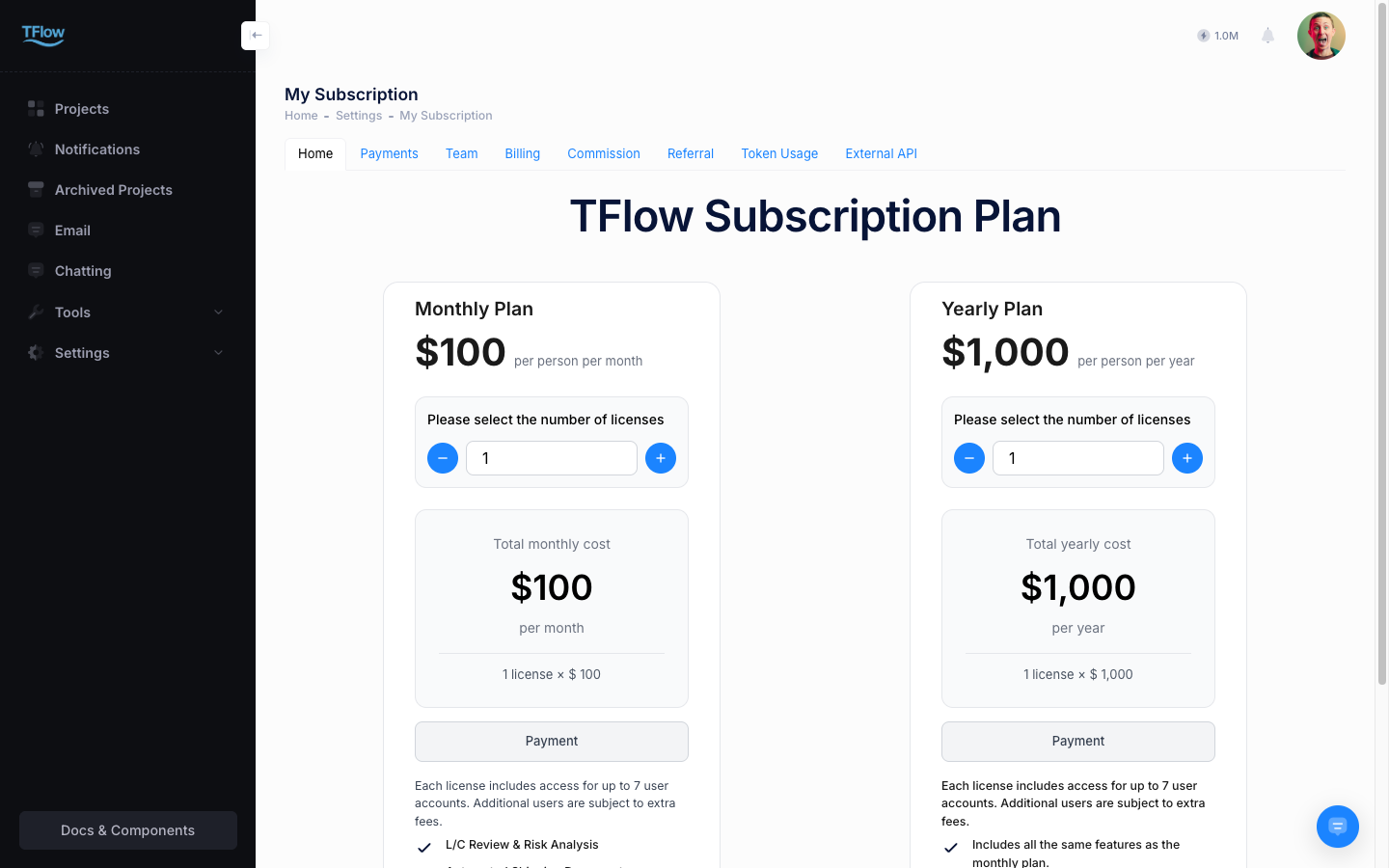
This is the management menu where a company or individual can review the details of their active TFlow license plan, understand feature usage limits, and download recurring-payment invoices.
⚠️ Changing the plan and registering a payment method are done by the company Master. If the payment buttons are missing or disabled, ask your company Master.
1. Reviewing Current Usage and Plan
- Subscription info: See the plan name you are on, the number of licenses your company holds, and the maximum number of users those licenses cover.
- Next payment date: Shows the next recurring-payment date and the number of licenses that will be billed then.
💡 Plan changes, adding or reducing licenses, and refund rules are covered in the Subscription & Billing Guide.
AI Token Balance
TFlow's AI features (Lyra chatbot, CYGNUS analysis, LEO analysis, etc.) run on a Token Balance basis.
- Check balance: Your current AI token balance is shown as a gauge in the top navigation bar.
- Automatic deduction: Usage is automatically deducted when an AI analysis pipeline (CYGNUS, etc.) completes.
- When the balance is low: When the balance drops to 0 or below, AI analysis features are restricted. Ask your company Master to top up tokens.
- Daily baseline tokens: The daily baseline tokens are granted to users who hold a license. Without a license they are not granted, so ask your company Master to assign you one.

2. External Integration
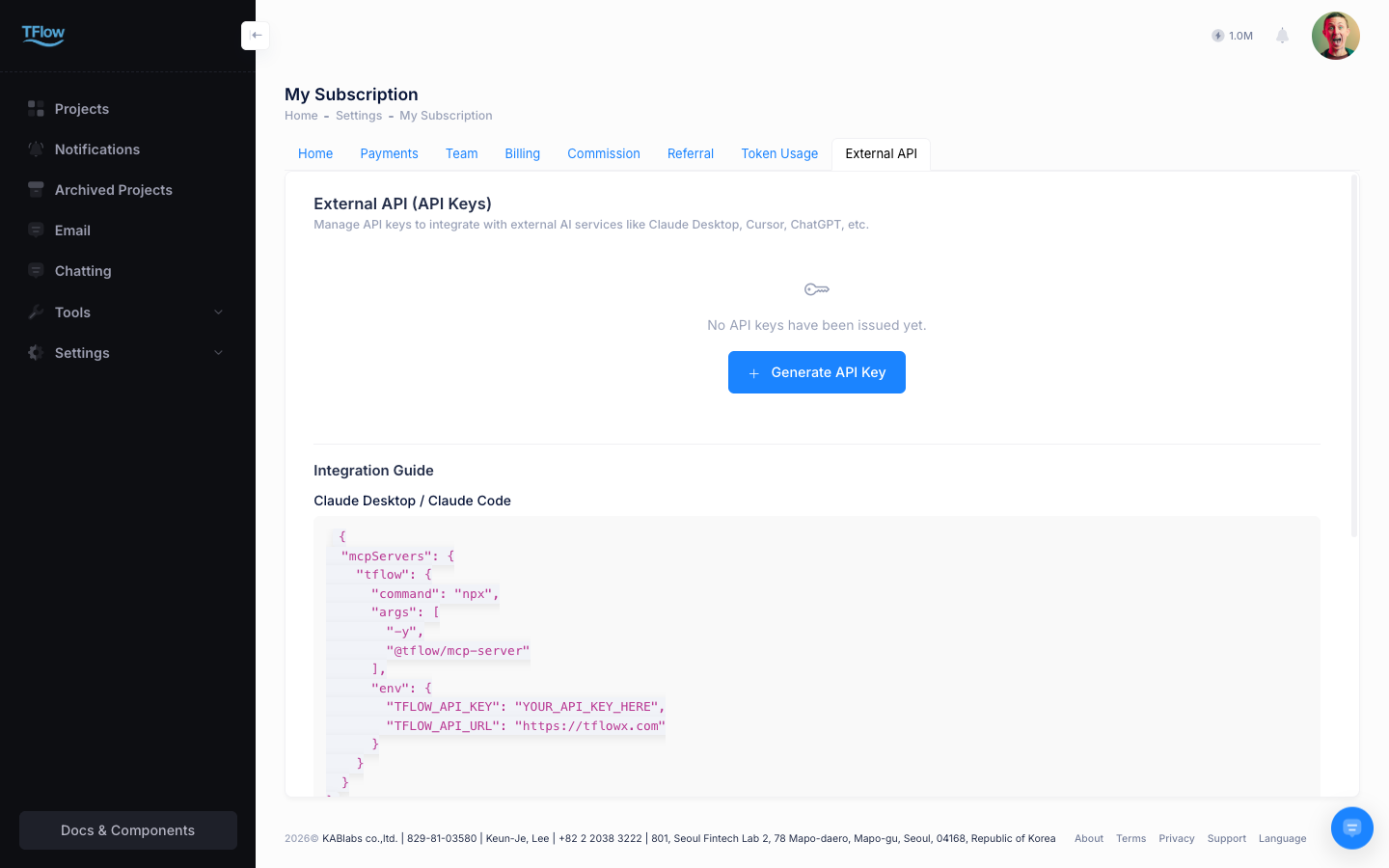
Manage the API key (PAT) used to access TFlow data from external AI chatbots such as Claude Desktop and ChatGPT.
- Issue an API key: In the External Integration tab, click the Issue API Key button to generate a key in the form
pat_tflow_.... - Handle the key carefully: The issued key is shown only once. Be sure to copy and store it somewhere safe.
- Validity period: The default is 90 days; reissue is required after expiry.
- Reissue: If you lose or expire an existing key, click the Reissue button to immediately revoke the old key and issue a new one.
- Copy Claude Desktop config: With one button, you can copy the JSON configuration for Claude Desktop to your clipboard.
💡 For how to set up external integration, see the MCP Integration Guide.
3. Receipts and Invoice History
- Payment history list: Review the billing items approved via monthly recurring payment over the past 12 months and their status (
Paid,Failed). - Print evidence: For management-department settlement, etc., click the view feature or download button to the right of each payment record to directly obtain the PDF invoice/receipt. The document is auto-filled with company info, Tax ID, etc.
3-1. Subscription & Billing Evidence Troubleshooting (FAQ)
- Q: "AI analysis no longer runs."
- A: When the AI token balance drops to 0 or below, AI features are restricted. Check the gauge at the top and ask your company Master to top up tokens. → Subscription & Billing Guide
- Q: "I clicked the receipt page but it says I'm not authorized."
- A: Payment history and receipts are visible in the company Master's account — the account that made the payment. If you need proof for accounting, ask your company Master to download the receipt.
- Q: "When my subscription expires or is canceled, what happens to my existing project files?"
- A: Access is not completely blocked; your account and project data stay read-only. However, the daily baseline tokens are granted only to users who hold a license, so without one the AI features stay unavailable.