5.4. Complete Guide to Lyra Interactive Capabilities
Lyra is not just a Q&A chatbot. It is an interactive AI assistant that can perform actual work on your behalf — filling out forms, analyzing files, exporting data, navigating pages, and more. This guide walks through every capability Lyra offers, with examples.
Capabilities at a Glance
| Capability | Example request | Requirement |
|---|---|---|
| Form autofill | "Fill out this form for me" | A page with a form |
| File analysis | "Summarize this PDF" | File attachment |
| Document registration | "Register this file to the project" | File attachment + project |
| Page navigation | "Go to the email screen" | None |
| Data lookup | "Show me last month's project status" | None |
| Export | "Export this data to Excel" | Data to export |
| Screen capture/reading | "Look at the current screen" | None |
| Import readiness check | "Are we ready for customs clearance?" | Project + documents |
| Python analysis | "Analyze this data" | Data to analyze |
| Knowledge search | "Tell me about UCP 600 Article 14" | None |
| Web search | "Show me the latest exchange rate" | None |
| HS Code AI classification | "Give me the HS Code for a semiconductor wafer" | None |
| Trade term search | "What is FOB?" | None |
| Automatic BL correction | "Correct this BL" | Project + BL document |
| LC risk analysis (LEO) | "Analyze the risk of this LC" | Project + LC document |
| Help during a tutorial ✨ NEW | "Where is this button here?" | Tutorial (Coach mode) |
1. Form Autofill — "Fill It Out for Me"
Lyra can automatically populate the empty form fields on the current screen. The AI analyzes project information, attached documents, and prior data to suggest appropriate values.
How It Works
- Lyra suggests values to enter into the form fields.
- Apply All / Decline options appear on the screen.
- Clicking Apply All automatically enters the suggested values into the form.
- After reviewing the entered values, you must click the Save/Submit button yourself.
💡 Lyra only fills out the form; it does not automatically submit it. The final save is always performed by you.
Try Saying This
- 💬 "Fill out this form for me"
- 💬 "Auto-fill the project information"
- 💬 "Complete this form based on the CI"
- 💬 "Fill in all the blanks"
Example Pages Where This Works
| Page | Autofill targets |
|---|---|
| Project detail | Project name, description, trade terms |
| Payment information | Amount, currency, payment due date |
| Email composition | Recipient, subject, body |
FAQ
- Q: "I clicked Apply All, but only some fields were filled."
- A: Disabled or read-only fields cannot be autofilled. You must enter those fields manually.
- Q: "A filled value is incorrect."
- A: You can press Decline or edit the value manually. Lyra's suggestions are for reference only, and final confirmation is up to you.
2. File Analysis — "Analyze This File"
When you attach a file in the chat window, Lyra analyzes it in various ways. It supports multiple formats including PDF, images, and Excel.
7 Types of Analysis
| Analysis type | Description | Example request |
|---|---|---|
| Summary | Summarizes the entire document | "Summarize this file" |
| Q&A (qa) | Answers questions about the document | "What is the amount in this contract?" |
| Data extraction | Extracts dates, amounts, names, etc. | "Extract all dates from this document" |
| Document comparison | Compares and analyzes two documents | "Compare the CI and PL" |
| Correction check | Finds edit marks such as red-pen notes and strikethroughs | "Find the corrections in this document" |
| Excel conversion | Converts document content into a spreadsheet | "Convert this table to Excel" |
| Custom | Special analysis not covered above | "Validate the format of this document" |
Try Saying This
- 💬 "Summarize this PDF"
- 💬 "What is the total on this Invoice?"
- 💬 "Compare the CI and PL to check whether the quantities match"
- 💬 "Extract the HS Code from this document"
- 💬 "Find the red-pen corrections"
⚠️ To request file analysis, you must first attach a file in the chat window. If you request analysis without an attachment, Lyra has nothing to analyze.
FAQ
- Q: "I uploaded a file, but it won't analyze."
- A: Check whether the file is a supported format (PDF, image, Excel, Word, etc.). Very large files may take time to process.
- Q: "How do I compare two files?"
- A: Attach both files, then ask "Compare these two files."
3. Document Registration — "Register It to the Project"
You can register a file attached in the chat window as an official document of the current project. Registered documents are managed in the project's Documents tab.
How It Works
- Attach a trade document (CI, PL, BL, etc.) in the chat window.
- Ask Lyra to register it.
- Specifying the document type speeds up AI analysis.
- The system registers the document to the project and starts AI analysis.
Supported Document Types
Commercial Invoice, Packing List, Bill of Lading, Airway Bill, Letter of Credit, Purchase Order, Proforma Invoice, Certificate of Origin, Quality Certificate, Inspection Certificate, and more.
Try Saying This
- 💬 "Register this file to the project"
- 💬 "Save this CI as a project document"
- 💬 "Register and analyze this B/L"
💡 If you also state the document type (e.g., "Register this CI"), you can reduce the time the AI spends automatically determining the document type.
4. Page Navigation — "Take Me to ~"
Just tell Lyra and you can instantly navigate to the page you want. No need to find and click through menus — request it in natural language.
Navigation Types
| Type | Description | Example |
|---|---|---|
| Page navigation | Go directly to a specific screen | "Go to the email screen" |
| Back | Return to the previous screen | "Go back" |
| Forward | Move to the next screen | "Go forward" |
Try Saying This
- 💬 "Go to the project list"
- 💬 "Open the email composition screen"
- 💬 "Take me to the payment screen"
- 💬 "Go back"
- 💬 "Return to the previous screen"
💡 Which pages you can navigate to depends on your current access permissions. Navigation to pages you don't have permission for may be restricted.
5. Data Lookup — "Tell Me the Count of ~"
Just ask, and Lyra looks up project, trade, document, and business partner information for you — no need to open several screens and count things yourself.
Data You Can Look Up
| Category | Lookup example |
|---|---|
| Projects | "How many projects were created last month?" |
| Trade cases | "Tell me the number of trades in progress" |
| Documents | "Show me the list of unprocessed documents" |
| Partners | "Tell me about company ABC" |
Try Saying This
- 💬 "Show me the status of projects completed this month"
- 💬 "Show me the list of unprocessed documents"
- 💬 "Look up the list of USD-currency projects"
- 💬 "Does partner ABC have any cases in progress?"
💡 When there are many results, the top 10 are shown by default. If you need more results, ask "Show me all of them."
6. Export — "Export to Excel"
You can export lookup results, table data, analysis reports, and more in the format you want. Four formats are supported — Excel, CSV, JSON, and PDF — so pick the one that matches what you need it for: spreadsheet work, data exchange, programmatic use, or a printable report.
Supported Formats
| Format | Use | Example request |
|---|---|---|
| Excel (.xlsx) | Spreadsheet use | "Export to Excel" |
| CSV (.csv) | Data exchange/import | "Export as CSV" |
| JSON (.json) | Programming/API integration | "Save as JSON" |
| PDF (.pdf) | Reports/printing | "Create a PDF report" |
Try Saying This
- 💬 "Export this data to Excel"
- 💬 "Download the project list as CSV"
- 💬 "Make a PDF report from the analysis results"
7. Screen Capture and Reading — "Look at the Current Screen"
Lyra can read the entire content of the current screen, or analyze charts/images through a visual capture.
Two Methods
| Method | Description | Use |
|---|---|---|
| Screen reading | Reads all text data on the page | Long emails, detailed data review |
| Screen capture | Visually captures the current screen for analysis | Charts, document viewers, layout analysis |
Try Saying This
- 💬 "Read out all the content on the current screen"
- 💬 "Explain this chart"
- 💬 "Analyze the data shown on the screen"
💡 Lyra automatically recognizes the key information on the screen even under normal use. However, when content is truncated or visual analysis is needed, explicitly requesting this feature yields more accurate answers.
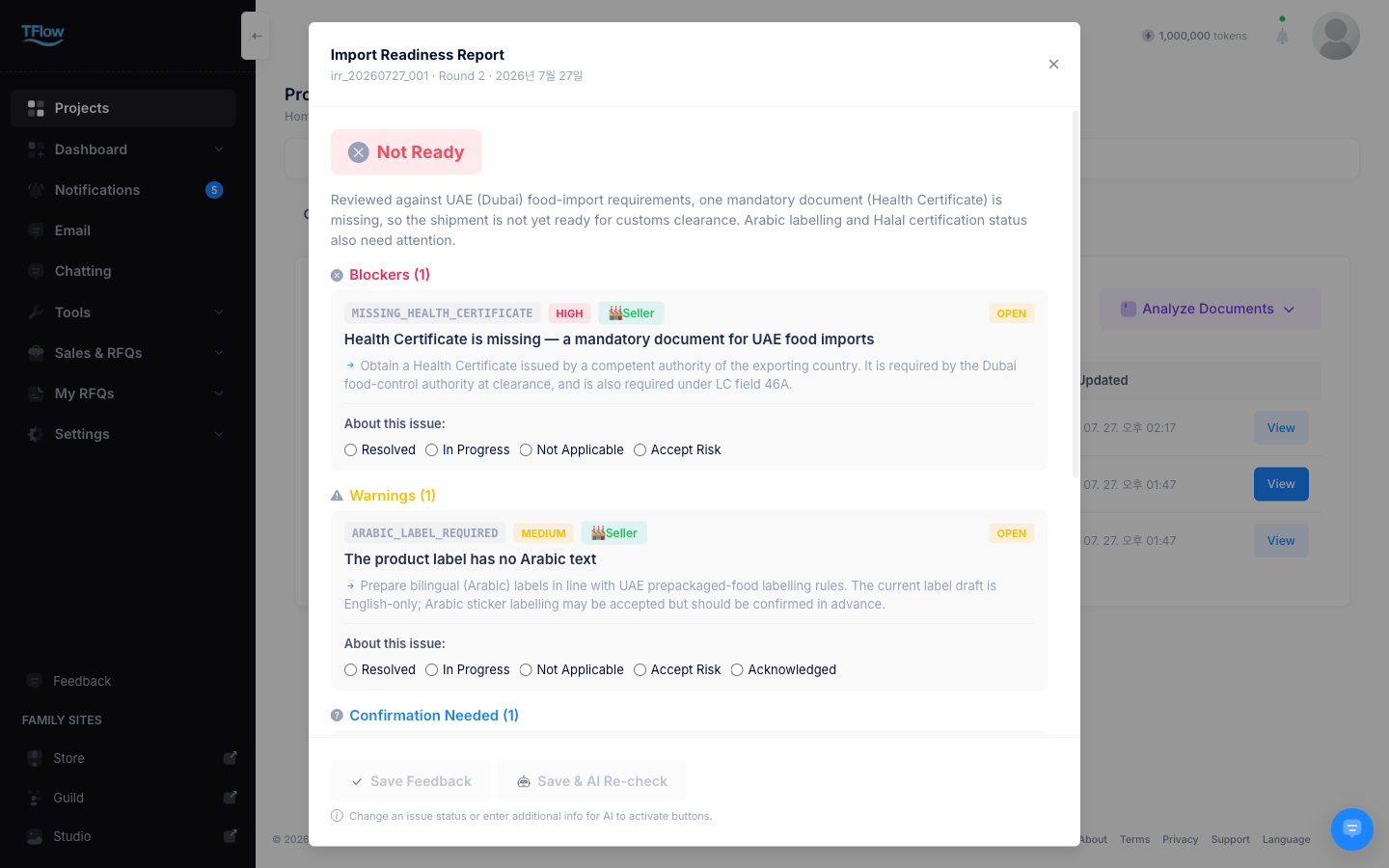
8. Import Readiness Review (IRR) — "Are We Ready for Customs Clearance?"
This comprehensively reviews a project's trade documents and import requirements to provide a report on customs-clearance readiness. The review runs in 6 steps, and the progress window lets you check each step's progress and intermediate results as they come in. ✨ 2026-04 update
6-Step Review Process
- Data collection: Collect project information, document list, and trade data
- Document cross-verification: Check whether quantities, amounts, and item names match across the LC, CI, PL, and BL
- Import requirement search: Look up required documents, certifications, and regulations by destination country and item (with source citations)
- Issue classification: Classify discovered problems into 3 levels (Blocker/Warning/Confirmation Required)
- Verdict determination: Determine the final import readiness status
- Report generation: Build the comprehensive report and save it to the reports list
💡 Reviewing intermediate results: A result is added to the progress window as each step completes, so you can preview some results even before the full analysis finishes. Even if you leave the page mid-analysis and come back, it picks up in the Reviewing state so your progress is not lost.
💡 Source traceability: Each requirement and regulation result is linked to its source (government site, official document), so you can immediately review the basis for the verdict.
Verdict Results
| On screen | Meaning |
|---|---|
| Ready | Ready for import — no issues |
| Ready with Warnings | Ready, but there are cautions |
| Not Ready | There are issues that block clearance |
| Confirmation Required | Some items need a human decision |
| Insufficient Data | Key documents are missing, so no verdict is possible |
Issue Types
| Type | Meaning | Example |
|---|---|---|
| Blocker | Import not possible as-is | "Health Certificate missing" |
| Warning | Worth checking | "Label mismatch between documents" |
| Confirmation Required | A person must decide | "HS Code accuracy verification required" |
Try Saying This
- 💬 "Is this project ready for customs clearance?"
- 💬 "Review the import readiness status"
- 💬 "Check whether it meets Dubai's import requirements"
- 💬 "Cross-verify the documents"
⚠️ HS Code recommendations are reference guidance only and have no legal effect. For final HS Code determination, confirm with a customs broker or the competent customs office.
9. Python Analysis — "Analyze the Data"
Lyra runs calculation code in an isolated, secure environment to do data analysis, statistical calculations, and visualization for you.
It handles spreadsheet-style calculations, statistics, charts, and building Excel files.
Usage Examples
| Use | Example request |
|---|---|
| Data analysis | "Give me statistics on this sales data" |
| Chart generation | "Draw a graph of trade volume by country" |
| Statistical calculation | "Calculate the quarterly mean and standard deviation" |
| Data processing | "Clean up this CSV and turn it into Excel" |
Try Saying This
- 💬 "Analyze this data and make a chart"
- 💬 "Draw a graph of quarterly sales trends"
- 💬 "Do a statistical analysis of these numbers"
- 💬 "Visualize the lookup results as a chart"
💡 For security, external network access and system command execution are restricted. It is an environment optimized for data analysis and visualization.
10. Knowledge Search — "Tell Me About UCP 600 Article 14"
This searches TFlow's internal knowledge base for system usage, trade regulations, and practical knowledge. It provides verified, accurate information rather than external web search.
Search Modes
| Mode | Search scope | Example |
|---|---|---|
| Help | Page usage, FAQs, feature guides | "How do I use this screen?" |
| Regulation | UCP 600, ISBP, LC dispute cases | "The content of UCP 600 Article 14" |
| Trade | Trade documents, HS Code, import requirements | "Tell me the Dubai import procedure" |
Try Saying This
- 💬 "What can I do on this screen?"
- 💬 "Explain what this field is"
- 💬 "Tell me cases related to UCP 600 Article 14"
- 💬 "What is a Commercial Invoice?"
- 💬 "Give me the import checklist for tomato sauce"
💡 Lyra automatically recognizes the screen you are currently viewing and prioritizes help relevant to that page.
11. Web Search — "Show Me the Latest Exchange Rate"
When you need up-to-date information that is not in the internal knowledge base, Lyra performs a web search. It is used for information that changes in real time such as exchange rates and fuel prices, recent regulation changes, and reading the content of a URL you attach — and the results always come with their source URLs.
When to Use
| Situation | Example |
|---|---|
| Real-time information | Exchange rates, oil prices, commodity quotes |
| Latest regulations | Regulation changes, new policies |
| External information | Partners, products, country-specific policies |
| URL reading | Checking the content of a specific web page |
Try Saying This
- 💬 "Tell me today's USD/KRW exchange rate"
- 💬 "Are there any recent changes to Dubai's import regulations?"
- 💬 "Read the content of this link" (with a URL attached)
⚠️ Web search results come from external sources, so they may be less accurate than the internal knowledge base. Verify the source of important information. Lyra always provides the source URL alongside its answer.
12. HS Code AI Classification — "Give Me the HS Code for This Product"
Enter a product description, and the AI automatically recommends a suitable HS Code. It supports everything from the international 6-digit HS Code to country-specific extended codes such as Korea (HSK 10-digit) and UAE/GCC (8-digit).
How the recommendation works
It pulls the material, use, form, and processing state out of your product description → finds the candidate codes that match → cross-checks them against past advance rulings → and presents the best fit with its rationale. The more detailed your description, the more accurate the result.
ℹ️ The product description must be at least 2 characters long.
Supported Countries
| Country | Code system | Digits |
|---|---|---|
| International common | HS Code (WCO) | 6-digit |
| Korea | HSK (Harmonized System of Korea) | 10-digit |
| UAE/GCC | GCC Common External Tariff | 8-digit |
Try Saying This
- 💬 "Give me the HS Code for a semiconductor wafer"
- 💬 "Classify the Korean HSK code for a lithium-ion battery"
- 💬 "What is the HS Code for tomato sauce when importing to Dubai?"
- 💬 "Check the HS Codes for the products in this CI"
HS Code Search Screen
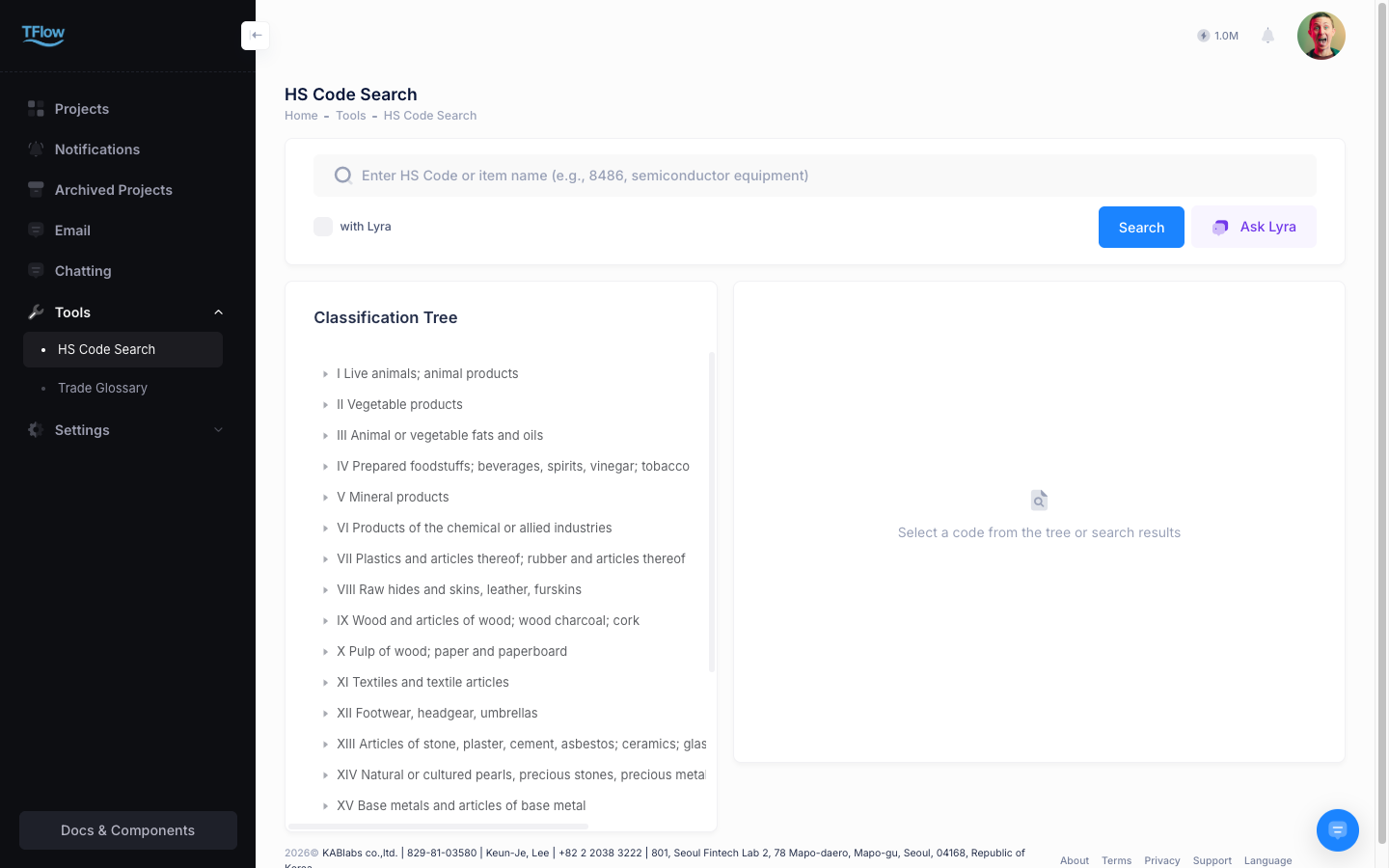
In addition to the Lyra chat, HS Code search is also available directly on a dedicated search screen.
- Select the HS Code menu in the left menu, or ask Lyra to "Open the HS Code search screen."
- Enter a product description, and the AI shows a list of recommended HS Codes in card form.
- Each card displays the code, item name, tariff rate, and classification rationale.
⚠️ AI HS Code recommendations are reference guidance only and have no legal effect. For final HS Code determination, confirm through a customs broker or an advance ruling from the competent customs office.
FAQ
- Q: "Multiple HS Codes came up — which one should I use?"
- A: The AI sorts them by confidence. Review the top recommendation first, but if there are similar candidates, choose the code that best fits your product's characteristics. If you're unsure, we recommend confirming with a customs broker.
- Q: "No code that fits my company's product came up."
- A: Try entering a more specific product description. For example: "plastic bottle" → "transparent 500ml PET beverage bottle, cap not included." Including material, use, size, and processing state improves accuracy.
13. Trade Term Search — "What Is FOB?"
This searches TFlow's built-in trade term dictionary of 841+ Korean/English trade terms. It provides not only the term's definition but also related terms and practical usage.
Search Methods
- Full-text search: Searches across the term name, abbreviation, and description text
- Semantic search: Also recommends semantically similar terms
- Related term exploration: Automatically displays connected terms based on the knowledge graph
Try Saying This
- 💬 "What is FOB?"
- 💬 "Tell me the difference between CIF and CFR"
- 💬 "What does L/C at sight mean?"
- 💬 "What is a surrender B/L in trade?"
- 💬 "Tell me the types of Incoterms"
Glossary Screen
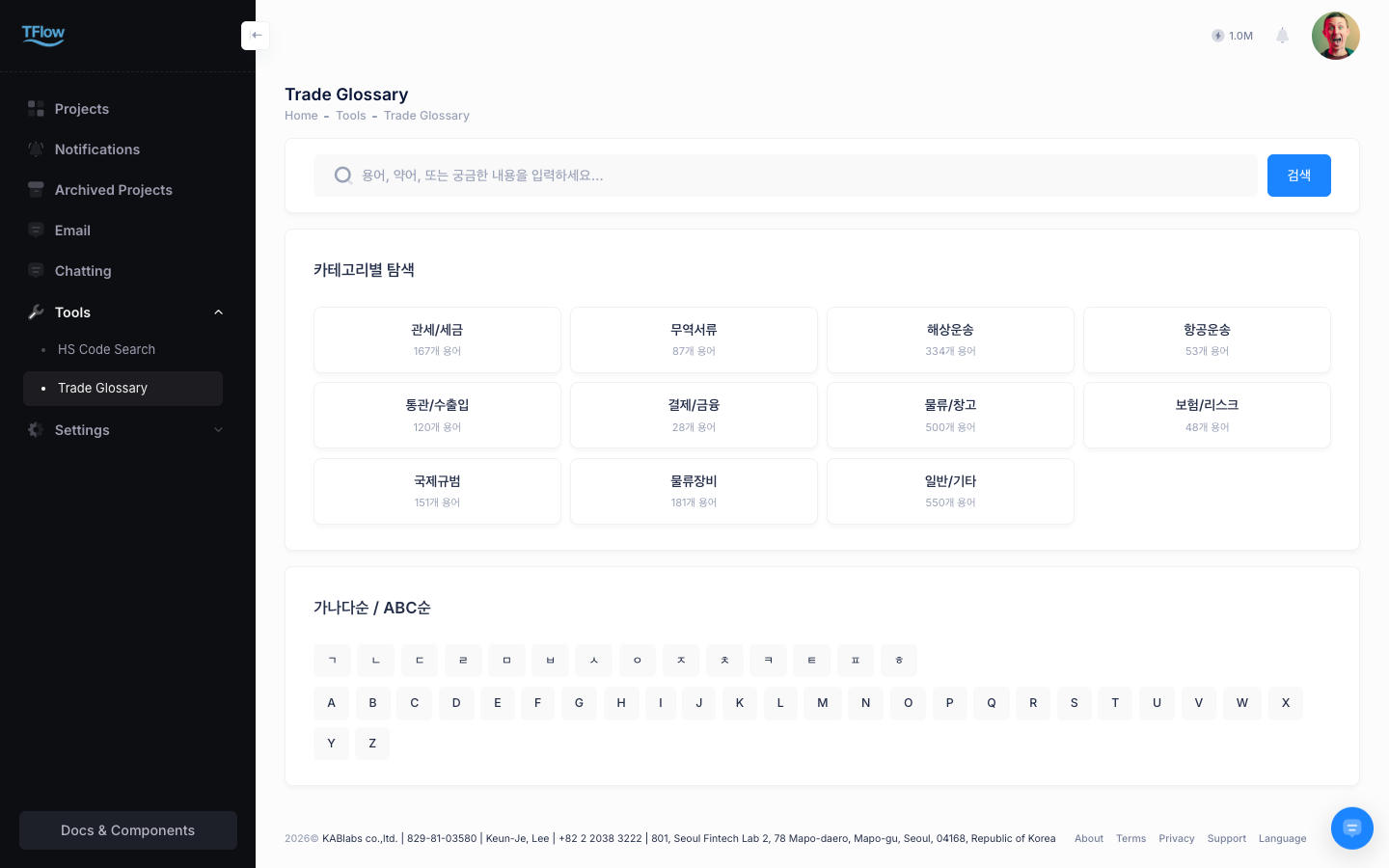
In addition to the Lyra chat, you can explore terms by category on a dedicated term search screen.
- Select the Glossary menu in the left menu, or ask Lyra to "Open the glossary."
- Explore by category: Incoterms, payment methods, transport, insurance, customs, documents, and more
- Real-time autocomplete and result display as you type a search term
💡 When you ask Lyra a single-term question like "What is FOB?", it looks up the definition in the glossary. When you need term comparisons, practical context, or detailed explanations, it answers from knowledge search instead.
If you are told the concept was not found, try searching the full name instead of the abbreviation (or the other way round).
Term Search vs. Knowledge Search — What's the Difference?
| Single-term definition | Practical explanation / comparison | |
|---|---|---|
| Use | Single-term definitions, abbreviation lookups | Term comparisons, practical explanations, procedures, requirements, regulations |
| Example | "What is FOB?", "Meaning of L/C" | "Difference between CIF and FOB", "What about insurance under FOB terms?" |
| Result form | Term name, short definition, abbreviation | Checklists, guides, regulatory basis, detailed explanations |
FAQ
- Q: "I only know the English abbreviation — can I still search?"
- A: Yes. You can search by abbreviation (e.g., B/L, AWB, T/T), the full English name, and the Korean name.
- Q: "The term explanation is too brief."
- A: The default explanation on a term card is a summary. If you ask Lyra a follow-up like "How is this term used in practice?", you'll get a more detailed answer with practical examples.
14. Automatic BL Correction — "Correct This BL"
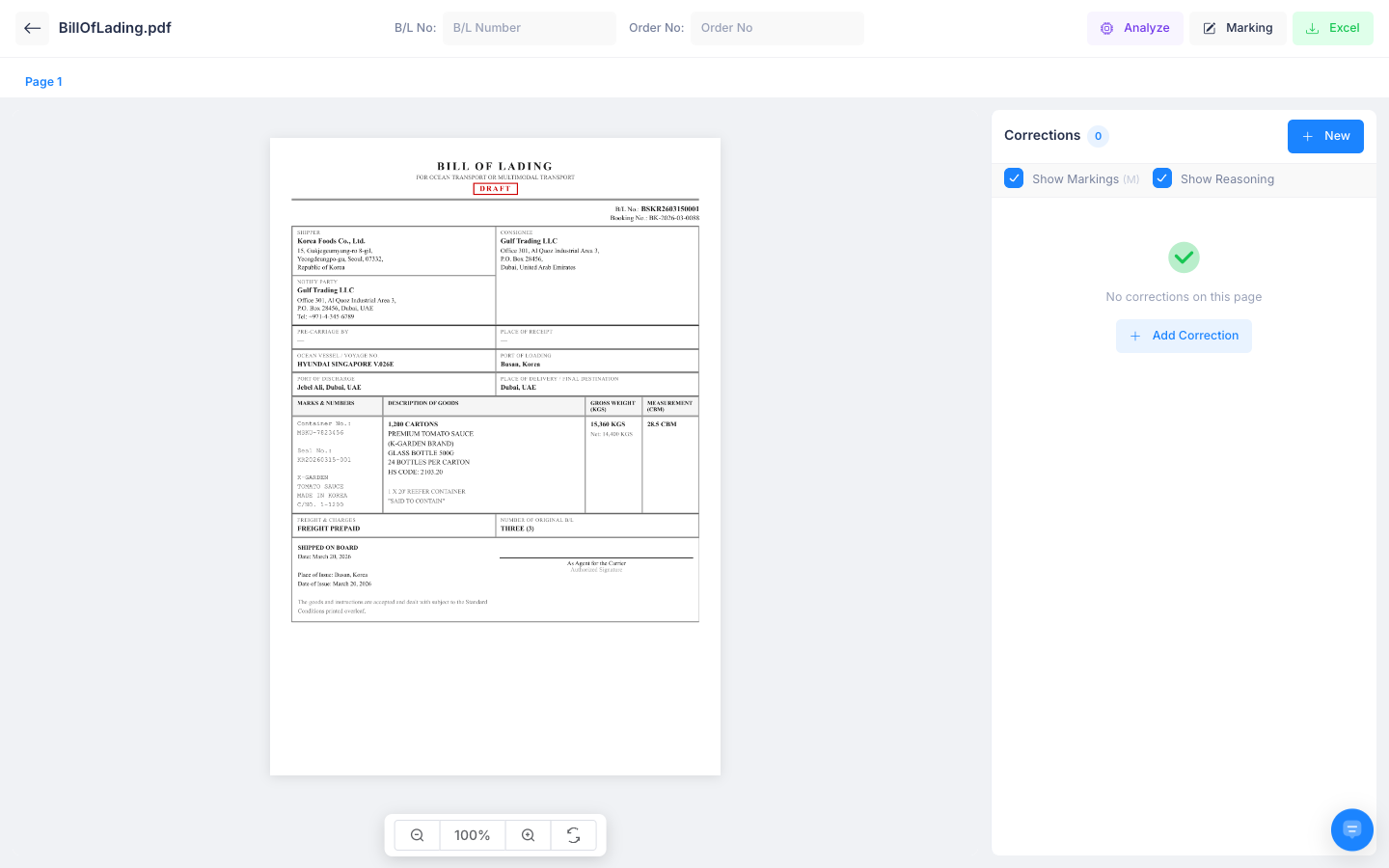
This automatically compares a B/L (Bill of Lading) registered to a project against reference documents (LC, PL, CI), identifies items that need correction, and generates correction suggestions.
How It Works
- The AI compares the B/L content against the project's reference document chain (LC → PL → CI).
- It automatically detects mismatched or missing items.
- For each item, it generates a correction suggestion (REPLACE/ADD/DELETE).
- You can visualize the results as a red-pen markup PDF or review them as a correction list.
Correction Suggestion Types
| Type | Description | Example |
|---|---|---|
| REPLACE | Replace an existing value with the correct value | Fix a typo in the Consignee name |
| ADD | Add missing information | Add a missing Notify Party |
| DELETE | Delete unnecessary or incorrect information | Delete an incorrect reference number |
Try Saying This
- 💬 "Correct the BL for this project"
- 💬 "Compare the BL and LC content and tell me what's wrong"
- 💬 "Check the Bill of Lading for errors"
Reviewing Results
- Correction list view: Correction suggestions are organized into a table. You can review each item's current value, correct value, and reason for correction.
- PDF markup view: Correction locations are visually marked with red-pen annotations over the original B/L.
- Excel export: You can download the correction details as an Excel file.
💡 For BL Correction analysis, only users with the Seller role can edit corrections; Buyers can only view the results.
When it gets blocked
| What you see on screen | What to do |
|---|---|
| "Document is not a Bill of Lading" | Correction only works on documents classified as a B/L. Set the document type to B/L and try again. |
| "Document analysis not completed" | You can only correct a document after its analysis has finished. Wait until the document list shows Analyzed. |
| "Only seller with editor role or above can …" | Running and saving corrections is limited to an editor on the seller side. Ask the project owner for the role. |
| "Document not found" · "Access denied" | You are not a member of this project, or the document was deleted. Check with the project owner. |
FAQ
- Q: "There's no BL yet — can I still run correction analysis?"
- A: No. A B/L document must be registered to the project. You also need at least one reference document to compare against (one or more of LC, CI, PL).
- Q: "Can I apply the correction results directly to the B/L?"
- A: The correction suggestions are for reference; the actual B/L revision must be requested from the shipping line. Export the correction list to Excel and send an amendment request to the shipping line.
15. LC Risk Analysis (LEO) — "Analyze the Risk of This LC"
LEO (Letter of Credit Evaluation through Ontology-driven Inference) is an engine in which the AI automatically analyzes the risk of a Letter of Credit (LC). Based on UCP 600 rules, ISBP standards, and past dispute cases, it proactively detects potential problems in an LC.
What it checks
LEO checks an LC from five angles in turn.
| What is checked | Details |
|---|---|
| Required items | Missing fields, format errors |
| Internal consistency | Contradictions between fields, ambiguous wording |
| Rules and precedents | Related UCP / ISBP articles and past dispute cases |
| Overall judgment | Risk level and links to the source documents |
| Double-checking | A second pass that filters out items flagged in error |
Risk Report
The analysis results are provided as a report containing the following items:
- Discrepancy list: Detailed descriptions for each discovered mismatch/risk item
- Risk level: HIGH / MEDIUM / LOW rating
- Source documents: The UCP article, ISBP rule, and similar dispute cases for each risk
- Confidence score: The final confidence after EVA verification
Try Saying This
- 💬 "Analyze the LC risk for this project"
- 💬 "Show me the LC verification results"
- 💬 "Check whether there are any risky terms in the LC"
Requirements
- An LC document must be registered to the project
- The LC document's analysis must be complete (check the status in the document list)
💡 LEO analysis can run automatically upon document registration, or you can request it yourself. If you have connected an external AI chatbot, you can pull the results from there too. → MCP integration guide
FAQ
- Q: "The LC is still being analyzed — can I see the LEO results?"
- A: LEO analysis is only possible after the LC document's analysis is complete. You can check the analysis status in the document list.
- Q: "Are there cases where an item LEO flagged as risky is actually fine?"
- A: The final double-checking pass filters out items flagged in error, but the final judgment must be made by an expert. Use the LEO results as a review aid.
16. During a tutorial, Lyra finds the button and can press it for you ✨ NEW
While you are in a tutorial (Coach mode), Lyra does not just say "click here" — it points at the button on screen, and can press it for you.
- It works only inside tutorials. In normal conversation Lyra shows you where the button is and you click it yourself.
- Ask "Where is the Save button?" and it highlights that button on screen.
- Before pressing anything for you, a confirmation prompt always appears. Irreversible actions such as delete or payment are never done for you.
Try Saying This
- 💬 "Where is the Save button here?" → it points out the button on screen
- 💬 "Turn on the Publish toggle" → it presses it for you after a confirmation prompt
- 💬 "What should I enter in this field?" → it explains that field's label, example, and whether it is required
FAQ
- Q: Does it also click buttons for me outside tutorials?
- A: No. In normal conversation, Lyra only shows you where things are (highlights), and you click yourself.
- Q: How does it choose when there are multiple buttons?
- A: Lyra combines the label, position, and description to propose the most likely candidate, and if it's ambiguous, it asks you back, "Do you mean A or B?"
- Q: How do I make sure it doesn't accidentally press an important button like Save?
- A: Every action requires your confirmation first, and irreversible actions (delete, payment execution) are never carried out for you.
17. Composite Workflows — Combining Multiple Capabilities
Lyra's true value is that it can combine multiple capabilities to handle complex tasks in one go.
Representative Workflows
Creating a CI based on a PO
- Attach a PO (Purchase Order) file for analysis
- Navigate to the CI (Commercial Invoice) creation screen
- Autofill the CI form based on the PO analysis data
Export after document analysis
- Analyze the attached file (data extraction)
- Export the extracted data to Excel
Comprehensive import readiness review
- Collect all project documents
- Cross-verify the documents
- Search import requirements
- Generate a comprehensive verdict report
HS Code check + import requirement research
- Classify the HS Code from the product description via AI
- Automatically search the destination country's import requirements using that HS Code
- Provide a checklist of required documents and certifications
BL correction + drafting a shipping-line request email
- Run correction analysis between the B/L and reference documents
- Export the correction details to Excel
- Draft an amendment request email to send to the shipping line
Try Saying This
- 💬 "Analyze this PO and fill in the CI form"
- 💬 "Analyze the attached file and export the results to Excel"
- 💬 "Review all the project documents and tell me whether we can clear customs"
- 💬 "Find this product's HS Code and check Dubai's import requirements"
- 💬 "Correct the BL and draft an email to send to the shipping line"
💡 For composite requests, Lyra automatically executes the necessary steps in order. If confirmation is needed along the way, Lyra will ask.
Frequently Asked Questions (FAQ)
- Q: "What's the criterion for what Lyra can and cannot do?"
- A: Lyra can perform tasks such as information lookup, analysis, form-fill suggestions, and data export. However, hard-to-reverse actions such as executing payments, concluding contracts, or changing data in external systems require user approval or are not supported.
- Q: "Can I ask Lyra to do several things at once?"
- A: Yes. If you make a composite request like "Analyze this file and register it to the project," Lyra will handle it in order.
- Q: "Can I make requests in English too?"
- A: Yes. Lyra supports both Korean and English. It responds naturally in the language you use.
- Q: "A value Lyra recommended seems wrong."
- A: Lyra's suggestions are AI-based, so they are not always 100% accurate. Select Decline or edit the value manually. Always verify important data before use.
- Q: "I want to cancel a task I asked Lyra to do."
- A: For form autofill, pressing Decline prevents it from being applied. If it has already been applied and you haven't saved/submitted yet, you can refresh the page to return to the original state.