Spaces · Visibility · Storage
When you can only view — what to do
The status line at the top of the editor says why you can only view.
| Status line | What to do |
|---|---|
| Phone view is read-only | Tap PC version in the top bar to edit (Using Office on a phone or tablet) |
| View only — no license seat | Ask your company Master to assign you a license (License) |
| View only — storage is full | Move files you no longer need to the trash, then press Delete forever there to free the space right away. For company storage, the Master checks the plan |
| View only — shared through a project | You see it through a project link. Ask the document manager if it needs changes |
My files and the company space
Office files live in one of two places.
- My files — only you can view and edit them. You get 100MB regardless of licenses
- Company — files the company manages. They use company storage and stay with the company even if you leave
New files (blank, template, upload, opening a PC file) are created in the company space as "Only me". Only you see them at first; widen the visibility to work together. If you have no company seat or the company space can't be used, they go to My files. A company file's owning department is the creator's current department.
Moving a file from My files to the company
To work on one of your files with your team, move it to the company.
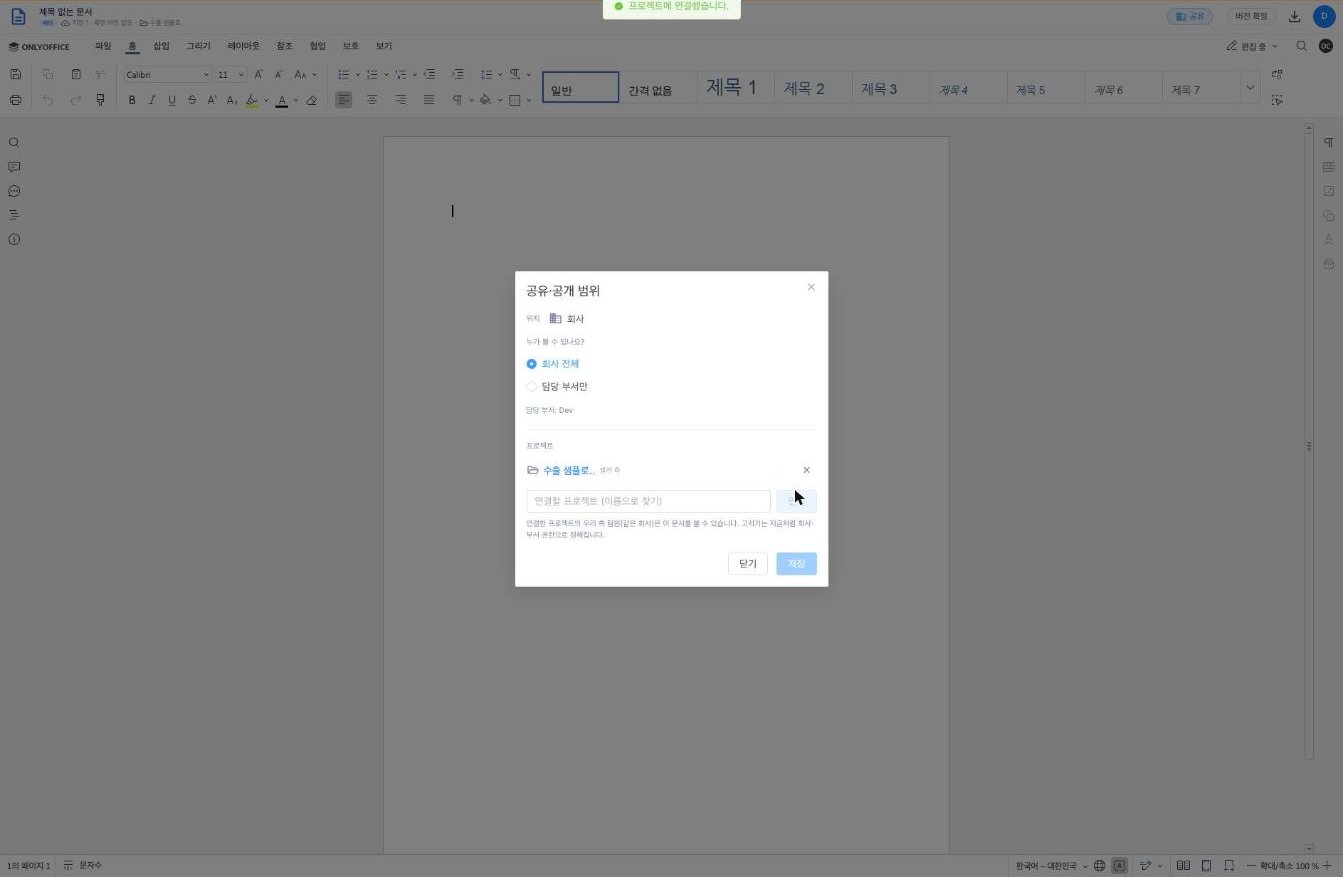
- Press ⋮ → Share & visibility on the file, or Share in the editor
- Press Move to company and confirm
⚠️ Once it is a company file, the company manages it and it can't go back to My files. Your department becomes its owning department.
Who can see it — setting visibility
For company files, set Who can see it? in the Share & visibility window. You can widen or narrow it at any time.
- Only me — only the author can view it (default for new files). It's a company file, so it uses company storage
- Owning department only — only people in the owning department can view it
- Everyone in the company — everyone in the same company can view it
A file with no owning department can't be set to "Owning department only". Only the author or the owning department can change visibility, and only the author can set it to "Only me". For others, the choice is locked. If the author leaves the company, their "Only me" files are taken over by the owning department and shown as owning-department files (or to the whole company if there is no owning department).
Who can edit it — license seats
- My files — only the owner edits
- Company files — people who can view it and have a license seat can edit. Without a seat you can only view
- Renaming is for anyone who can edit (has a seat)
- Managing a file — changing visibility, linking projects — needs a seat, and you must be the author or in the owning department
- Moving to trash (deleting) is for the author only. If the author has left the company, people in the owning department can delete it. For files made by others you can only Remove from my list (below)
Trash — restore within 30 days · delete forever now
⋮ → Move to trash moves a file to the trash. You can restore it within 30 days; after that it is deleted forever.
- See the trash from ☰ menu → Trash. The Auto-delete column shows how many days are left
- Restore puts the file back where it was
- Delete forever asks once more, then deletes it right away. It can't be restored, and the space is freed immediately
- Files in the trash count toward storage until they are deleted
- Your trash shows files you created, plus your department's files whose author has left the company
Files shared with you — remove from my list
For files made by others, the ⋮ menu has Remove from my list instead of Move to trash.
- The file isn't deleted — it only leaves your home list. The author and others still see it
- To bring it back, choose Anyone ▾ → Removed from my list on the home screen, then ⋮ → Add back to my list. Opening the file again also brings it back
- This works like Google Docs, where "deleting" a file you don't own only removes it from your list
When storage is full
Under the ☰ menu, Storage shows how full My files and the company space are.
When a space is full it shows "Full — view and download only", and files in that space can only be viewed and downloaded.
- Files in the trash take up space until they are deleted. Delete forever in the trash frees it right away
- Download important files to your computer first with Download
- If company storage runs short, tell your company Master
For Masters — company storage
The company space limit depends on the plan.
| Company status | Company space limit |
|---|---|
| Paid subscription | 100GB per paid license × number of licenses + extra storage |
| Trial | 100MB |
| No subscription | None — existing company files are view and download only; new files go to My files |
- The whole company shares the limit. There is no per-person cap
- My files 100MB is separate from the company limit and follows each person regardless of licenses
- Check plans in Subscription · Billing
For Masters — the Manage storage screen
Open ☰ menu → Storage → Manage storage for details.
- Company storage — used / total, and whether it is full
- Extra storage — extra space you have and until when
- My files — your personal usage
- Usage by member — how much each member uses. Only the company Master sees this
If you see "Display only for now", the company limit currently counts Office documents only.
💡 Troubleshooting (FAQ)
Q. My colleague can't see my file. A. New files start as "Only me". For a company file, widen it to Owning department only or Everyone in the company in Share & visibility. For one of My files (personal space), use Move to company so people in your company can see it. Linking a personal file to a project still keeps it visible only to you.
Q. What happens to files when I change department? A. A file keeps its owning department. Files set to "Owning department only" are no longer visible from your new department. Access is checked against your current department every time you open a file.
Q. Can I delete a file forever straight from the trash? A. Yes. Press Delete forever in the trash to delete it right away. It can't be restored, so you'll be asked to confirm. Otherwise it is deleted automatically after 30 days.
Q. I can't delete a file my teammate made. A. Only the author can delete a file (move it to the trash). To hide it from your home, use ⋮ → Remove from my list. If the author has left the company, people in the owning department can delete it.
Q. Can I make a company file visible only to me again? A. Yes. If you are the author, choose Only me in Share & visibility. It stays a company file and uses company storage. Anyone else who had it open in the editor is disconnected shortly.