Free LC Review (LC Checker)
Free LC Review (/lc) is a free trial where AI analyzes your Letter of Credit (L/C) documents step by step when you upload them. It lets you quickly sanity-check a complex L/C before signing a contract.
💡 Who is it for? Anyone who wants to check a received L/C draft for problems, or compare a draft against the actual issued L/C to see what changed. Also anyone who wants a light, hands-on trial before adopting the full TFlow service.
ℹ️ Visibility conditions — Free LC Review is a beta feature that is still open only in some environments, so it may not appear. In addition, accounts that already hold a TFlow license (subscription) will not see the Guild's L/C entry point and are directed to use the main service instead (see Eligibility below).
On screen, Step 1 (draft review) and Step 2 (issued-LC identity check) sit side by side, with Step 3 (shipping-document consistency check) below them. On mobile they stack top to bottom. The top right shows the cumulative number of Letters of Credit analyzed alongside your remaining free usage.
1. Entry Points
Logged-in users without a license can enter LC Review from the following places.
| Location | Description |
|---|---|
| Top banner | A blue gradient strip below the header — "Automated Letter of Credit (L/C) review — now right inside the Guild" + Start LC Review. Don't show today hides it until midnight the same day |
| Left sidebar | Tools → 📄 LC Review Beta |
| Partner Spotlight | When there is no store seller to feature, an "Automated LC Review" promo card may be shown instead |
2. Eligibility (Gate)
If you saw the yellow "Licensed accounts should use TFlow" card — run the review in the main TFlow service instead. The main app link on that card takes you to the full project-based LEO analysis, including shipping-document consistency review. If it says "No linked TFlow account" — log out and sign in again with your TFlow account.
Here is what each state looks like.
| State | Screen |
|---|---|
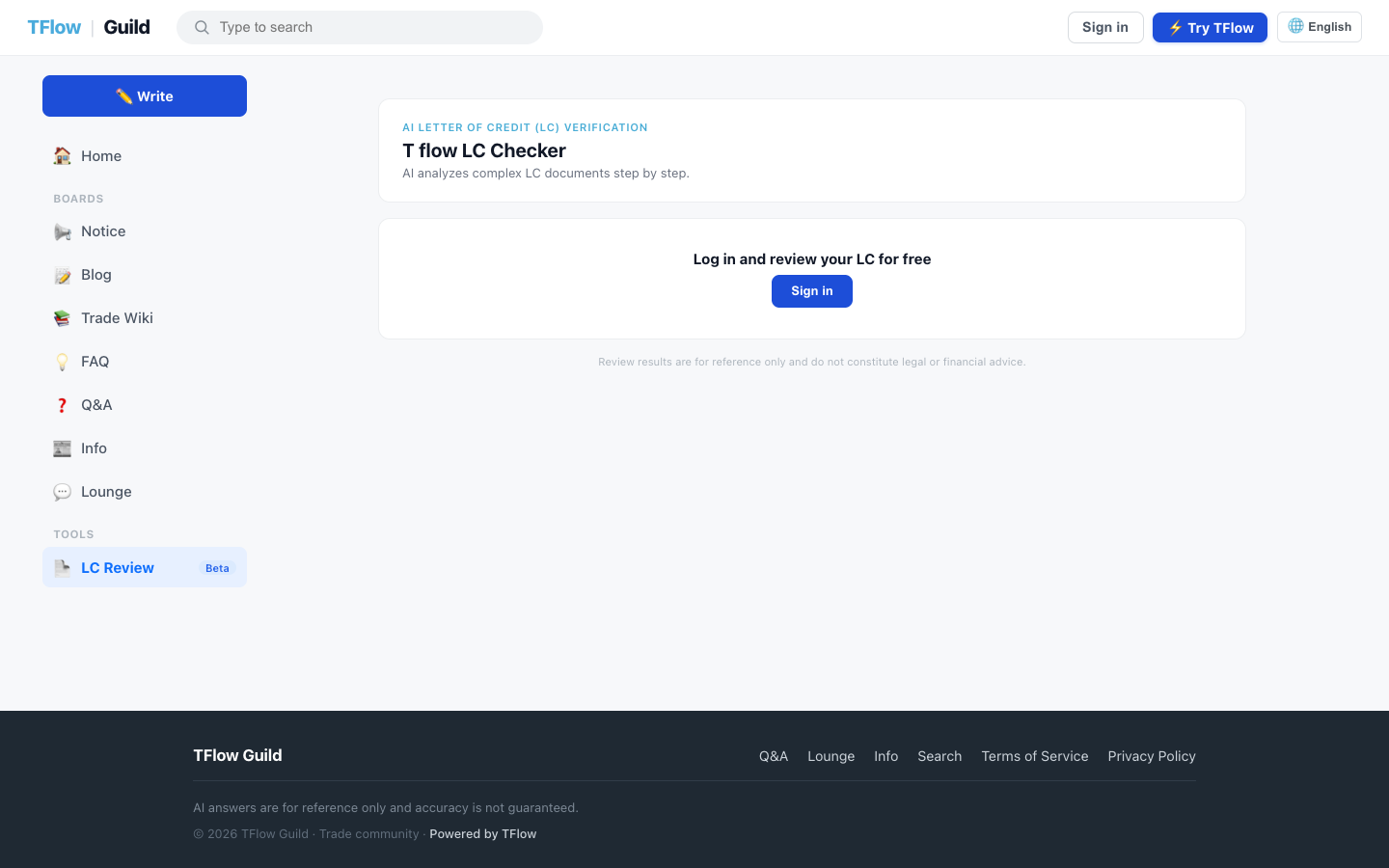
| Not logged in | "Log in to review your L/C for free" + login button |
| Logged in · no license | Free review available (proceed with the steps below) |
| Logged in · has license | Yellow card "Licensed accounts should proceed in TFlow" + main app link. The full project-based LEO analysis (including document consistency review) is available in the main TFlow service |
ℹ️ Licensed accounts cannot run the free review in the Guild. Please use the more powerful L/C analysis in the full service.
3. Step 1 — Draft Review (LEO Discrepancy Report)
Upload a single received L/C draft. After document parsing, the LEO engine's discrepancy risk analysis runs automatically — the same report format as "LC Discrepancy Check (LEO)" in the main TFlow service.
- Select LC file — Choose a file under "Select LC file (PDF · JPG · PNG)".
- Data-use consent (optional) — Checking this increases your free usage count (see below).
- Start Review → — Analysis begins. Progress refreshes automatically about every 6 seconds.
- Check the status badge in your My Reviews list: Analyzing → Risk analysis → verdict badge (e.g., HIGH RISK) or Failed.
- Click a completed item to open the LEO discrepancy report viewer — original page images on the left, the report on the right.
What the LEO report includes (Step 1)
- Overall verdict — LOW RISK / MEDIUM RISK / HIGH RISK / CRITICAL etc. plus a summary
- Issue cards — Grouped as Blocker (critical discrepancy) · Warning · Confirm Needed, each showing severity, the MT700 field, UCP600 clause / dispute-case citations, and a recommended action
- Amendment Request — The full amendment request draft for your bank
💡 Trial scope — Recording feedback per issue (Resolved / In progress / Not applicable) and Save & AI re-review are main-service features. They appear locked in the free review, and clicking them opens guidance to the main service.
⚠️ If the uploaded file is not a Letter of Credit, a "Determined to be a non-LC document" warning is shown, and that document opens in the field extraction viewer instead of LEO. If not enough information can be extracted from the document, the risk analysis may be marked as failed.
🖼️ Screen capture Step 1 — file selection + data-use consent checkbox + Start Review / "My Reviews" list (Analyzing/Complete badges) + report panel 📍
guild.tflowx.com/lc· saved atimages/guild/lc-step1-review.png
4. Step 2 — Issued-LC Identity Check
Put the Letter of Credit you reviewed in Step 1 (the baseline) next to the actual issued Letter of Credit (the issued LC) and compare what changed.
- Pick a baseline — Choose one of the Letters of Credit that finished analysis in Step 1. (If there is none: "Finish a review in step 1 first.")
- Provide the issued LC — Two ways:
- Upload new — Upload the issued Letter of Credit right here. It is only parsed, so no review is deducted. It is selected automatically once analysis finishes.
- From reviewed — Pick another document you already reviewed in Step 1.
- Compare documents → — The comparison begins. "Comparing... (up to 3 minutes)" — keep the screen open until it finishes.
- Review the results.
💡 Either way, the only deduction is one comparison, charged when you run the comparison. Uploading the issued LC is free, and is allowed only while you still have comparisons left.
Comparison result structure
- Same-transaction verdict — One of "Judged to be two versions of the same transaction" / "These appear to be different transactions" / "Uncertain whether these are the same transaction"
- Summary
- Changes table — For each item, shows the value in document A, the value in document B, and the impact level:
| Impact | Meaning |
|---|---|
| 🔴 critical | A significant change that must be reviewed |
| 🟡 warning | A change that needs attention |
| ⚪ info | An informational change |
- Amendment needed? — If a condition change is required, you are notified with "An Amendment (condition change) request review is needed" and the relevant items. If there are no changes: "No meaningful changes were found."
🖼️ Screen capture Step 2 — pick a baseline + upload/select the issued LC + Compare documents / same-transaction verdict + changes table (item · A · B · impact) + Amendment notice 📍
guild.tflowx.com/lc· saved atimages/guild/lc-step2-compare.png
4-1. Step 3 — Shipping-Document Consistency Check (Subscription)
Below the two steps there is a Step 3 — shipping-document consistency check card. It matches the invoice, B/L and packing list against the Letter of Credit clauses to catch likely discrepancies before presentation to the bank, and it is part of a TFlow subscription.
The guild only describes it: See what it checks opens a panel explaining what the check covers. The check itself runs in the main TFlow service.
5. Free Usage (Quota)
Free review has a usage limit, and draft review (Review) and issued-LC comparison (Compare) are counted separately. Your remaining count is shown at the top as "Review n/N · Compare n/N".
| State | Review | Compare |
|---|---|---|
| Data use not consented | 3 times | 3 times |
| Data use consented | 10 times | 10 times |
- Once the limit is exceeded, you are notified: "You've used up all your free reviews."
Data-Use Consent
The guidance on the "Data-use consent (optional)" checkbox:
I agree to the use of my uploaded documents for AI quality improvement (training). Company names, personal names, contact details, etc. are anonymized. Consenting expands your free review limit.
Consent is optional; consenting raises your free count from 3 to 10.
6. Nature of Review Results
AI analysis results are reference information for practical use. The nature of AI-generated information and the scope of liability are governed by the Terms of Service. Always consult your bank or a professional before making important decisions.
💡 Troubleshooting (FAQ)
Access and permissions
Q. The LC Review menu/banner doesn't appear at all. A. There are two possible reasons. ① Free LC Review is a beta feature that is still open only in some environments, so it may not appear. ② For accounts that already hold a TFlow license (subscription), the Guild L/C entry point is hidden and you are directed to proceed in the main service.
Q. I have a license, but I'm blocked when I try to review in the Guild. A. Licensed accounts get the "Licensed accounts should use TFlow" notice and cannot proceed in the Guild. Please use the full LEO analysis (including shipping-document consistency) in the full service.
Q. The Compare documents button won't activate. A. You need both a baseline and an issued LC selected, and both must have finished analysis. If you just uploaded the issued LC, wait for its row to change from "Analysing" to "Analysed" — it is then selected automatically.
Review quota and comparison
Q. Does uploading the issued LC use up my free reviews? A. No. The issued LC is only parsed, so no review is deducted. The only deduction is one comparison, charged when you run Compare documents. That said, you cannot upload a new issued LC once your comparisons are used up.
Q. The comparison is taking a long time. A. Issued-LC comparison can take up to 3 minutes. While the "Comparing... (up to 3 minutes)" indicator is shown, please wait and don't close the screen.
Q. I uploaded a file but it says "non-LC document." A. The file was determined not to be a Letter of Credit. Please double-check and re-upload the original L/C (PDF · JPG · PNG).
Q. I want to increase my free usage count. A. Checking Data-use consent raises both the Review and Compare limits from 3 to 10 each. Uploaded documents are anonymized and used only for quality improvement.
Reports and analysis status
Q. The "Save feedback" button in the Step 1 report doesn't work. A. Recording issue feedback and AI re-review are main TFlow service features. The free review covers viewing the report; clicking a locked button opens guidance to the main service.
Q. It stays on "Risk analysis" for a long time. A. LEO discrepancy analysis performs UCP600 compliance review and dispute-case matching, so it can take a few minutes (up to 10). The list refreshes automatically — keep the page open and the badge will change to a verdict when done.