1.3. Project Calendar Guide
This document explains the overall features and usage of the Calendar menu within a TFlow project.
💬 Try it with Lyra
- "Tell me this week's schedule"
- "Are there any tasks due next week?"
- "Export the schedule data to Excel"
Detailed feature guide: Lyra Interactive Features Guide
1. Calendar View Modes (Month, Week, Day)
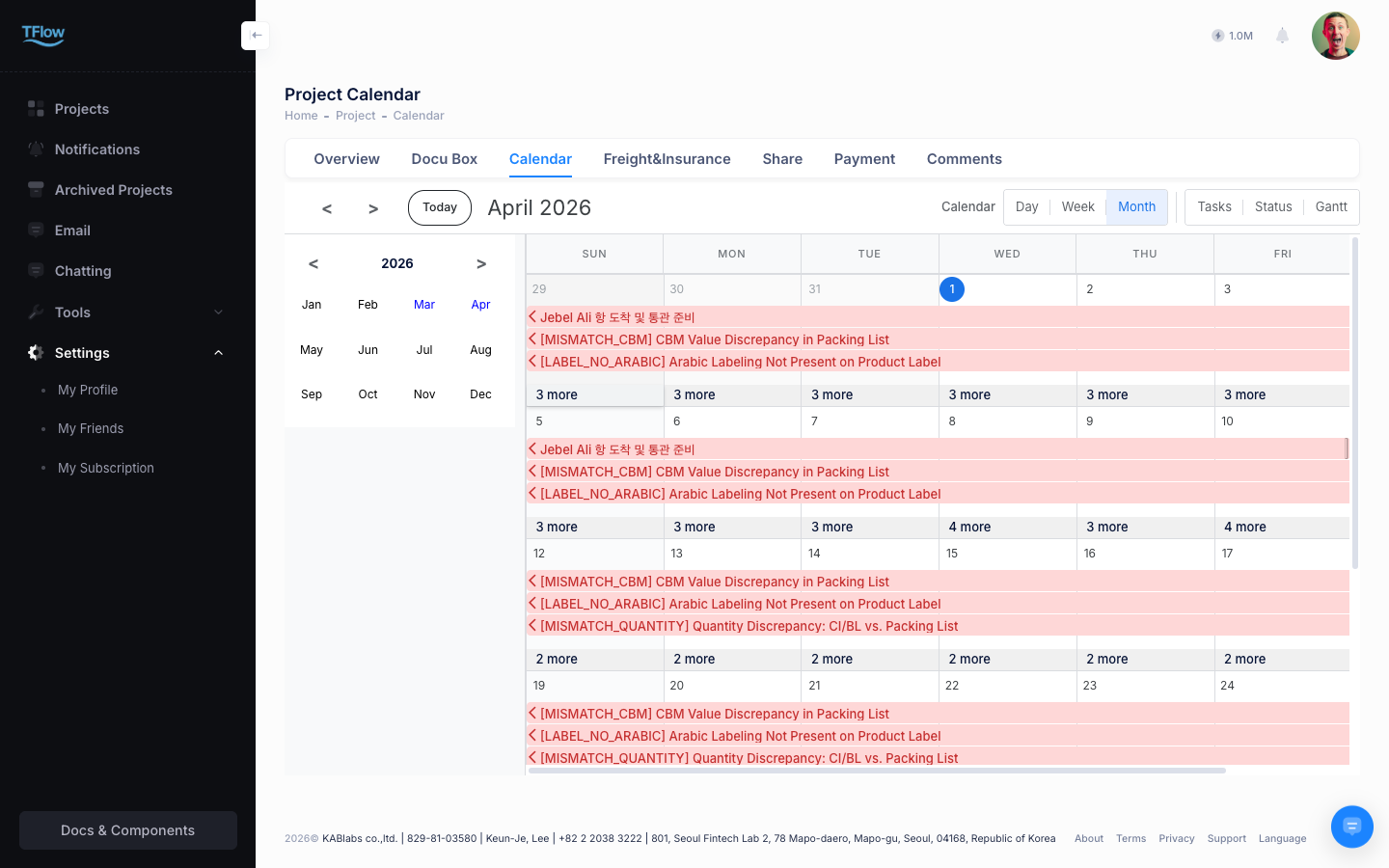
The calendar provides schedules visually in Month, Week, and Day units by default. Select the view button you want at the top right of the screen.
Month view is good for grasping the overall schedule flow.
Week and Day Views
Provide a time-slot grid format for detailed schedule management.
- Instant schedule management: In Week/Day view, clicking the grid of an empty time slot pops up a window to instantly create an event at that time. You can easily change schedules by dragging and dropping schedule blocks.
- Period navigation: Use the
<>buttons at the top left to move between periods, and click theTodaybutton to instantly return to today's date.
2. Task Management Modes (Tasks, Status, Gantt)
Beyond a simple calendar form, it provides detailed task-centered management views. You can select them from the view switch tabs at the top.
Tasks View - List Format
Shows all project tasks in table form so you can manage the details at a glance.
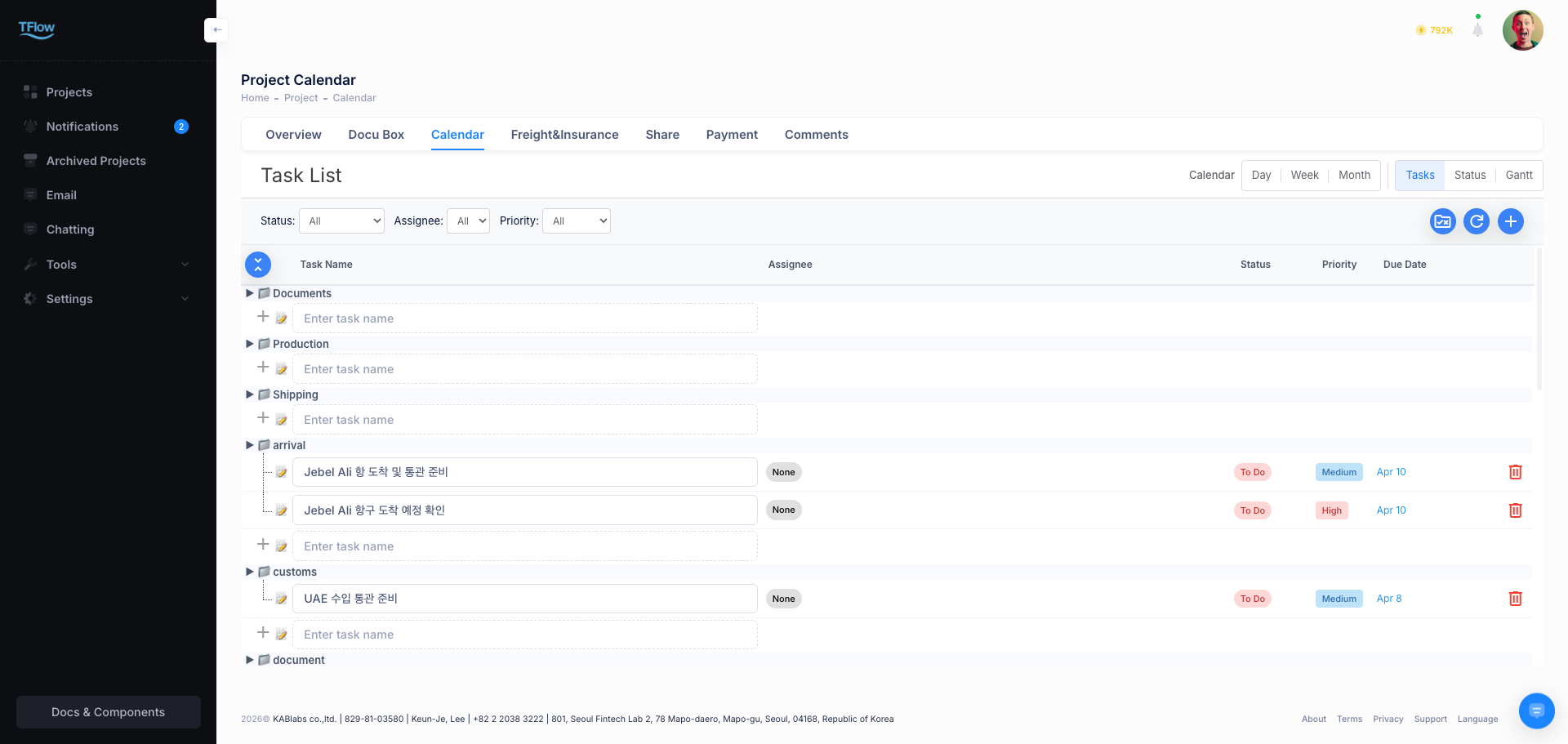
- Check details: You can immediately grasp Status, Priority, assignee (including email), due date, and Progress from the list.
- Task registration and management: Click the blue '+' button at the top right to add a new task directly, and click each row in the list to edit its content.
Status Board View - Kanban Board Format
Classifies cards by task progress stage to aid intuitive workflow management.
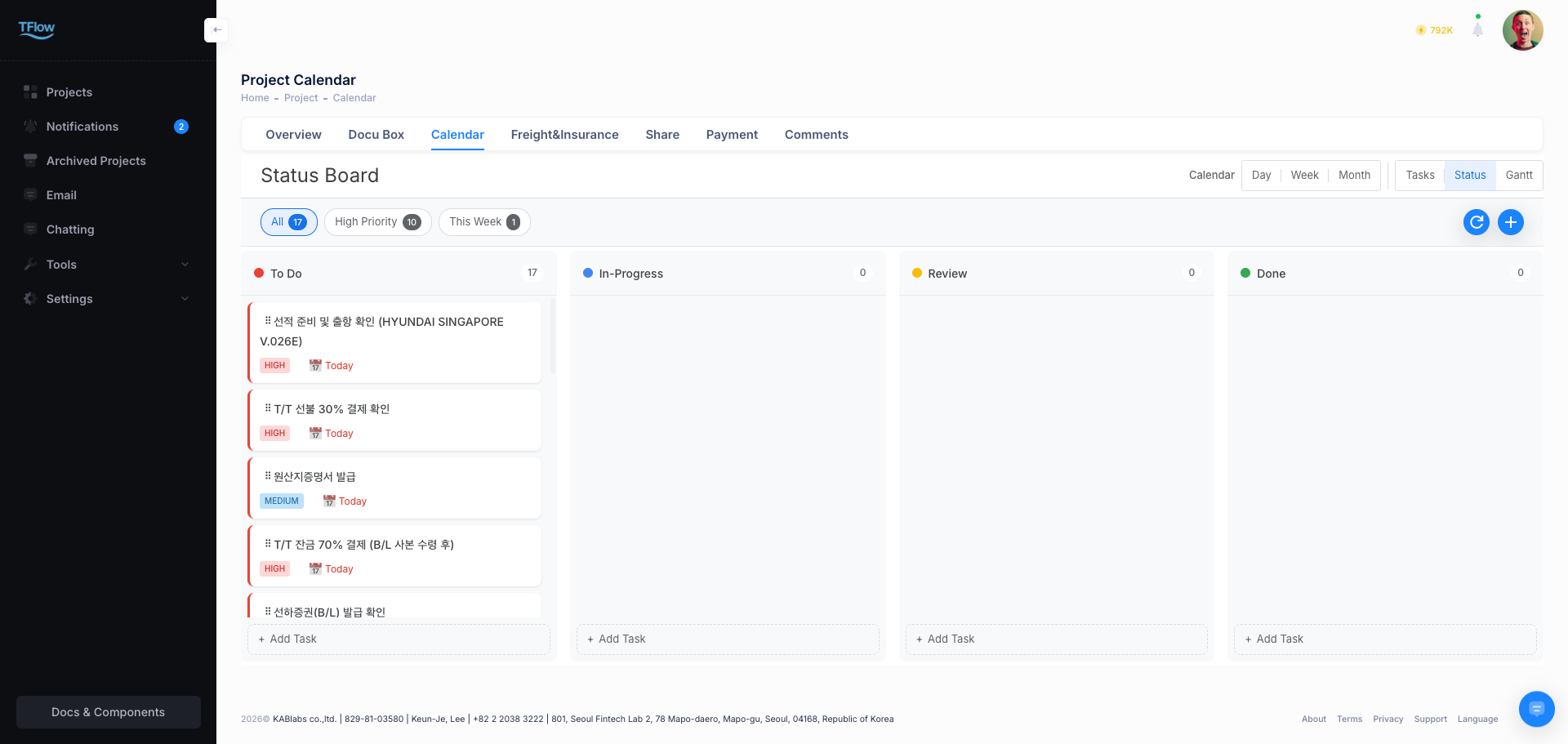
- Card drag changes: Progress-stage columns such as "To Do," "In-Progress," "Review," and "Done" are displayed, and you can quickly update task progress simply by dragging and dropping cards.
- Add task per status: Click the "+ Add Task" text at the bottom of each column to instantly create a task in that stage without navigating to a separate screen.
Gantt Chart View - Timeline Visualization
Good for grasping the overall project timeline, the relationships between tasks, and their durations.
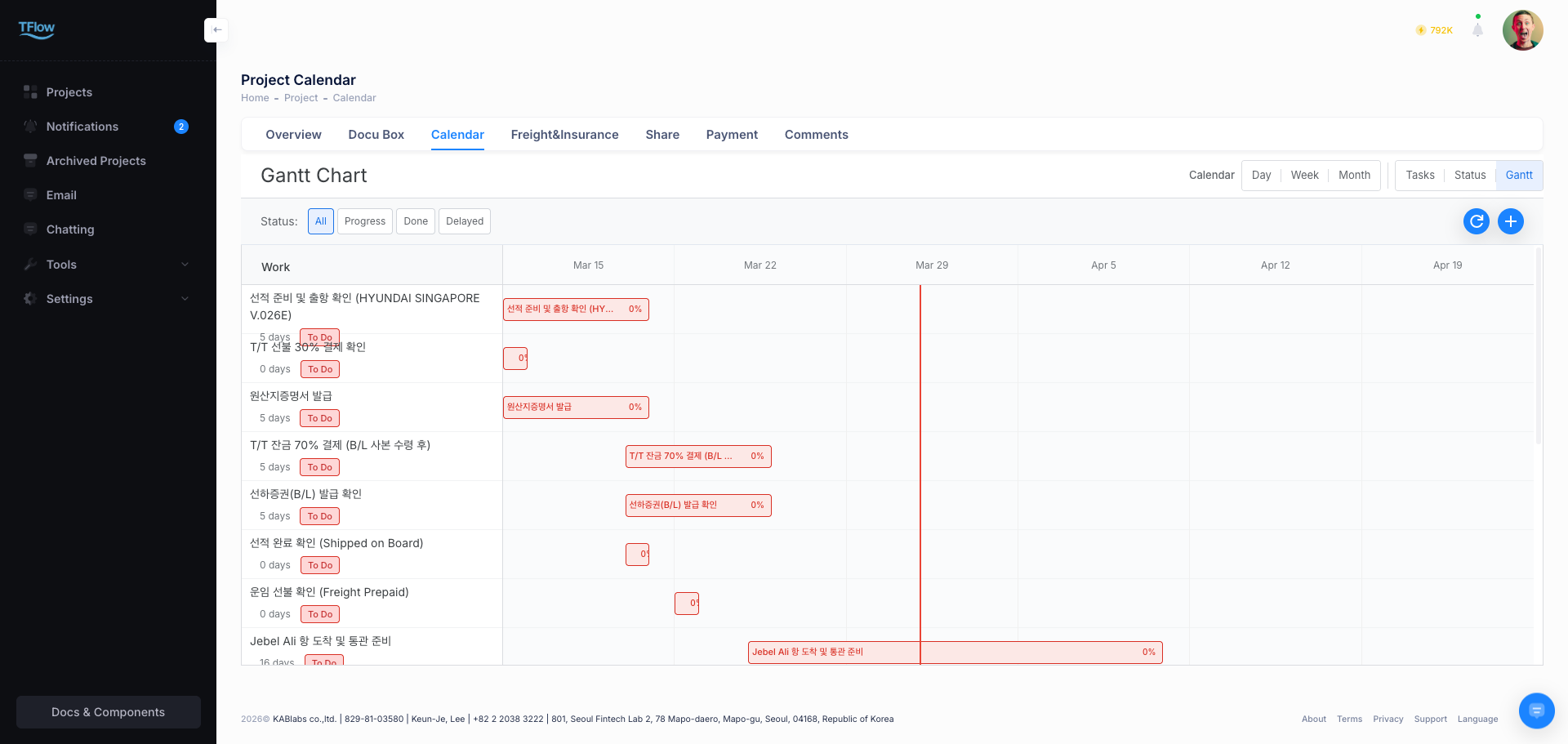
- Adjust duration: Drag the left/right ends of a bar shown on the timeline to easily extend or shorten a schedule's duration.
- Add tasks: Add new tasks within the Gantt chart via the blue '+' button located on the top bar.
3. Common Task Add and Edit Layout
Whichever view you select, the Task Details modal that appears when you add a new schedule or click an existing item has the same layout.
Key management items
- Task Name & Category: Task title and category (required)
- Time range:
All daycheckbox and clear date/time settings - Attribute settings: Manage Status, Priority, and Progress
- Collaboration linkage: Assign a Coworker (collaborator) (email shown) and add a detailed Description note
💡 Troubleshooting (FAQ)
- Q: "I try to move or edit a schedule and it says 'Access denied.'"
- A: You cannot move or edit a task you did not create and are not assigned to. Open the task, check who the Coworker is, and either ask that person to make the change or ask to be added as an assignee.
- If it says "This task is managed by the other side," the schedule was created by your counterparty. In that case you have to ask them directly.