2.4. Internal Chat Guide (Chat)
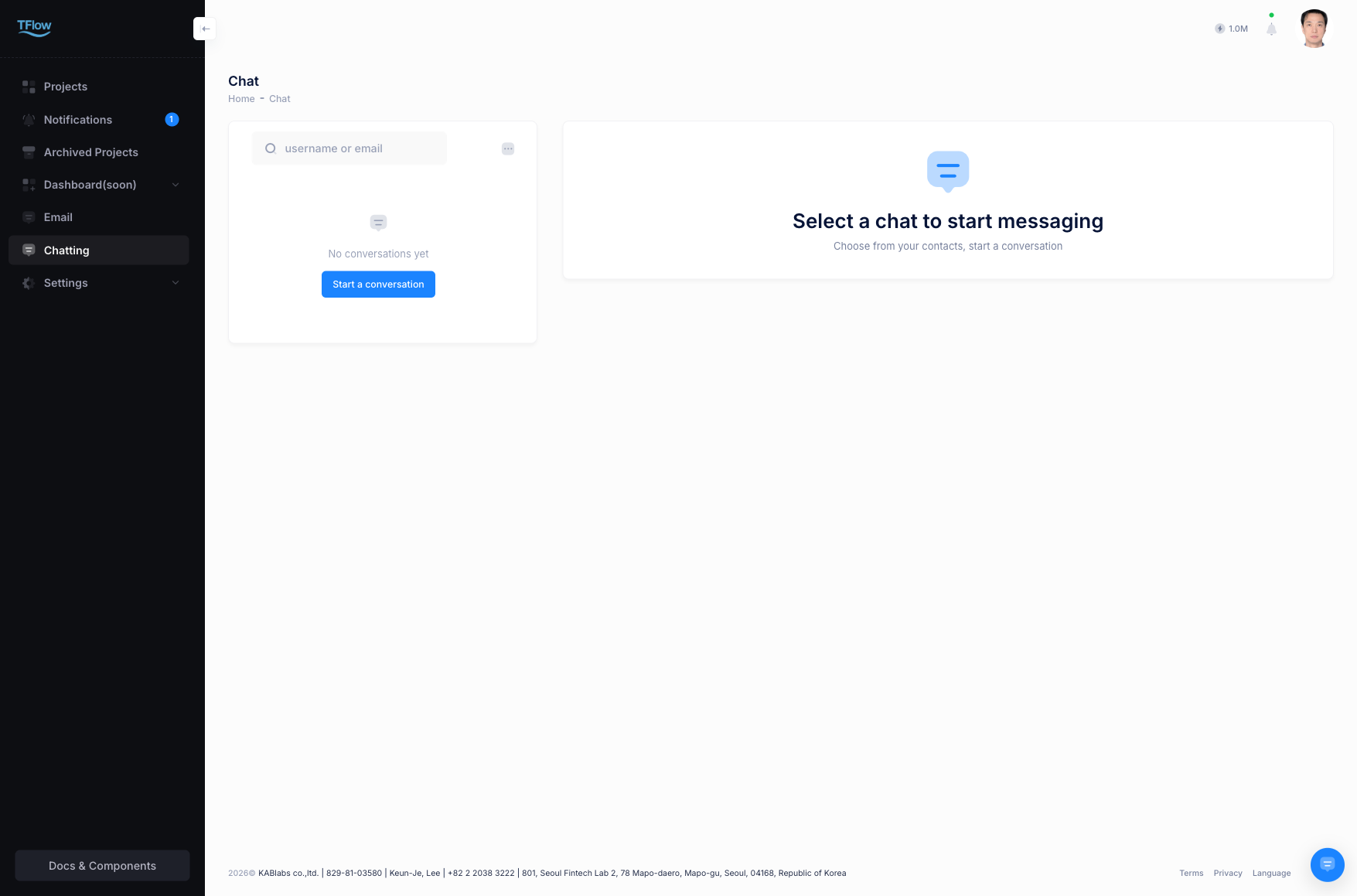
Beyond email and project comments, this is an internal messenger that lets you have 1:1 or group conversations with internal/external (registered-friend vendor) partners for collaboration that requires real-time responsiveness.
1. Using Chat
When you create a room and see "Chat room name is required." or "Select at least one user.", fill in both the room name and the participants, then create it again. You cannot open a room with only yourself. If an existing room says "Chat room not found.", the room was deleted or you were removed from it — create it again or ask a participant to invite you.
- Create a room: In the left
[Chat]tab, clickNew Chator the plus button next to the logo, then search for and add the members you want to include. - Project group chat: From a specific project detail page, use the shortcut (Create Group Chat) to open, in one click, a fixed chat room that already includes all members of that project.
- Share files: Upload documents and images via the paperclip attachment icon at the bottom of the chat window. Shared files are saved in the chat room's gallery.
1-1. Chat Troubleshooting (FAQ)
- Q: "File size cannot exceed 100MB."
- A: A chat attachment can be up to 100MB per file. Split the file, or upload it to the project document vault and point to it in chat.
- Q: "File type not allowed."
- A: That format can't be exchanged for security reasons. Send the file as a PDF, image, or document instead.
- Q: "File access denied" / "No permission to delete file."
- A: Only people in that chat room can open an attachment, and only the person who uploaded it can delete it. If you left the room, ask to be invited back.
- Q: "A specific user doesn't appear in the invite list (search)."
- A: For external guests or staff at external companies, they must first be registered and accepted as a mutual friend in your
[My Friends]list before they can be invited to a chat room.
- A: For external guests or staff at external companies, they must first be registered and accepted as a mutual friend in your
- Q: "I sent a message by mistake. Can I delete or edit it?"
- A: You can
Deleteyour own message within 5 minutes of sending, by right-clicking it (or via the three-dot menu). Editing is not available, and a deleted message shows as "(This message was deleted)".
- A: You can
- Q: "Can a new member invited to a chat room later see the entire previous conversation history?"
- A: No — past history is not shared with newly invited members. For a record that people joining later must be able to follow, use the Project Detail > Comments board rather than chat.