Office — Overview and Getting Started
If you are stuck right now
- If you see "Office beta is coming soon" — Office is not open for your account yet. We will let you know when it opens.
- If Agree and start does nothing — tick I have read the above first.
- If you can only view, not edit — the status line at the top of the editor says why. See "When you can only view" in Spaces, visibility and storage.
- If you can't find Office in the main app menu — open
office.tflowx.com, or open a document from a project's Docu Box → Working files tab.
What is Office?
Office is an editor for Word (Docs), Excel (Sheets) and PowerPoint (Slides) files inside T FLOW. You don't need a separate program, and you can link what you make to a trade project so your teammates can view it.
- Address:
office.tflowx.com— you sign in with your T FLOW account - Files are saved in standard formats (docx, xlsx, pptx), so downloaded files open in MS Office and similar apps
- Office is in beta. Screens, menus and shortcuts may change
🖼️ Screenshot Office home — the start-new row and recent files 📍 office.tflowx.com/docs · save as images/office/home.png
The first time — agreeing to the beta notice
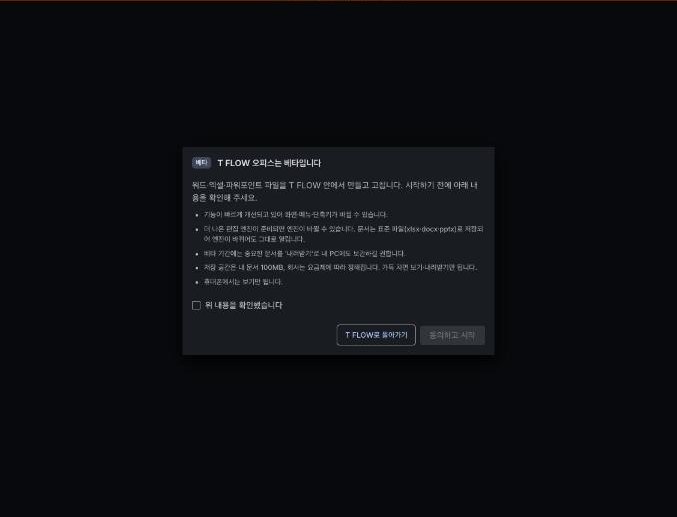
The first time you open Office, the "T FLOW Office is in beta" window appears. Read it, tick I have read the above and press Agree and start to begin. Back to T FLOW leaves without agreeing.
The window makes five points:
- Features are improving quickly and may change
- The editing engine may change when a better one is ready, but files are standard files and keep opening
- During the beta, keep important files on your computer too with Download
- Storage is 100MB for your files; company storage depends on your plan
- Phones open files in view mode (tap PC version to edit)
To read it again, open ☰ menu → Beta notice at the top left.
Creating a new file · uploading your own file
Start from the start new row at the top of the home screen.
- Blank document·Blank spreadsheet·Blank presentation — start with an empty file
- T FLOW template — a template with set fields. Right now there is the Proforma Invoice (Excel)
- Upload a file — upload a file from your computer and edit it as it is. Only docx, xlsx and pptx, up to 50MB
Switch between Docs, Sheets and Slides from the ☰ menu at the top left. New files are created in the company space as "Only me", or in My files if you have no company seat. Widen it in Share & visibility to work together (about spaces).
Finding and organising files
Recent on the home screen shows the files you can see.
- Use Search at the top to find a title
- Filter with All·Only me·Shared with company·My department
- Next to it, filter by who made it: Anyone·Created by me·Shared with me·Removed from my list
- Switch between Grid view / List view and Last modified / Title
- List view also shows the Location (My files, Only me, Department or Company) and linked Project
Each file's ⋮ menu has Open·Open in new tab·Rename·Share & visibility·Move to folder·Download, plus Move to trash for files you created or Remove from my list for files made by others.
Organising with My folders
Press My folders next to Recent on the home screen to organise files in folders.
- Only you see your folders. Nobody else sees them, and putting a file in a folder doesn't change who can see the file
- You can put any file you can see (including company files others shared) in your folders. A file goes in one of your folders at a time
- Docs, Sheets and Slides can sit in the same folder
- The top of My folders shows your folders and the files you haven't put in any folder yet
Creating a folder — press New folder and type a name. Press it inside a folder to make a subfolder.
Putting files in
- In a file's ⋮ → Move to folder, open a folder and press Move here. Pressing Move here at the top of My folders takes the file out of its folder
- On a computer you can also drag a file card onto a folder card, or onto the location bar at the top (My folders › Customers › …)
- New files and uploads you make inside a folder go straight into it
Tidying folders — a folder's ⋮ has Rename·Move·Delete. Deleting a folder also deletes the folders inside it, but the files in it are not deleted — they move to the top of My folders.
- Search at the top finds folders and files across all your folders in My folders
- Recent still shows all files of that type, whatever folder they are in
Saving and confirming a version
Your edits are saved automatically. The status line at the top of the editor shows "Saving…" and then Save {number}.
At important moments, press Confirm version. The current save becomes a confirmed version such as v1, v2…
- Confirmed versions are kept. Unconfirmed in-between saves may be cleaned up after 30 days
- If nothing changed, you will see "No changes — still v{n}."
- If you see "Your latest edits haven't reached the editing server yet", try again in a moment
- If you try to leave before your edits arrive, you are asked Leave anyway·Keep editing. Choose Keep editing to keep your changes
If your internet connection drops
- A "You're offline" notice appears at the bottom of the editor, and the status line changes to Offline (with · waiting to save if some edits aren't saved yet)
- Keep the window open. When you're back online, the edits you made while offline are saved automatically
- While offline, Confirm version and download don't work. Try again once you're back online
- If you were offline for a long time, the edits you made while offline are kept as a new document named "(recovered …)" (only you can see it), and the original document reopens with the latest content. Use Open recovery copy and copy over what you need
- If you close the window while offline, unsaved edits are kept as an encrypted copy in this browser. The next time you open Office in the same browser (while online), they are saved as a new document named "(recovered …)" (only you can see it) and you'll get a notification. They can't be recovered from another browser or PC, so keep the window open until you're back online when you can
- While offline, Lyra doesn't insert anything into the document either (it wouldn't be saved). Ask again once you're back online
Downloading to your computer
Press the download icon at the top right of the editor to get the current file as docx, xlsx or pptx. During the beta, we recommend downloading important files now and then. Even when storage is full, viewing and downloading always work.
Using Office on a phone or tablet
Tablets (iPad, Android tablets) open the same editor as a computer, so you can edit right away.
Phones open files in view mode. The status line shows "Phone view is read-only". To edit, tap PC version in the top bar. The file reopens in the same editor as a computer.
- The screen is small, so some tools fold into More. Turning your phone sideways gives a little more room
- Once you choose it, this phone opens your next files in the PC version too
- To go back to view mode, tap the phone icon in the top bar
💡 Troubleshooting (FAQ)
Q. Office isn't in the main app's left menu.
A. Office opens at its own address (office.tflowx.com). Inside a project, use Open·New document on the Docu Box → Working files tab (Linking to projects).
Q. Can I upload Hangul (hwp) or PDF files? A. No. Right now only docx, xlsx and pptx can be uploaded. Convert other files to one of these formats first.
Q. I can't see the folders my colleague made. A. Folders are personal, so you can't see other people's folders. To group files for a team, link them to a project (Linking to projects) — your side of the project team can then view them together.
Q. How do I get back to T FLOW from Office? A. Press ☰ menu → Back to T FLOW.