Using the Community
On the Guild boards you can ask and answer questions, share information, and chat freely. Participation activities such as posting, commenting, and voting require login (viewing is available without logging in).
💡 Who is this for? People who want to ask about parts of trade practice they're stuck on (Questions), people who want to share regulatory or market changes (News), and people who want to connect casually with peers in the industry (Free). If this is your first time, start with the login and onboarding steps in the introduction document.
1. Board Types
There are 3 default boards, and additional boards created by the operators may also appear.
| Board | Icon | Description | Default Sort |
|---|---|---|---|
| Questions (qna) | ❓ | A space to ask and answer questions about trade practice (supports answer acceptance and AI answers) | Unresolved |
| Free (free) | 💬 | A space to chat freely | Popular |
| News (news) | 📰 | A space to share regulatory, market, and practical information | Latest |
Boards the operators can add: 📚 Trade Wiki · 📢 Notices · 📝 Blog, etc. On these operator-only boards, a notice is displayed and regular members cannot write posts.
ℹ️ On operator-only boards, the message "Only operators can post in this board." is displayed. The Trade Wiki is provided as a separate screen → Trade Wiki
2. Viewing the Post List (Sorting & Tag Filtering)
When you enter a board (/b/질문, /b/자유, /b/정보), the board name and description appear at the top, and below that you can narrow down posts by sorting and tags.
- Sort tabs: Popular · Latest · Weekly Popular
- Tag filter: Click frequently used tag chips (12 by default + More) to see only posts with that tag
- Pagination: Move using Previous / Next at the bottom of the list
🖼️ Screen capture Board post list — board header + sort tabs (Popular · Latest · Weekly Popular) + tag filter chips + post list 📍
guild.tflowx.com/b/qna· save locationimages/guild/board-list.png
3. Writing a Post
If your post won't publish or won't save an edit, check these first.
- "Only operators can post in this board." — Notices and Blog are operator-only. Switch the board to Questions, Free, or News.
- "You can use up to 5 tags." — Trim your tags down to five or fewer.
- "Can't edit — this post already has answers or comments" — Once a post has replies, editing and deleting are locked.
- "You can't edit a post while it's under review." — Try again once the review is done.
- If an image won't upload, check that it is JPEG, PNG, GIF, or WebP and 5MB or less, and wait a moment if you have been uploading rapidly.
Click Write in the header or sidebar to create a new post (/write).
- Select board — Choose which board to post to. (Operator-only boards cannot be selected)
- Original language — Choose the original language of this post from English / 한국어. Based on this language, the post is automatically translated into other languages. (Default: English)
- Title — Up to 200 characters. Press
TaborEnterto move to the body. - Body (rich editor) — Apply formatting with the toolbar (see table below).
- Cover image — If there are 2 or more images in the body, choose a cover image from the thumbnail grid (default: the first image). It is used on the list and share cards.
- Tags — Search or select 1–5 from the popular tag chips.
- Submit — Once submitted, you are taken to the detail page of the post you just wrote.
Editor Toolbar
| Group | Function |
|---|---|
| Text formatting | Bold · Italic · Underline · Strikethrough |
| Paragraph | Headings (H2 · H3) · Bulleted list · Numbered list · Quote · Code block |
| Alignment | Left · Center · Right align |
| Insert | Link · Image upload (multiple, resizable to 25/50/75/100%) · YouTube embed |
ℹ️ Image upload formats and size: JPEG · PNG · GIF · WebP, 5MB or less. While uploading, editing is locked and a spinner is shown.
⚠️ Edit mode can only change the title, body, and cover image. "Only the title and body can be edited (board and tags cannot be changed)." — The board and tags cannot be changed after submission.
🖼️ Screen capture Write screen — board / original language selection + title + rich editor toolbar + tag selection 📍
guild.tflowx.com/write· save locationimages/guild/write-editor.png
4. Viewing Post Details
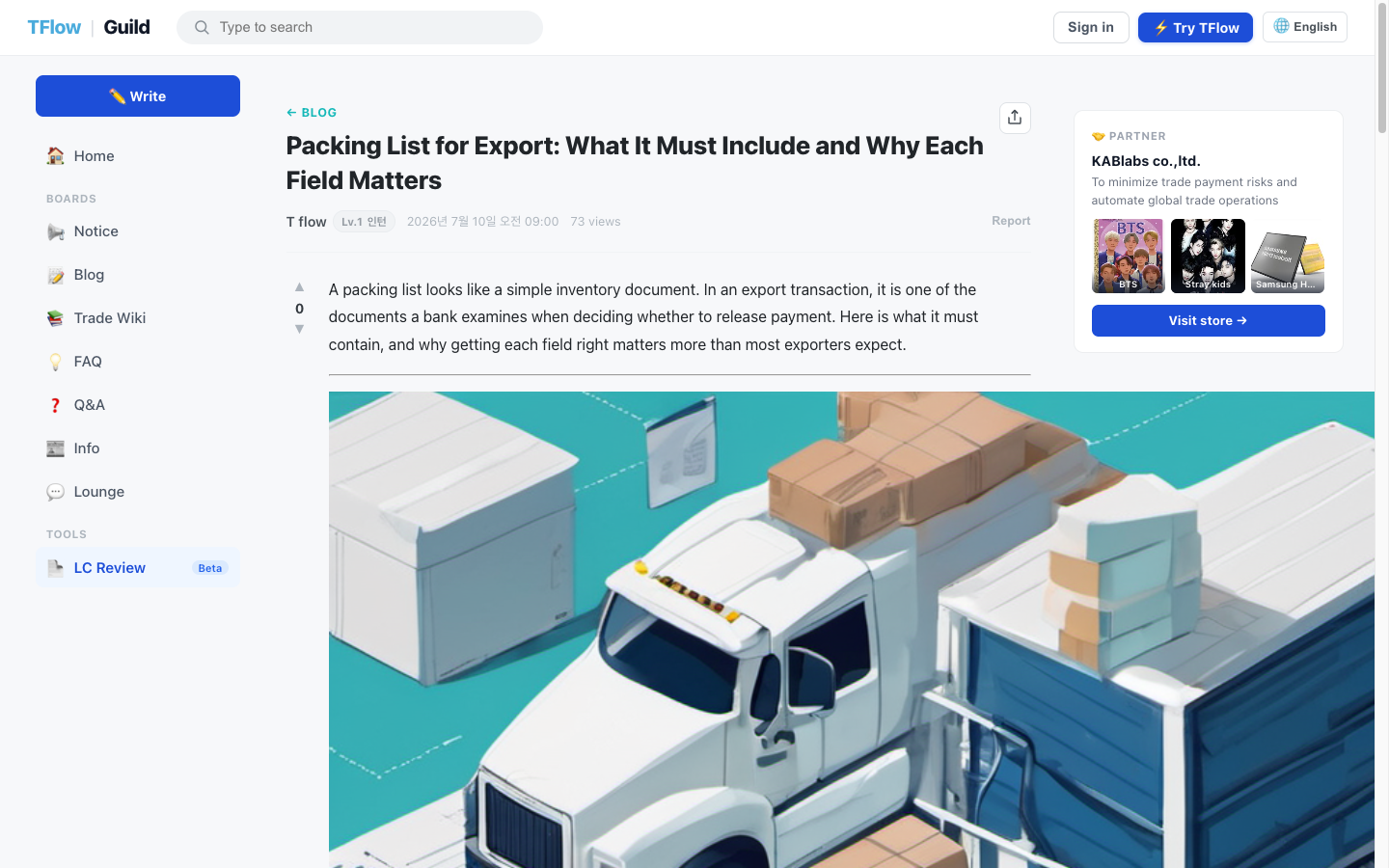
When you open a post, the following is displayed.
- Share button at the top right, Back to board link
- Title · Author (nickname + rank badge) · Date · Views · Report
- Vote (▲ / ▼) buttons and the body
- If it is a translated post, a 🌐 Machine translation badge + View original / View translation toggle
- Tags, and (if it's your own post) Edit / Delete buttons
- At the bottom, Previous post / Next post, and for question (Q&A) posts, Answers and Comments
5. Comments
You can converse via comments at the bottom of a post.
- 2-level (depth) structure: You can add replies below comments.
- Each comment has votes (▲/▼), the author (nickname + rank), the time written, the body, Reply, and (if it's not your own comment) Report.
- Comment translation ✨ NEW: Comments written in another language show a Translate button. Pressing it translates the comment into your language with a machine translation label, and you can toggle view original / view translation. Replies work the same way.
- You can only edit or delete your own comments.
- On boards that don't take comments, "Comments are not available on this board" is displayed.
- If the comment you're replying to gets deleted in the meantime, "The comment you're replying to was deleted" appears. Refresh and write it again.
- If you are not logged in, "Log in to participate" is displayed.
- Deleted comments remain as "This comment has been deleted."
6. Q&A Answers & Acceptance
Posts on the Questions (Q&A) board have an answer section separate from the comments.
- After logging in, you can write an answer. Answers are sorted by most votes / latest.
- Answer translation ✨ NEW: Answers written in another language are translated into English automatically as soon as they are posted — when you browse in English you see the translation right away, with a machine translation label and a View original toggle. In languages that do not have a translation yet, a Translate button appears and translates on the spot. AI answer cards work the same way.
- Acceptance: Only the author who posted the question can Accept a preferred answer. The accepted answer moves to the top of the list and is highlighted in green with a ✓ mark.
- An accepted answer is locked for editing and deletion. Unaccept it first if you need to change it.
- Answers and acceptance work only on the Questions (Q&A) board. Elsewhere you'll see "This board does not support accepting answers".
- 🤖 AI answer card: For some questions, @TFlow AI automatically posts an answer. It is distinguished by a teal background and a color bar on the left, and is displayed together with source chips and a disclaimer badge.
6-1. Question status badges
In the list, the question status is distinguished by badges.
| Badge | Meaning |
|---|---|
| Unresolved (orange) | No answer has been accepted yet |
| AI Answer (blue) | The AI has posted an answer |
| Accepted (green) | The author has accepted an answer |
ℹ️ The 👍 Helpful / 👎 Not helpful feedback buttons on AI answers are visible on screen but are still inactive (planned). AI answers are for reference only and do not guarantee accuracy.
🖼️ Screen capture Q&A answer area — accepted answer (green highlight) + AI answer card (citation chips · disclaimer badge) + answer submission form 📍
guild.tflowx.com/post/…· save locationimages/guild/qna-answers.png
7. Upvote & Downvote
- You can press ▲ Upvote / ▼ Downvote anywhere on posts, comments, and answers.
- Pressing the same button again cancels it. The screen reflects it right away.
- You can't vote on your own posts or comments.
- Some boards don't have voting — you'll see "Voting is not available on this board" or "Downvote is not available on this board".
- If you are not logged in, the notice "You need to log in to vote" appears.
8. Report, Block & Share
Report
You can Report inappropriate posts, comments, answers, and profiles (the report button does not appear on your own content). In the report window, choose a reason and, if needed, write details (optional, 500 characters).
| Reason | Reason | |
|---|---|---|
| Spam/advertising | Personal information disclosure | |
| Profanity/slander | False information | |
| Obscene content | Other | |
| Illegal information |
- If you report the same target again, the notice "You have already reported this target." is shown.
- If your account is suspended, "Your account is suspended and can't use this" appears. Please contact a moderator.
- Withdrawn users are shown as "Withdrawn trader."
Block
If you Block someone from their public profile (after confirmation), that user's posts will no longer appear in lists, search, comments, or answers. Pressing again removes the block. You cannot block yourself.
Share
Pressing the Share button at the top right of a post lets you choose a channel.
- Open directly: X (Twitter) · LinkedIn · Facebook share popup
- Copy-link type: A link for Instagram · YouTube, or Copy link
- The share link is created as a short link (
/s/…) that includes referral tracking.
9. Public Profile & My Page
Public Profile (/u/{handle})
- Avatar (initials if none) · Name ·
@handle· Tier badge · role badge (Expert/Operator, when applicable) ✨ · Bio · Stats (post count · XP · join date) - If it is not your own profile, Report / Block buttons are shown.
- Below, a list of recently written posts. Withdrawn users are displayed as "Withdrawn trader."
My Page (/me) — Login Required
- Your profile card and stats: XP · join date · posts written · questions answered ✨ UPDATED (2026-08)
- Account settings ✨ NEW (2026-08)
- Change handle: change your
@handleto a new value. Limited to once every 90 days; changing it also changes your public profile URL (/u/{handle}). - Change password: confirm your current password, then set a new one. Since the Guild signs in with your TFlow account, your TFlow account password changes too. The new password must be at least 8 characters, and if the current one doesn't match you'll see "Your current password doesn't match". Accounts that sign in only with Google or Kakao have no password to change.
- Change handle: change your
- Log out at the bottom
ℹ️ Display name and bio still cannot be edited from My Page. They retain the values entered during onboarding.
💡 Troubleshooting (FAQ)
Q. I want to change the tags later. A. When editing a post, you can only change the title, body, and cover image; the board and tags cannot be changed. If tags are important, please choose them carefully before submitting.
Q. I can't see the "Accept" button for answers. A. Acceptance can only be done by the author who posted the question, and it is only supported on Questions (Q&A) board posts. The Free and News boards do not have answer acceptance.
Q. My image won't upload. A. Images can only be JPEG · PNG · GIF · WebP, 5MB or less. If you upload too frequently, you may be temporarily rate-limited, so wait a moment and try again.
Q. The 👍/👎 on AI answers won't click. A. The AI answer feedback buttons are only displayed and do not work yet (planned). AI answers are for reference.
Q. I want to see the posts of someone I blocked again. A. Go to that user's public profile and press Unblock to make them appear in lists and search again.
Q. A post looks strangely translated into another language. A. This is because it is automatically (machine) translated into multiple languages. On the post detail page, press View original to see it in the original language the author wrote it in.