1.2. Project Detail
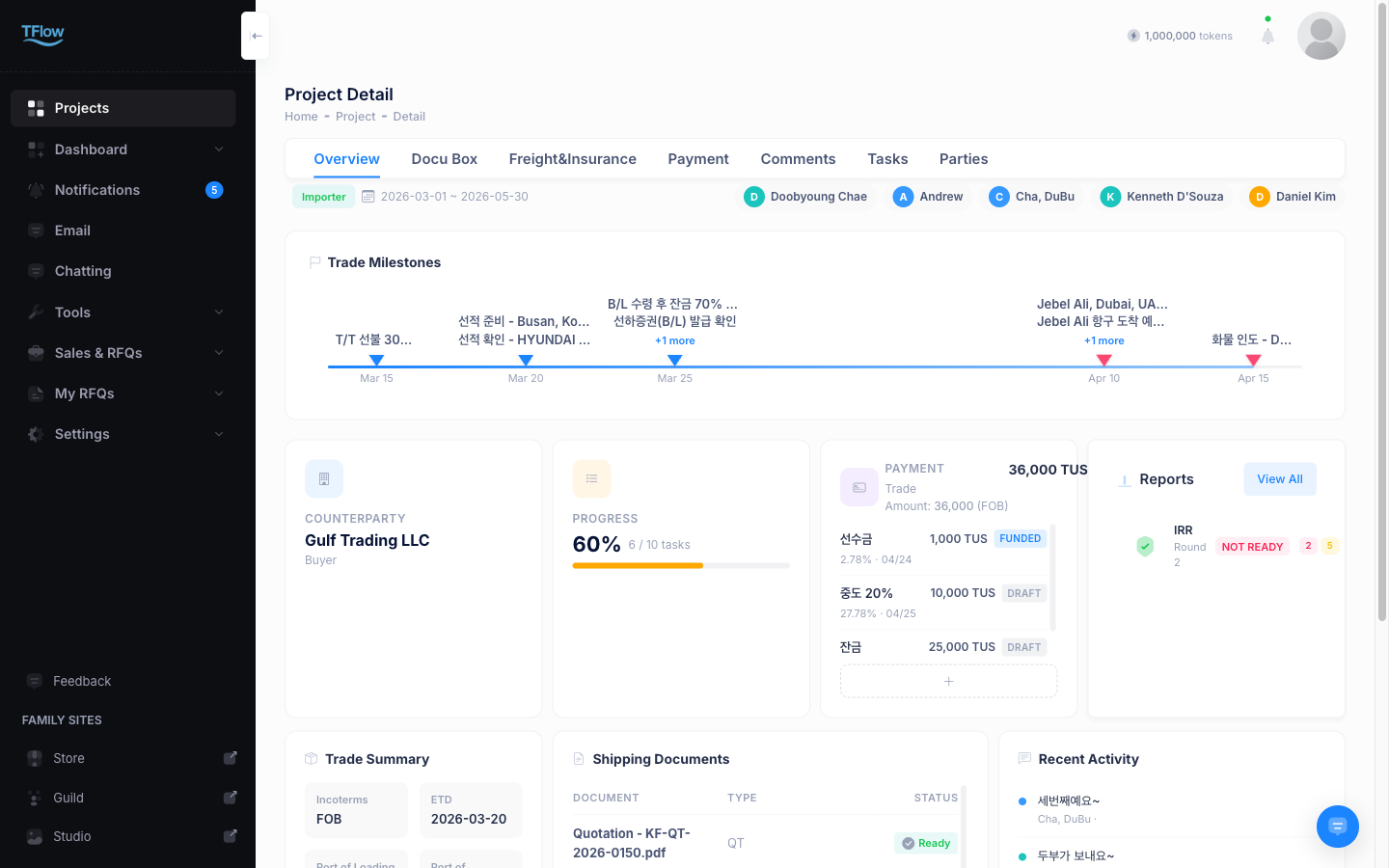
The project detail page is a role-based dashboard. The screen adapts to whether you are the exporter or the importer, so you can grasp the transaction progress at a glance.
💬 Try it with Lyra
- "Tell me this project's document status"
- "Fill in the PL form based on the CI"
- "Export this project's data to Excel"
Detailed feature guide: Lyra Interactive Features Guide
1. Opening the Project Dashboard
If you see "Project not found" or "Project not found or access denied" — you are not a member of that project, or your access was revoked. Ask the person who created the project to add you as a member or send you a share link. If you arrived from a link or a typed address, look for the project again in the project list — it may have been moved to the Archived tab.
If your screen looks different from your partner's — that is normal. The same project is shown from each party's own perspective.
How the screen differs by role
| Your role | Dashboard you see | Counterparty shown on the KPI card |
|---|---|---|
| Seller · Seller's Forwarder | Seller dashboard | Buyer |
| Buyer · Buyer's Forwarder | Buyer dashboard | Seller |
2. Page Header
The top of the screen displays the project's basic summary information.
- Project type badge:
Import(teal),Export(blue),Intermediary - Expected period: Expected start date ~ end date (shown only when set)
- Member chips: Project members are shown with an initial avatar + name + role. The avatar color tells you the role.
Role Avatar Color Seller Blue Buyer Teal Seller's Forwarder Orange Buyer's Forwarder Purple
3. Milestone Track
Visualizes the key milestones along the transaction flow as a horizontal timeline.
- Milestones are placed at date-proportional positions.
- Blue progress line: Automatically shown up to today's date position, so you intuitively grasp the current transaction progress.
- Milestones on the same date are combined into a single marker.
Milestone marker states:
| State | Display | Description |
|---|---|---|
| Done | Blue marker | Finished milestone |
| In-Progress · Review | Blue marker + bounce animation | Currently under way |
| To Do (past due) | Red marker + pulse animation | Overdue milestone |
| To Do (not yet due) | Gray marker | Not started yet |
4. KPI Cards (4)
Four cards representing the transaction's core metrics are displayed in the center of the page.
| Card | Displayed Content | Notes |
|---|---|---|
| Counterparty | Counterparty name and role | Seller view: shows Buyer / Buyer view: shows Seller |
| Trade Amount | Total transaction amount + Incoterms | USD($), EUR(€), KRW(₩) currency symbols applied automatically |
| Progress | Overall task progress (%) | Includes completed/total task count and a progress bar |
| Payment ✨ | Payment milestone list (add, edit, delete) | Choose from T/T, L/C, D/P, D/A, Escrow, O/A, CAD |
Payment Card Details ✨ NEW
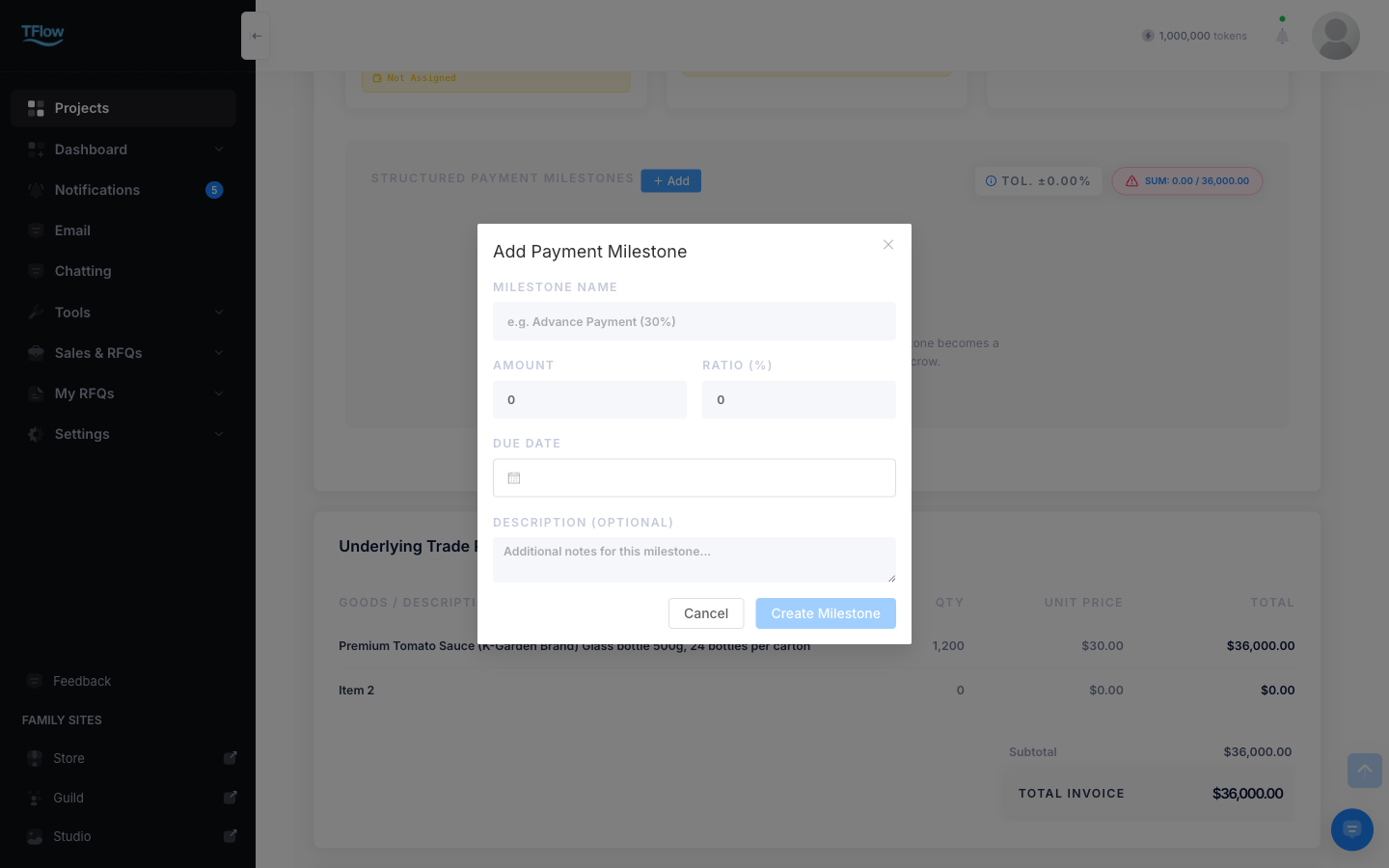
The Payment KPI card goes beyond a simple summary: you can add, edit, and delete payment milestones right inside it.
- Inside the card, a payment milestone list (installment, amount, method, due date, status) is displayed in a scrollable form.
- + Add button at the top of the card → payment milestone add modal
- Select amount, currency, and payment method (T/T / L/C / D/P / D/A / Escrow / O/A / CAD)
- Enter Due Date and description
- Edit/delete milestones with Edit / Delete on each row
- A milestone whose payment method is set to Escrow also appears with the same details on the 3.2. Token Escrow screen.
- A SUBTOTAL / TAX / SHIPPING summary section has been newly added at the bottom of the list, so you can check the total including tax and freight at a glance.
5. Bottom Three-Column Section
Below the KPI cards, three information sections are displayed side by side.
- Trade Summary — key cargo and shipment information such as Incoterms, ETD, ports of loading/discharge, vessel, and forwarder
- Shipping Documents — the list of registered trade documents and the processing status of each
- Recent Activity — the recent activity history inside the project
Trade Summary
Check key cargo and shipment information at a glance.
| Item | Description |
|---|---|
| Incoterms | Incoterms condition (e.g., CIF, FOB, EXW) |
| ETD | Estimated Time of Departure |
| Port of Loading | Port of loading |
| Port of Discharge | Port of discharge |
| Vessel | Vessel name |
| Forwarder | Forwarder contact (shows Not Assigned if unset) |
Shipping Documents
Check the list of registered trade documents and the processing status of each.
| Status | Color | Meaning |
|---|---|---|
| Ready | Teal | Document registered and review completed |
| Pending | Orange | Processing (progress / review / analysing) |
| Not Started | Gray | Unregistered or not started |
Supported document abbreviations: CI (Commercial Invoice), PL (Packing List), BL (Bill of Lading), COO (Certificate of Origin), COI (Certificate of Insurance), PI (Proforma Invoice), PO (Purchase Order), QT (Quotation), Health Certificate ✨
Documents are automatically reflected in this list when you upload them in the Documents tab, or when you attach a document to a task in the Calendar tab.
Recent Activity
Recent activity within the project is displayed in chronological order.
- Activity time is shown relatively:
just now,X hours ago,yesterday, or an exact date - Both automatic system records and member-written content are included.
6. Project Navigation Menu
Through the navigation menu at the top of the page, you can move to the project's sub-sections.
- Calendar: Manage schedules, Gantt chart, and the task status board → Guide
- Documents / DocuBox: Upload and manage trade documents → Guide
- Freight & Insurance: Cargo transport and insurance information → Guide
- Payment: Payment and escrow status → Guide
- Comments / Parties: Manage mention comments and external share links → Guide
💡 Troubleshooting (FAQ)
What you see on screen
- Q: "My screen looks different from my partner's (counterparty's)."
- A: This is normal. Because TFlow provides a role-based dashboard, Seller and Buyer view the same project from their own perspectives. You can check the counterparty's information in the "Counterparty" item of the KPI cards.
- Q: "A milestone is blinking red."
- A: A milestone whose due date has passed while its status is still To Do is shown as overdue. Change that task's status to In-Progress or Done in the Calendar tab.
- Q: "Documents are not showing in Shipping Documents."
- A: Documents are automatically reflected in this list when you upload them in the Documents tab, or when you attach a document to a task in the Calendar tab.
Status changes and inviting members
- Q: "I get an error when trying to change the status to Done."
- A: Check the
Documentstab to make sure the required shipping documents are not missing. If you see the message "Cannot close project without confirmed shipping documents," register the documents and try again.
- A: Check the
- Q: "The project won't open — it says 'Not a project member' or 'access denied'." / "Can't I invite an external partner company to the project?"
- A: If you are the one trying to get in — you are not a member of that project yet, or your access was revoked. Ask the person who created the project to add you as a member or send you a share link.
- If you are the one inviting — as a rule, external accounts get read-only access through a secure link in the Parties tab. To grant edit permission, register the person in My Friends first, then add them as a project member.
- Q: "Can I set the status to Done and then roll it back to In Progress?"
- A: Yes, you can. You can roll the status back to a previous stage via the Calendar tab or the navigation menu.