1.6. External Sharing & Comments (Share & Comments)
A system for smoothly communicating data with the many stakeholders involved in a trade transaction (internal staff, forwarders, customers, banks, etc.) and safely sharing information externally.
⚠️ For security, creating a share link requires Manager or Editor permission on the project. If you don't have it, ask the project owner.
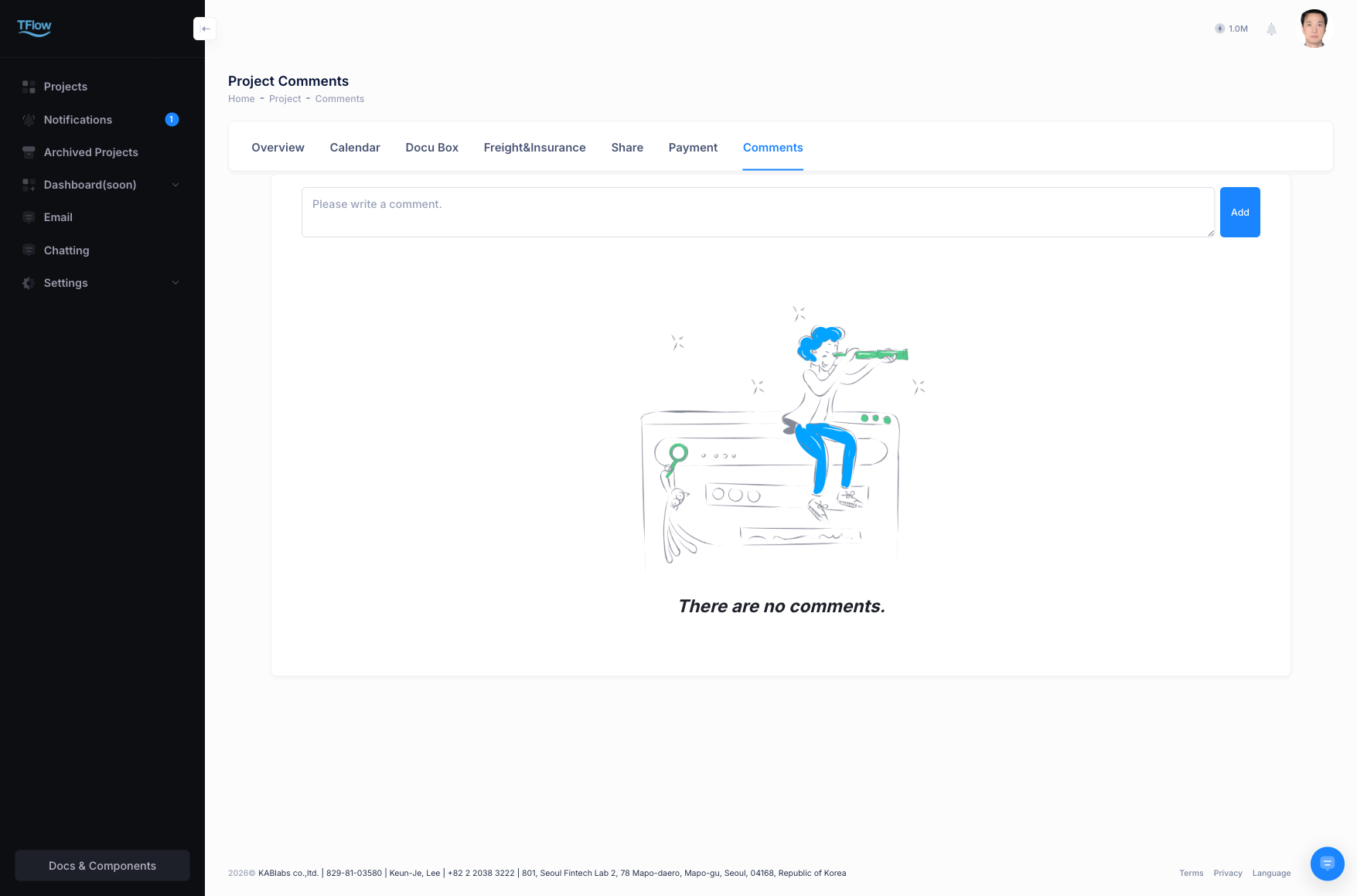
1. Comment Management (Comments / Activity)
Handles work instructions, information sharing, and history tracking within the project.
- Internal communication: Enter special notes or matters requiring discussion that arise during the project. File attachment is also possible.
- Mentions (
@): When you enter@usernamein a comment, a notification is immediately sent to that user. Notifications are also delivered to the Notification Inbox and via push notification, so you don't miss important contacts. - Automatic activity-history archiving: System actions such as status changes in other tabs or document uploads are also accumulated and recorded on a timeline basis.
1-1. Comment Troubleshooting (FAQ)
- Q: "I mentioned someone, but they didn't get a notification."
- A: You cannot mention someone who is not invited as a member of that project. Please first invite them as a
Coworkerin the Project Detail tab.
- A: You cannot mention someone who is not invited as a member of that project. Please first invite them as a
2. External Sharing (Share)
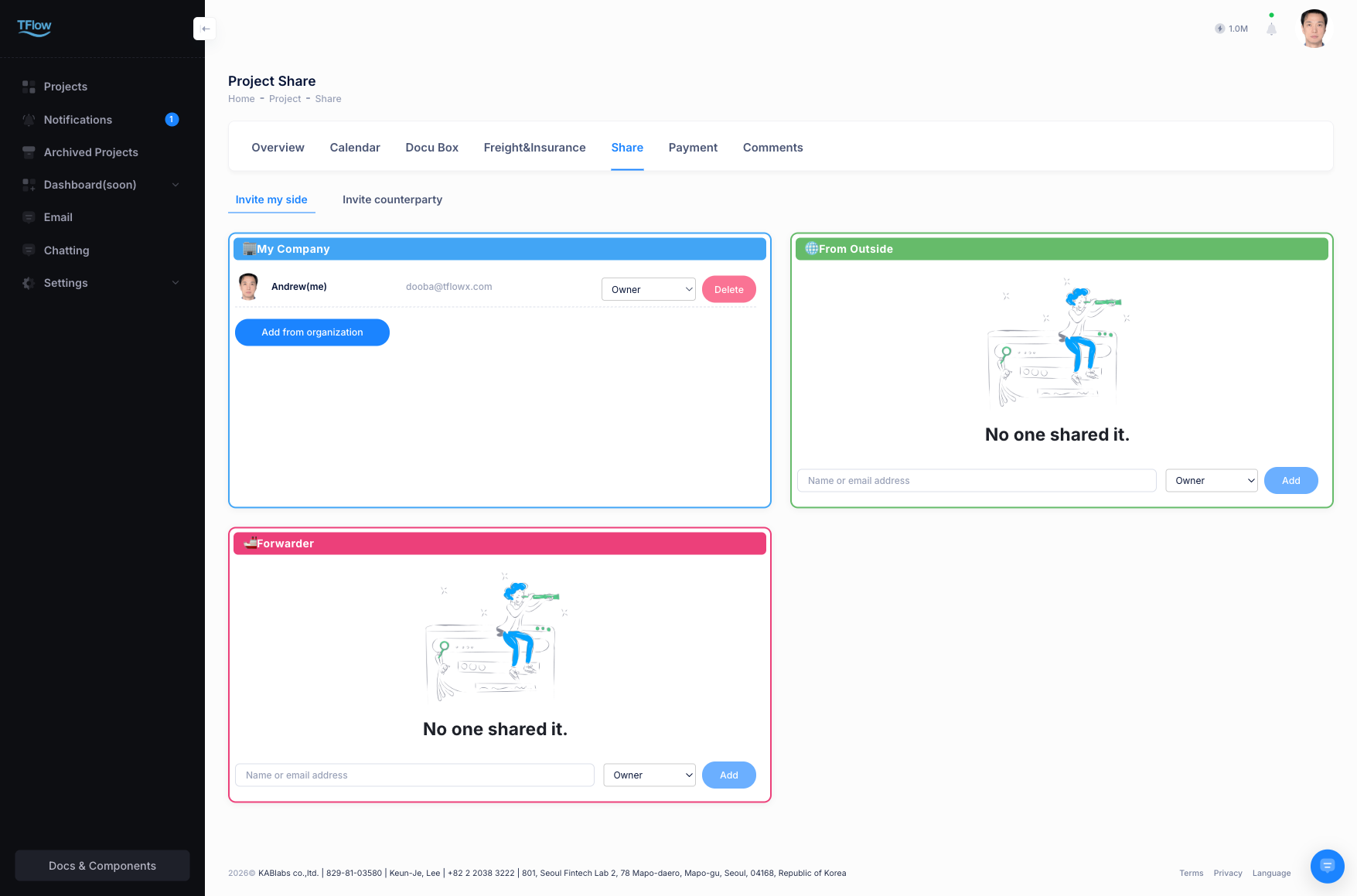
Useful when you want to inform a partner company or customer of only specific project progress. There are two ways to share — secure link sharing, issued with an expiry and a permission scope, and non-member sharing, which grants read access to someone without a TFlow account. Both are read-only, and the links you issue are managed and revoked from the Parties tab.
Secure Link Sharing
- Create access-restricted link: Create a 'Secure Share Link' and deliver it by email or message.
- Restrict permission scope: The shared information is view-and-confirm only (Viewer), and payment actions and sensitive files are hidden.
- Link expiration period: You can set it to be automatically invalidated after a set number of days or a deadline.
Non-member Sharing
You can also share a project with an external partner who has not signed up for TFlow.
- Invite by email: Enter the other party's email address in the Parties tab to send a sharing invitation.
- No separate sign-up needed: The invited non-member can view read-only project information via the secure link without creating a TFlow account.
- Permission restriction: Information shared with a non-member is view-only; they cannot perform actions such as document uploads or status changes.
2-1. Share Link Troubleshooting (FAQ)
- Q: "I want to destroy/revoke a link I created."
- A: In the management screen of the
Partiestab, press the force-delete (Revoke) button for that active link, and external access is immediately blocked at the source.
- A: In the management screen of the
- Q: "The sharing screen won't open and says I don't have access."
- A: If it happens to you — you are not registered as a party on this project, so the sharing screen stays closed. Ask the project owner to add you under Parties.
- If it happens to your customer — the link you issued has passed its expiry date or has already been revoked. Issue a new link from the
Partiestab and send it again.