4.1. My Profile Guide
This is where you manage basic settings related to your user account (name, contact, company info, notifications) and your identity verification information.
💬 Try asking Lyra
- "Help me set up my profile"
- "Tell me how to change my password"
- "Tell me how to change the language setting"
For more details: Lyra Interactive Features Guide
1. Editing Personal Info
- Basic info: At the top of the screen, you can change your Avatar icon, or set a one-line bio, language, and display timezone.
- Change phone number: You can directly edit your phone number on the profile edit screen. It takes effect immediately after you save.
- Language setting: In the Language field, select 한국어 or English to display the entire system's menus, buttons, and notification messages in the selected language.
- Change password (Security/Password): Enter your current password, then enter a new password that meets the letters/numbers/special-characters requirement twice to securely update the system's security credentials. (The recommended cycle is every 3–6 months.)
2. Company Info
If you see "You are already a member of this department.", you already belong to that department or your request is still awaiting approval — wait for approval or choose another department. If your company doesn't come up in the search, check the spelling; if it still isn't there, ask your company Master whether the company has been registered.
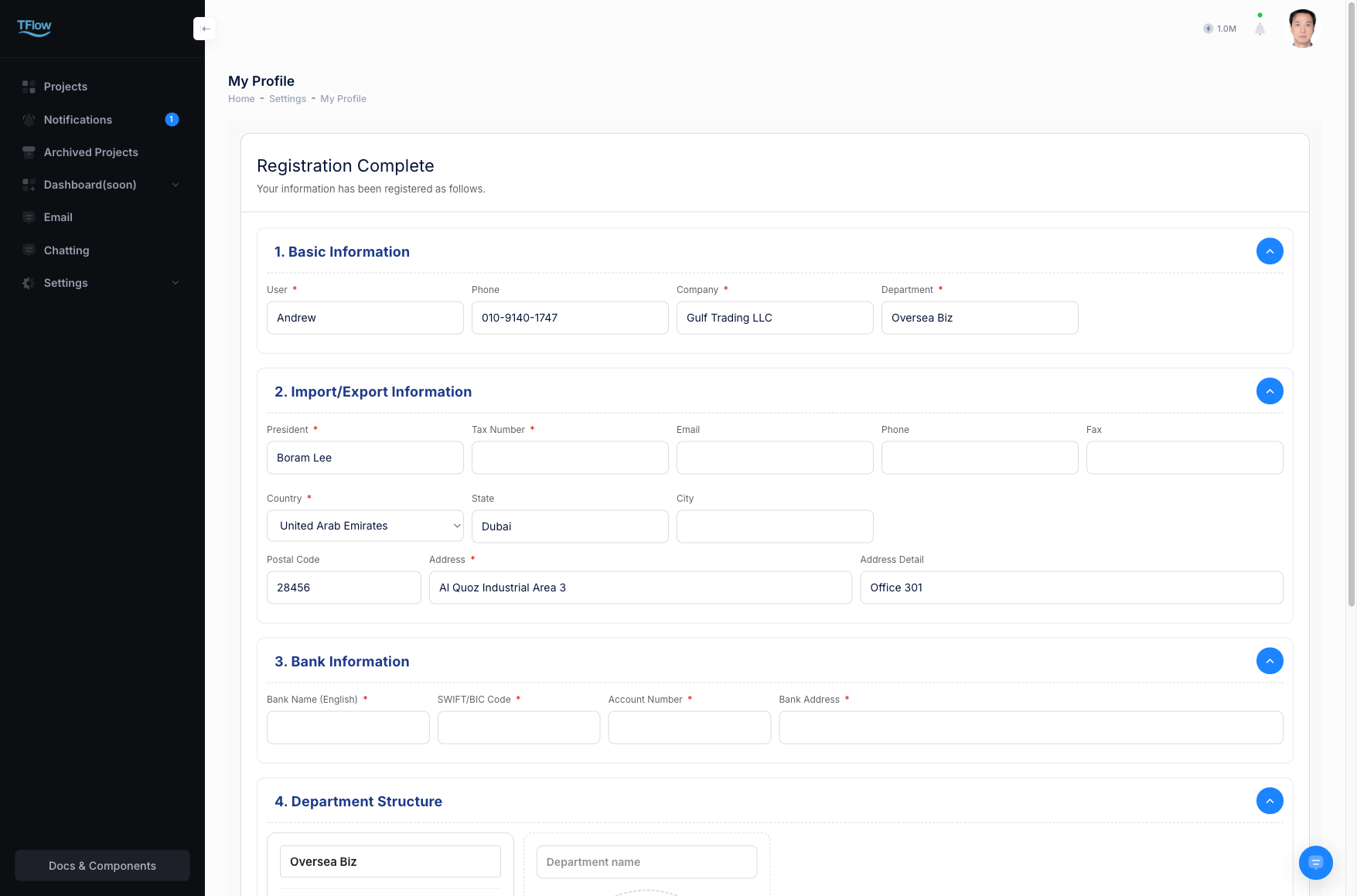
The profile page is organized in steps, and beyond personal info you can manage company-related information.
- Step 1 - Basic info: Review basic info such as username, company name, and department name.
- Step 2 - Import/Export info: Enter trade-related organization info such as the company contact, address, and country.
- Step 3 - Bank info: Register the information needed for payment, such as bank name, SWIFT code, and account number.
- Step 4 - Department management: Create departments within the company and manage staff (detailed below).
3. Department Management -- Step 4
From here on, this is the company Master's work — organizing the company. If saving returns "you are not authorized to update it", ask your company Master.
In Step 4 of the profile page, you create departments within the company and manage staff per department. When adding staff, "Please enter company, department, and emails." or "Please enter at least one valid email address." means a field is empty or an address is mistyped.
3-1. Adding a Department
- Enter a department name in the Add Department card at the top of the screen and press Enter or click the Add button.
- To add multiple departments at once, enter them separated by line breaks (e.g., one department name per line).
- Existing department names are checked for duplicates and won't be added.
3-2. Editing Department Info
- Click a department card to open a slide-out edit panel on the right.
- Editable items: department name (required), country, state/province, city, postal code, address, address detail, phone number, fax number.
- You can also edit the department name inline directly on the card.
3-3. Managing Staff
- Click a department card to open the edit panel; the staff-adding area is at the bottom.
- Enter a staff email and add it with the Enter key or the Add button. To add several people at once, enter them separated by line breaks.
- You can add users who haven't signed up for TFlow using only their email. When that user signs up later, they are automatically linked.
- Use the delete button next to each staff member to remove them from the department.
- A department card shows a preview of up to 5 staff; beyond that it shows a
+Nindicator. - The department manager is shown on the department card as well. Only the company Master can change the department manager.
- The Master account itself cannot be deleted outright. If you see "You can assign master permissions to another user and then delete it.", hand Master over to someone else first, then delete.
4. Activity Log
This summarizes the history of your actions across system tabs such as inside projects, the mailbox, and escrow (login, creation, rejection, download records).
5. Profile Management Troubleshooting (FAQ)
Company info and notification settings
- Q: "I can't change my company department or job title."
- A: Company information such as your department and job grade can't be changed by an individual — only the company Master can update it. Ask your company Master to make the change.
- Q: "I want to turn off all email notifications."
- A: In the Notifications tab, uncheck everything related to
System AlertsorEmail Digestsand click Save Changes. However, important escrow approvals or urgent project status handover emails may be received regardless.
- A: In the Notifications tab, uncheck everything related to
- Q: "I want to turn off Push notifications (web push)."
- A: If you change the notification permission for the TFlow site to Block in your browser settings, Push notifications stop. For details, see the Notification Inbox Guide or the PWA App Installation Guide.
Departments and your account
- Q: "The staff I added to the department don't appear in the list."
- A: A department card shows a preview of up to 5 people only. Beyond 5, it's abbreviated as
+N; click the department card to open the edit panel and view the full staff list.
- A: A department card shows a preview of up to 5 people only. Beyond 5, it's abbreviated as
- Q: "Can I add someone who hasn't signed up for TFlow as a department staff member?"
- A: Yes, you can. Just enter their email address to add them to the department. When that user signs up for TFlow later, their account is automatically linked.
- Q: "I get a message that the department name is a duplicate."
- A: The same department name already exists within the same company. Use a different name, or add staff to the existing department.
- Q: "How do I close my account when I leave the company?"
- A: You cannot delete or close your own account. For the company's trade records and information security, ask your company Master to deactivate and clean up the account.