Linking to Projects · Working Files
If you are stuck right now
- If you don't see the 'Working files' tab — Office is not available to your account yet. The tab appears only for accounts that can use Office.
- If a project doesn't show up to link — you must be on your side's company team in that project, and archived projects can't be chosen.
- If a colleague can't edit a linked file — a link opens view only. Editing follows company/department visibility and license seats (Spaces and visibility).
- If your trade partner can't see a linked file — that is expected. Linked files are visible only to your side.
What is a project link?
A link is a shortcut from a trade project to an Office file. The file stays where it is (the company space), and the project can open it.
- Teammates on your side (same company) in the linked project can view the file
- Your trade partner's side, outside collaborators and forwarders can't see it
- One file can be linked to several projects
- My files stay visible only to you even when linked. Move the file to the company first so teammates can see it
Linking a file to a project in Office
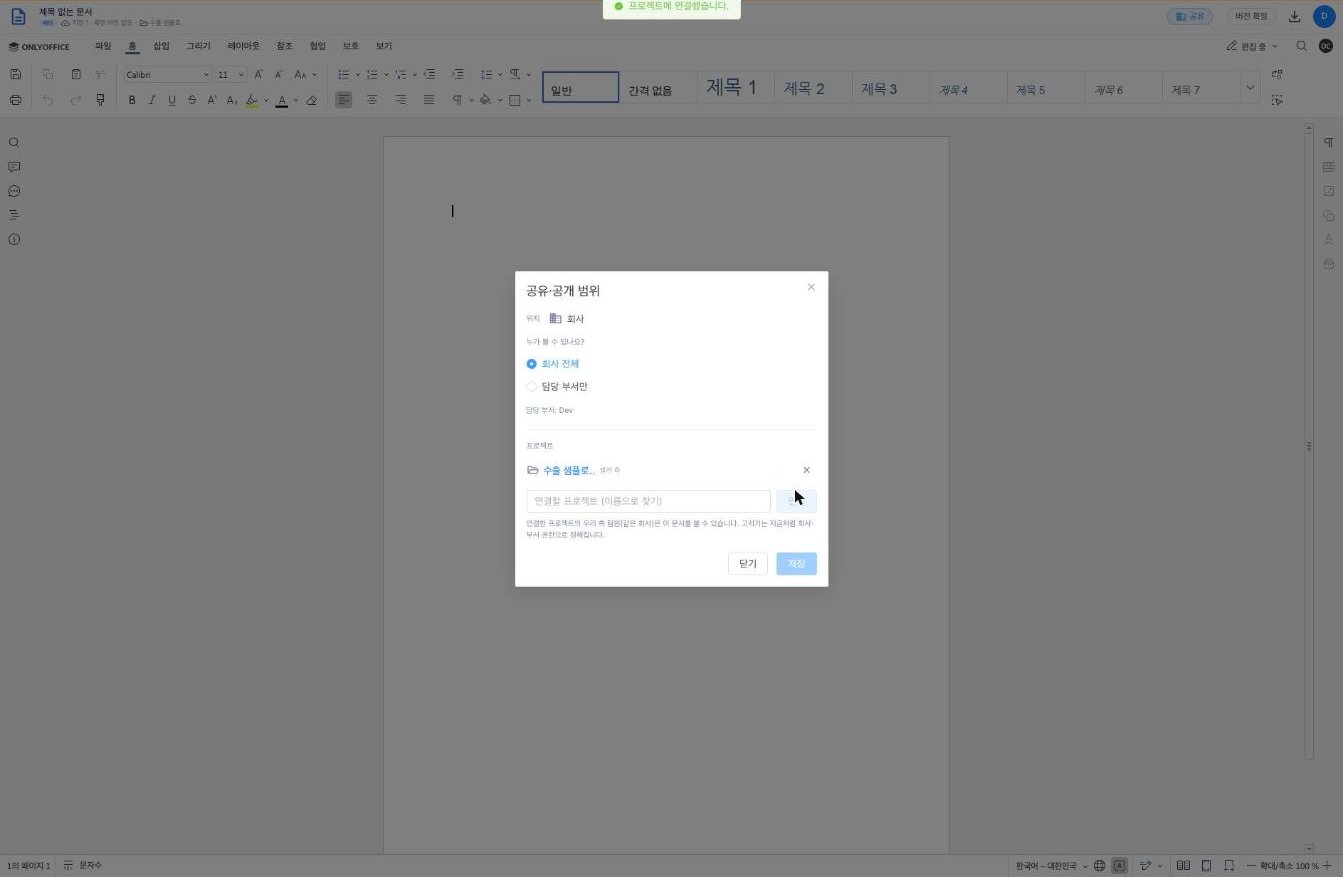
- Press Share at the top right of the editor (on the home screen, ⋮ → Share & visibility)
- In the Projects area at the bottom, choose a project in Project to link (search by name)
- Press Link — you will see "Linked to the project."
Linking is done by someone who can manage the file (the author or the owning department, with a seat). Once linked, the editor's status line shows 📁 project name; click it to go to that project's Working files tab.
Seeing linked files in the main app — the 'Working files' tab
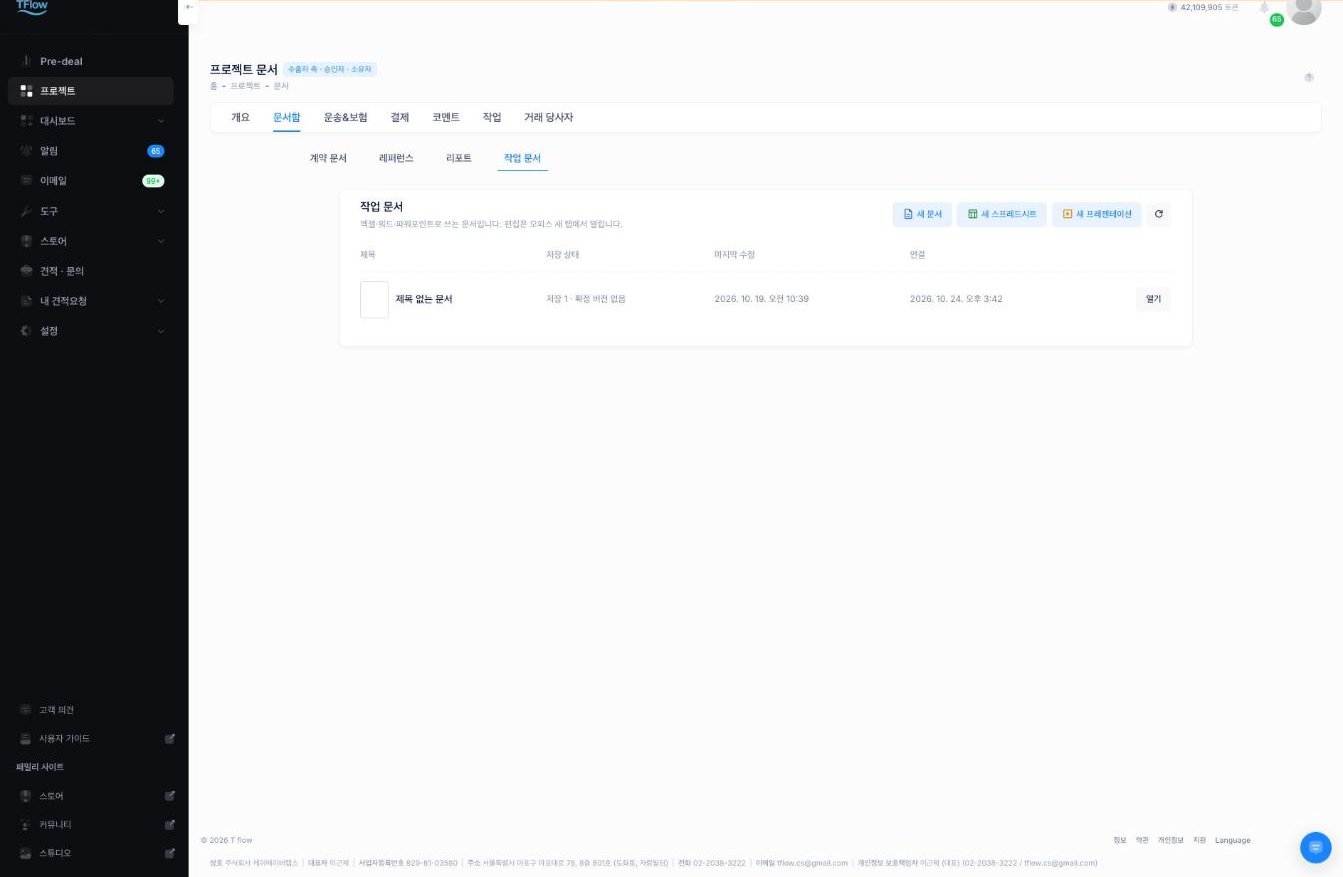
In the main app, a project's Docu Box → Working files tab collects the Office files linked to that project.
- You see the title, saved state, last modified and linked dates, with a preview of the first page
- Open opens Office in a new tab
- Files you see only through the link are marked View only
- The refresh button at the top right reloads the list
Creating a new file straight from the Working files tab
Press New document·New spreadsheet·New presentation at the top of the Working files tab. Office opens in a new tab, creates the file and links it to this project right away.
- The file is created in the company space as "Only me", and your side's project teammates can view it through the link. To edit together, widen visibility to the owning department or the whole company. Without a seat it goes to My files
- Archived projects can't get new files
Unlinking
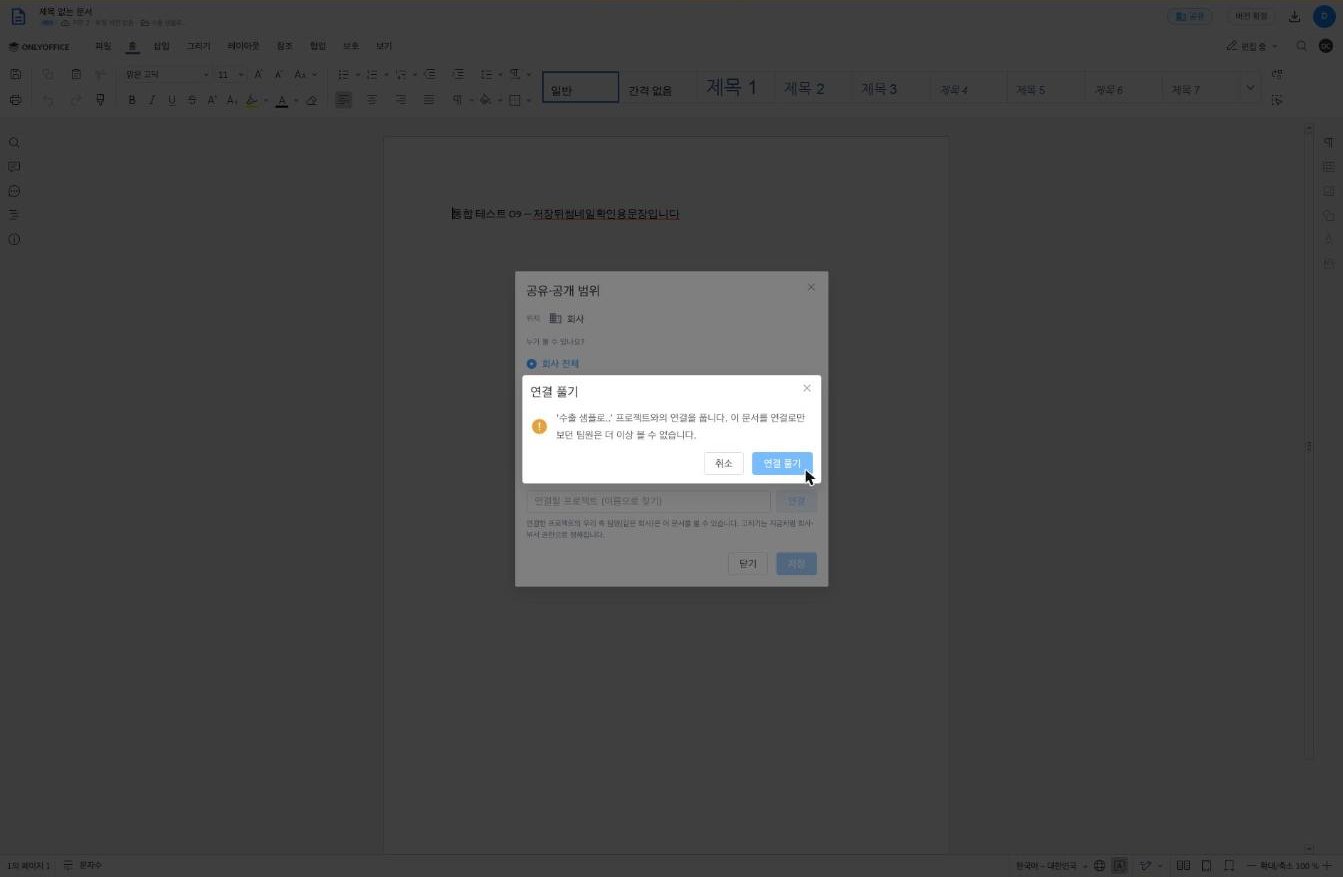
In the Share window, press ✕ next to the project in the Projects area and confirm with Unlink.
- Teammates who saw the file only through the link lose access
- If one of them has the file open, their screen closes shortly after
- The person who manages the file, or the person who made that link, can unlink
When access changes, the open editor changes too
If your access drops while a file is open, the open screen follows shortly after.
- If you lost only editing, you see "Your editing access changed, so the document reopened in view mode." and it switches to view mode
- If you also lost viewing, you see "You can no longer view this document. Its access changed or it was moved to the trash."
- For files you see only through a link, the status line shows "View only — shared through a project"

💡 Troubleshooting (FAQ)
Q. How do I let the buyer's (seller's) side see this file? A. Linked files are not shown to the other side for now. For files to share with your trade partner, download and upload them as project documents, or send them by email.
Q. The Share window says "Also linked to n project(s) you are not part of." A. A colleague linked this file to projects you don't belong to. Those project names are shown only to their team members.
Q. I linked a file but it doesn't appear in my colleague's Working files tab. A. Check that your colleague is on your side's company team in that project. People who joined as outside collaborators or forwarders can't see it. If you linked one of My files, move it to the company first.