Seller Chatbot
The Seller Chatbot is an AI assistant widget that appears in the bottom-right corner of your public storefront. Buyers can ask about products and trade terms and even start a quote request right away, while sellers can configure the knowledge the chatbot answers from (company info, FAQs, etc.) and review conversation logs.
💡 Who uses it?
- Buyers: When you have questions about a product, price, or terms, ask directly in chat and even start an RFQ → 1. Public Chatbot Widget
- Sellers: Turn on the chatbot, configure its responses, and manage conversations → 4. Chatbot Knowledge
ℹ️ This feature was added after 4/17. The storefront chatbot widget, knowledge management, conversation logs, and the sales funnel are all brand-new additions.
1. Public Chatbot Widget (Buyer)
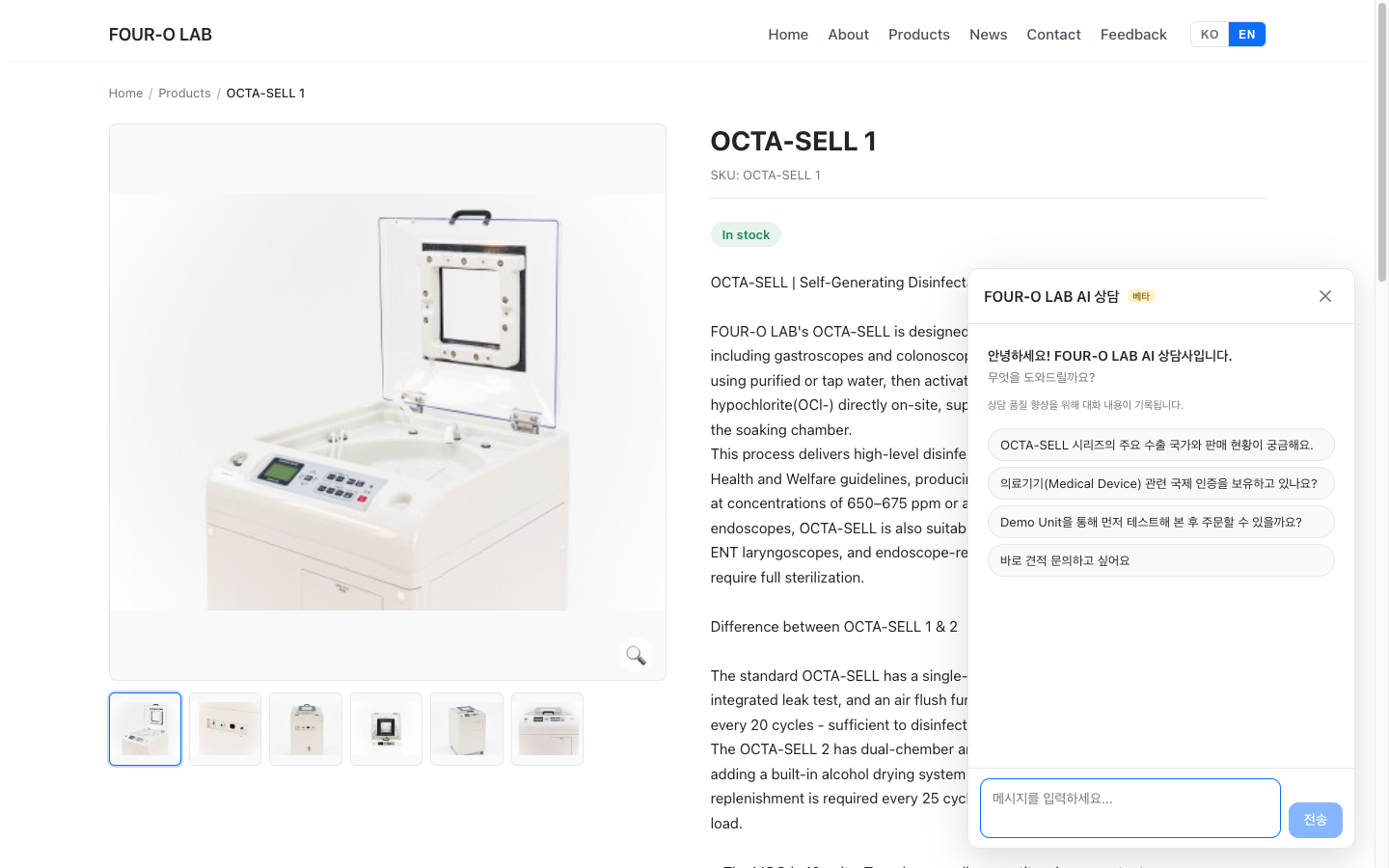
When you visit a storefront, an "Ask this store" floating button (prefixed with the store name) appears in the bottom-right corner. Tap it to open the AI Assistant chat panel (a window on desktop, full screen on mobile).
- The first screen shows a greeting and suggested-question chips. Tap a chip to send that question instantly.
- Answers stream in real time, and each answer ends with follow-up question suggestions to make it easy to keep the conversation going.
- A notice reads "This conversation is being recorded" (the seller may review it to improve response quality).
⚠️ Limit for guests: Without logging in, you can chat only 5 times per day. Once you exceed that, a login prompt card appears, and logging in gives you unlimited usage.
The widget does not appear on storefronts where the seller has turned the chatbot off.
2. What the Chatbot Can Do
The chatbot goes beyond simple guidance—it queries your storefront data directly to do actual work on your behalf.
| Task | Description |
|---|---|
| Product search | Finds products matching the buyer's criteria in the storefront catalog |
| Product detail guidance | Explains a specific product's specs, trade terms, and certifications |
| Company & trade-terms guidance | Answers company questions such as payment, shipping, certifications, and contact info |
| FAQ responses | Answers from the frequently asked questions the seller registered |
| RFQ draft creation | Creates a quote request draft using the product, quantity, and destination country gathered from the conversation (login required) |
💬 Example: "Can you ship 500 units (MOQ) to Dubai?" → The chatbot checks the conditions and, if you'd like, creates an RFQ draft right there, carrying you into the quote request in the Buyer Guide.
3. Purchase Funnel — From Chat to Quote
The Seller Chatbot is designed as a sales bot that helps close deals. Based on the visitor's intent, it naturally guides the conversation toward a quote request.
- The suggested questions on the first screen are grouped by intent: exploratory (browsing) · verification (building trust) · fit (does it match my needs) · transactional ("request a quote now").
- The chatbot asks follow-up questions to pin down the details it needs (quantity, destination country, etc.),
- and when it's time to build a quote, it prompts for login and then prefills an RFQ draft to help with submission.
- When product data is available, suggested questions are generated automatically, so conversations can start even if the seller hasn't configured anything.
Thanks to this flow, a visitor can go from "browsing → clearing up questions → requesting a quote" all in a single chat window.
4. Chatbot Knowledge (Seller)
In Chatbot Knowledge (tflowx.com/app/storefront/knowledge), you turn on the chatbot and configure its responses. It is organized into 4 tabs.
4.1 Settings Tab
- Chatbot enable toggle: Turning it off removes the widget from your public storefront.
- Bot name · Opening greeting
- Response tone: Default / Formal / Friendly / Concise
- Suggested questions (up to 8): The chips shown on the widget's first screen. If you leave them unset, auto-generated questions from your product data are used, and you can see a preview of them here.
🖼️ Screen capture Chatbot Knowledge Management — Basic Settings tab (enable, bot name, tone, suggested questions) 📍
tflowx.com/app/storefront/knowledge· Save locationimages/store/chatbot-knowledge-basic.png
4.2 Company Info Tab
In the Company Knowledge box, enter company and trade-related knowledge that isn't in your catalog as free text (up to 8,000 characters).
- Examples: payment terms, shipping and logistics policies, certifications held, quality assurance, return policy, and more
- The chatbot answers company-related questions based on this content.
4.3 Response Rules Tab
- Response rules: The tone, policies, and guiding principles the chatbot must follow
- Forbidden topics: Specify topics you don't want the chatbot to answer (e.g. competitor comparisons, discount negotiation)
4.4 FAQ Tab
Registering frequently asked questions and their answers greatly improves the chatbot's answer quality.
- Manage question · category · active toggle · edit/delete in the table.
- Register entries one at a time via the Add FAQ modal, or all at once via Upload Excel.
- Categories: Payment · Shipping · MOQ/Quantity · Sample · Company · Other
Bulk registration via Excel
- Download the template (Question / Answer / Category columns)
- Fill it in and upload
- In the preview modal, check the valid/invalid entries and choose whether to add to the existing set or replace everything (up to 100 at a time)
🖼️ Screen capture FAQ tab — Excel upload preview modal (valid/invalid + add/replace choice) 📍
tflowx.com/app/storefront/knowledge· Save locationimages/store/chatbot-faq-import.png
5. Chatbot Conversations (Seller)
In Chatbot Conversations (tflowx.com/app/storefront/chats), you review conversations between visitors and the chatbot.
- The top shows Total Conversations · Total Messages, and you can filter by User Type (All / Logged in / Anonymous) and by From · To · Search messages.
- List: Started · Buyer (logged-in shows ID + masked email; guests show an anonymous number) · Last Message · Messages · Language · Status (Active / Ended)
- Detail: View the conversation as read-only bubbles (buyer on the right, chatbot on the left). The features the chatbot used are shown as badges (Catalog search · Product detail · Company info · FAQ search · RFQ draft).
Register Directly as an FAQ
While reviewing a conversation, if you spot a good question-and-answer pair, hover over the buyer's question and click Register as FAQ. The FAQ save screen opens with that question and the following chatbot answer prefilled, so you can turn real conversations directly into knowledge.
🖼️ Screen capture Conversation detail — chat bubbles + used-feature badges + "Register as FAQ" button 📍
tflowx.com/app/storefront/chats· Save locationimages/store/chatbot-chat-detail.png
🔒 Conversation logs can be viewed only by users with store manager permission, and a subscription (license) is also required. Without one, a locked screen with a subscription prompt is shown. → License
💡 Troubleshooting (FAQ)
Q. I don't see the chatbot widget on my public storefront. A. The seller may have turned the chatbot off. In Chatbot Knowledge, open the Settings tab and turn on the chatbot enable toggle.
Q. (Buyer) It says "login required" while I'm chatting. A. Guests have a limit of 5 chats per day. Logging in gives you unlimited usage, and actions that lead to a quote—such as RFQ draft creation—also require login.
Q. The chatbot is giving out wrong information about our company policy. A. In Chatbot Knowledge, enter the correct policy in the Company Info tab and register frequently asked questions in the FAQ tab. You can block sensitive topics with Forbidden topics in the Response Rules tab.
Q. I didn't create any suggested questions, but questions are showing in the widget. A. If you leave suggested questions blank, they are auto-generated from your product data. If you have specific wording in mind, specify up to 8 yourself in the Settings tab.
Q. The buyer's email is hidden in the conversations. A. To protect personal information, emails are masked, and guest visitors are shown as an anonymous number.
Q. Can I turn a real conversation into an FAQ? A. Yes. In Chatbot Conversations, hover over a buyer's question and click Register as FAQ; the question and answer are saved to your FAQs prefilled.