4.4. Notification Inbox Guide
This feature lets you review and manage all notifications generated in TFlow (project status changes, document uploads, mentions, incoming email, etc.) in one place.
💬 Try asking Lyra
- "Summarize my unread notifications"
- "Tell me today's notifications"
- "Tell me how to configure notifications"
For more details: Lyra Interactive Features Guide
1. Checking Notifications
Notifications can be accessed via two paths — the bell icon in the top-right navigation bar, and the Notification menu in the left sidebar. Either one opens the same notification screen, and both show a badge while you have unread notifications.
Top-right navigation bar (Bell icon)
The Bell icon in the top-right navigation bar shows the number of unread notifications in real time. Click it to go to the notifications screen.
- Badge number: The number of unread notifications is shown as a number. (Up to
99+) - No badge: When all notifications are read, the badge disappears.
Left sidebar menu (Notification)
Clicking the Notification menu in the left sidebar also takes you to the same notifications screen. If there are unread notifications, a badge appears next to the menu, and when the sidebar is in collapsed mode it appears as a Dot.
The menu previously labeled "Inbox" was renamed to "Notification" to avoid confusion with email.
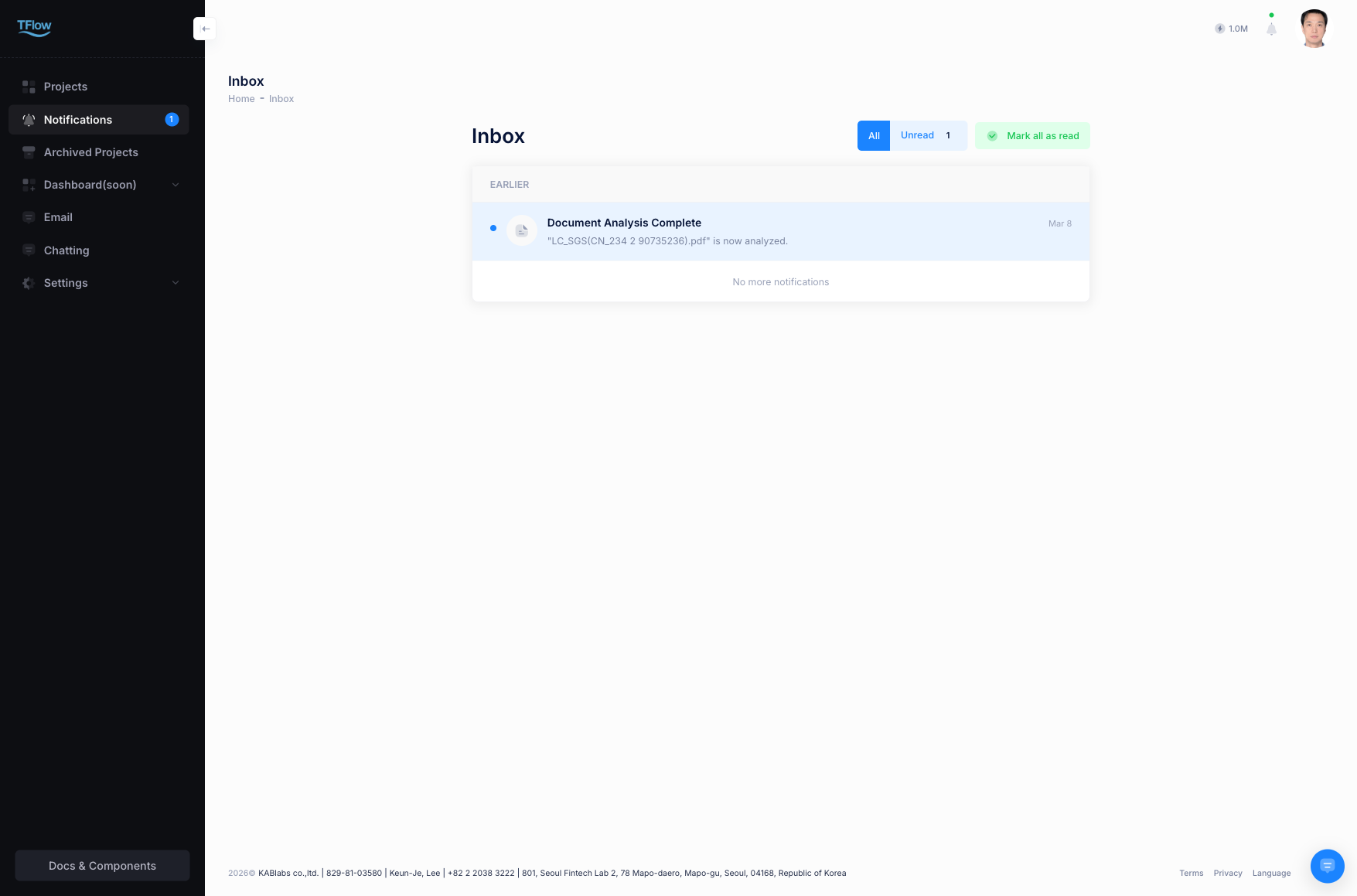
Notification screen
- Grouped by date: Notifications are automatically categorized as Today, Yesterday, This Week, and Earlier.
- Filtering: Use the
All/Unread onlyfilter at the top to quickly view only unread notifications. - Infinite scroll: Scrolling down automatically loads older notifications.
2. Managing Notifications
- Mark individual as read: Clicking a notification item automatically marks it as read and takes you directly to the relevant screen (project, document, email, etc.).
- Mark all as read: Click the
Mark all as readbutton at the top to mark all notifications as read at once.
3. Notification Types
Notifications are generated in situations such as the following.
- Project: status changes, member invitations, comment mentions (@)
- Document: new document uploads, document status changes
- Email: new incoming email
- Payment/Escrow: escrow status changes, payment requests
4. Web Push Notifications
You can receive important notifications on your desktop/mobile even when the browser or app isn't open. You have to allow the browser's notification permission once; after that, notifications are delivered as OS notifications whenever you are not looking at the TFlow screen.
How to Set Up
- While logged in to TFlow, the browser shows a popup asking "Do you want to allow notifications?"
- Click Allow to enable Web Push notifications.
- After that, notifications arrive even if you close the browser.
How It Works
- When you're viewing TFlow: Notifications are shown as real-time badges within the screen.
- When you're not viewing TFlow: A Push notification appears in your OS notification center (desktop) or notification bar (mobile).
- Clicking a notification: Clicking a Push notification takes you directly to the relevant TFlow screen.
Troubleshooting (FAQ)
- Q: "Notifications don't arrive."
- A: Check whether the notification permission for the TFlow site is Blocked in your browser settings. In Chrome, you can change it to Allow via the lock icon on the left of the address bar > Site settings > Notifications.
- Q: "I denied the notification permission and want to allow it again."
- A: You need to change it directly in your browser settings.
- Chrome: Click the lock icon on the left of the address bar >
Site settings>Notifications-> change toAllow - Safari: Preferences > Websites > Notifications, change TFlow to
Allow
- Chrome: Click the lock icon on the left of the address bar >
- A: You need to change it directly in your browser settings.
- Q: "The notification badge number differs from the actual number of notifications."
- A: Refreshing the page (F5) brings the number back in line. If it keeps differing, log out and log back in.