5.5. Business Rules
Set how your company works (approvals, notices, checks) as rules, and T FLOW follows them as things happen in your deals — for example "Create a shipping task when a PO is confirmed" or "Ask the approver to confirm after sending a high-value quote". Internally this execution layer is called ARGO.
🔒 Business rules never make payments or remittances, never send mail automatically, and never write anything the other side can see. Notices, approval requests and tasks go only to people in the company that owns the rule.
1. Who and Where
- The company master creates, trials and switches rules on. Other employees can only view them.
- Go to the Settings › My organization › Business rules tab. It has three sections: Create a rule · Our rules · Run history.
- Rules belong to the company only (there are no personal rules). You must belong to a company to use them.
2. Creating a Rule — Templates and the Assistant
- In Create a rule, under "What would you like to automate?", pick a template that fits and press Use this template.
- Change a few settings (threshold amount, task name, due date and so on) and press Create and start trial. To hold off on the trial, press Save as draft.
- Not sure which template fits? Describe what you want in "Describe it and we'll find a template" — e.g. "Create a shipping task when a PO is confirmed" — and press Start with this template on the suggested card.
- After creating it, you can still change it with Change settings on the rule detail, or by asking the assistant ("Change the threshold to USD 30,000").
- Drawing a rule as a flowchart is the advanced option (Draw it as a flowchart (advanced)). Once a rule is edited as a flowchart, it can only be changed as a flowchart, not from the settings screen.
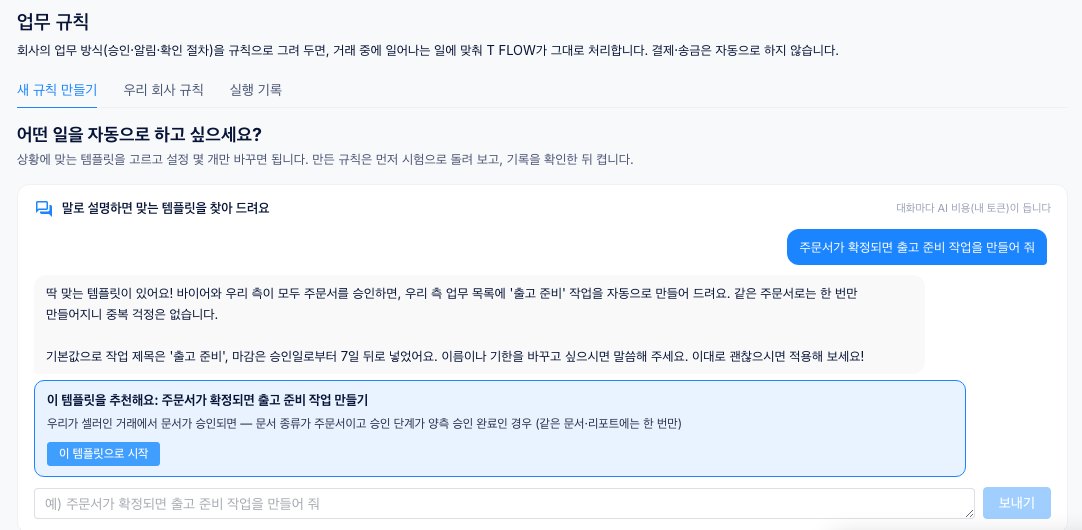
2-1. Available Templates
Each card shows its category (Quotes & sales · Orders & shipping · Documents & sharing · Pre-checks · Buyer work), whether it is for the seller or buyer side, and badges such as Includes a human check and Uses AI credits.
| Category | Templates |
|---|---|
| Orders & shipping | Create a shipping task when a PO is confirmed |
| Quotes & sales | Alert the approver when a high-value quote is approved · Ask the approver to confirm after sending a high-value quote · Add a follow-up to-do a few days after sending a quote |
| Documents & sharing | Tell the team when we share a document · Notify us when the other side approves a document |
| Pre-checks | Run the import/export pre-check when a quote is accepted · Add a to-do when a pre-check lacks information · Create a task when a document consistency check finds mismatches · Create a fix-up task when an LC presentation check is not ready · Tell the team when an import readiness review finishes · Alert the approver when an LC risk analysis comes back high risk |
| Buyer work | (Buyer) Create a review task when a quote arrives |
3. Trial, Then Switch On
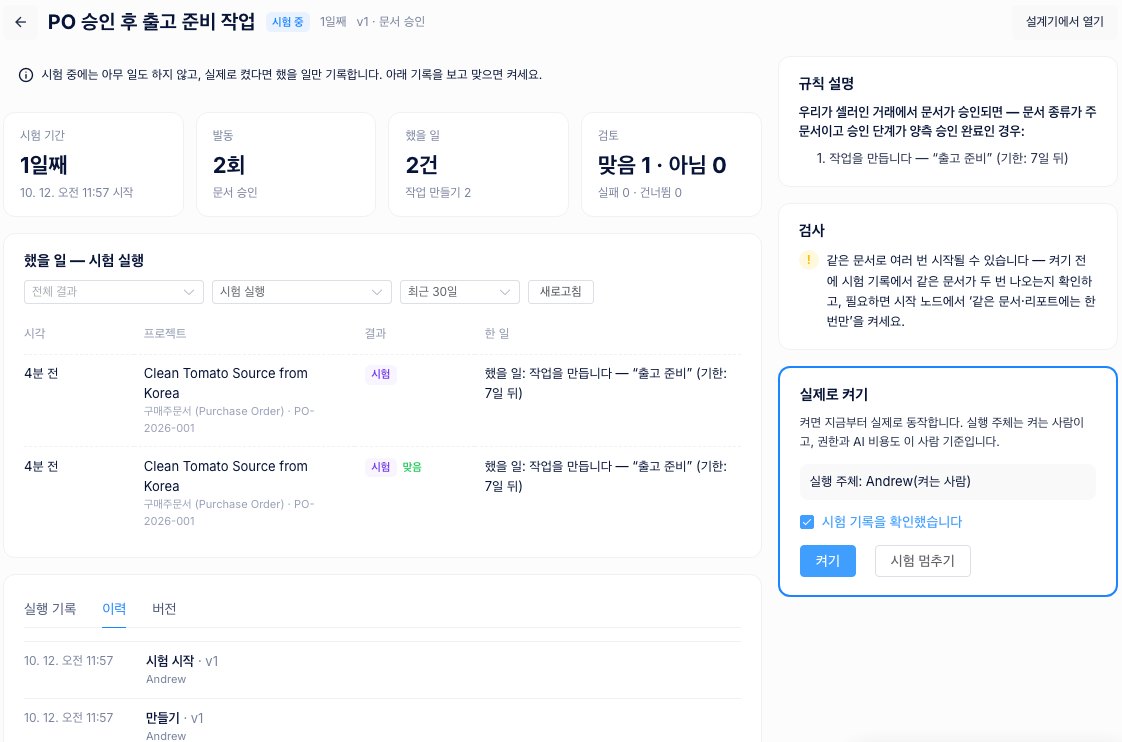
- A new or edited rule starts In trial. During a trial nothing is done for real; only what would have happened is recorded.
- In Would have done — trial runs on the rule detail, answer "Is this what the rule should do?" with Right or Wrong for each record.
- When it looks right, tick I have reviewed the trial records in Switch it on and press Switch on. The person who switches it on becomes the principal — their permissions and AI credits apply.
- Editing a rule that is on creates a new version, which runs a trial again. In the Versions tab you can also Roll back to this version (a rollback also starts with a trial).
- Statuses: Draft · In trial · On · Paused · Retired. A retired rule cannot be switched on again.
4. Approval Requests — Where People Decide
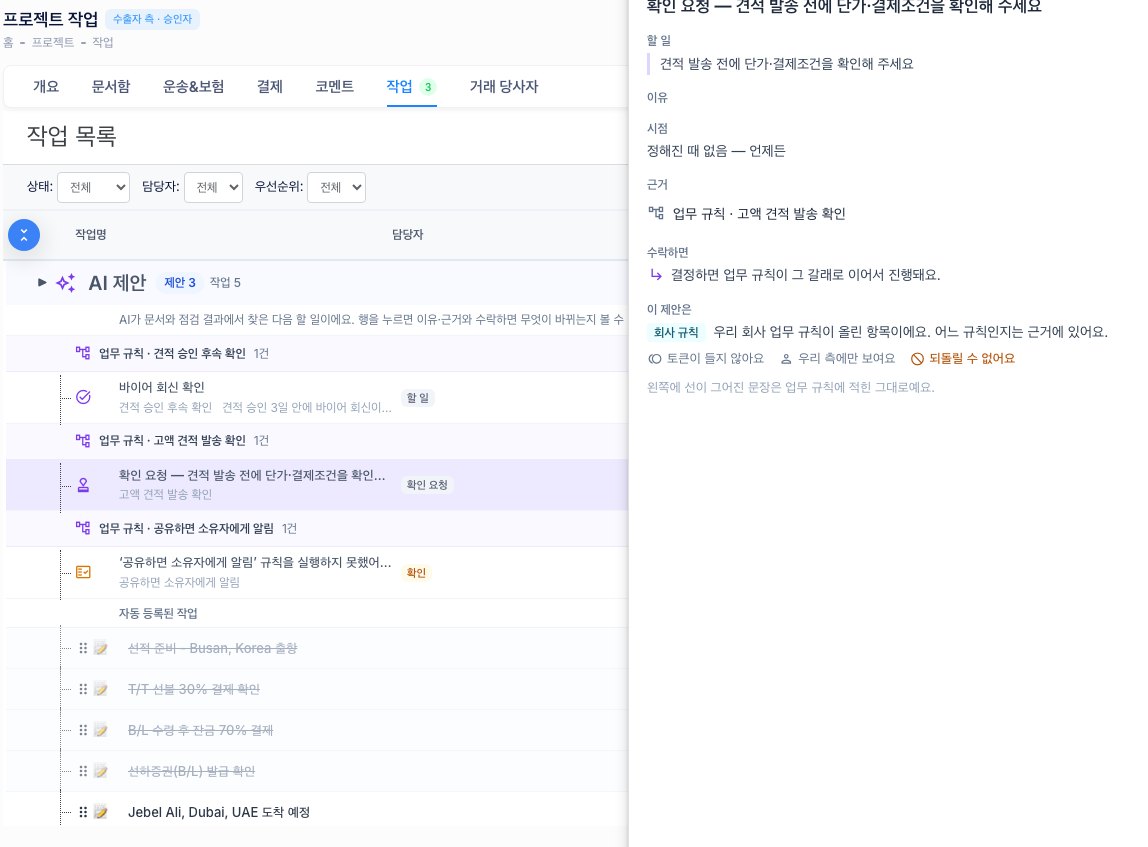
- If a rule includes a human check, an "Approval needed — …" item appears under AI suggestions in the project's Tasks tab, and the person who decides gets an "Approval requested" notification.
- Click the item to see the basis (which rule) and what happens if you accept, then press Approve or Reject. The rule continues down the matching branch.
- If a response deadline was set and passes, the rule takes the "no response" branch.
5. Run History
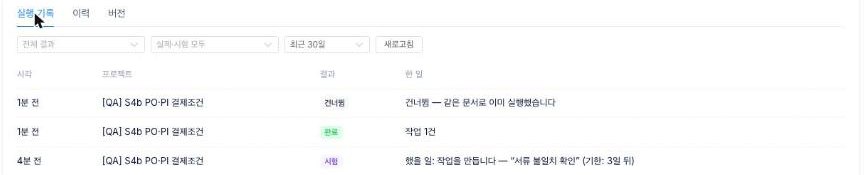
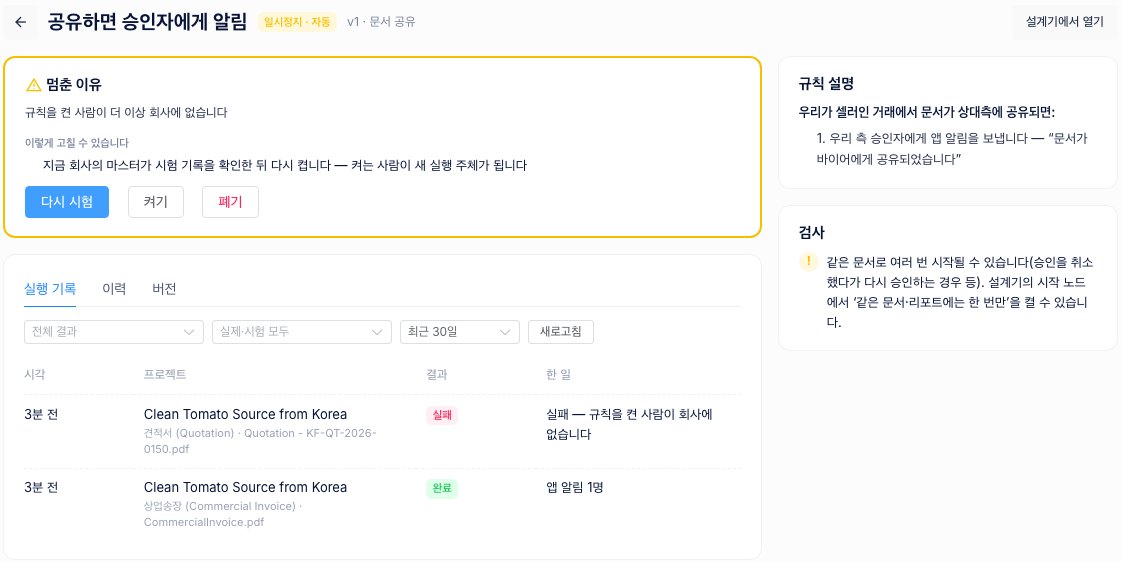
- In Run history on the Business rules tab, or in the rule detail, see when it ran, in which project, the result and what it did. Results: Done · No match · Trial · Waiting · Running · Failed · Cancelled · Skipped.
- With Only once per document or report turned on in the start settings, a second start for the same document is recorded as 'Skipped'.
- If a rule can't do its job, the reason appears in that project's AI suggestions (e.g. there is no approver from our company in this project, or the person who switched the rule on is out of tokens).
6. Automatic Pauses and Warnings
- A rule pauses itself and sends a "Business rule paused" notification when it runs too many times in an hour, fails several times in a row, the person who switched it on leaves the company, or its design has an error. When a banner appears at the top of the Business rules tab, press Review.
- Check Why it stopped and How to fix it on the rule detail, fix it, then press Trial again or Switch on.
- The Checks panel warns you in advance if the same document could start a rule several times, or if a similar rule already exists.
- If you ask the assistant for something rules don't do (such as automatically sending a payment-request email), it declines and suggests an alternative within your side.

7. AI Costs
- Chatting with the assistant: each message uses the asker's tokens (up to 20 per 5 minutes).
- AI steps inside a rule (e.g. running the import/export pre-check after a quote is accepted): use the tokens of the person who switched the rule on (the principal). Template cards and checks mark these as 'Uses AI credits'.
- Sending notifications, creating tasks and adding AI suggestions use no tokens.
8. FAQ
- Q: Does anything start running automatically once the Business rules tab appears?
- A: No. Only rules that a company master has created, trialled and switched on run. No rule is on by default.
- Q: I'm an employee and can't create rules.
- A: Only company masters can save, trial and switch rules on. Employees can view rules and records.
- Q: Can the other side of the deal see our rules or be affected by them?
- A: No. Rules belong to your company, and notices, approval requests and tasks are created only on your side.
- Q: Can a rule send email automatically?
- A: No. Rules don't do things that leave your company or can't be undone, such as sending mail, payments or remittances. Instead, a rule can create a task or alert an approver.