Buyer Guide
This document is a guide for buyers who browse a seller's public store and request quotes. It covers the entire process of looking through products, adding them to the RFQ cart to request a quote, and tracking progress.
💡 Who is this for? Import and sourcing managers, and buyers who want to find products and receive terms and price quotes. Browsing a store requires no login; only requesting quotes and sending inquiries require a TFlow login.
ℹ️ New here? First, check the domain structure and login (SSO) in the Store Overview.
1. Accessing a Store
- Go directly to the link
store.tflowx.com/<slug>you received from the seller. - If you don't know the store name, you can find it by product or keyword in the Unified Search at
store.tflowx.com/(→ Unified Search). - Use the language toggle at the top to switch between Korean and English.
Some stores briefly show an intro screen (splash) on first entry. It closes automatically after the brand introduction, and you can also close it right away.
2. Browsing a Store — Page Guide
Navigate to each page from the top navigation. The layout may vary slightly from store to store.
| Menu | URL | What you'll see |
|---|---|---|
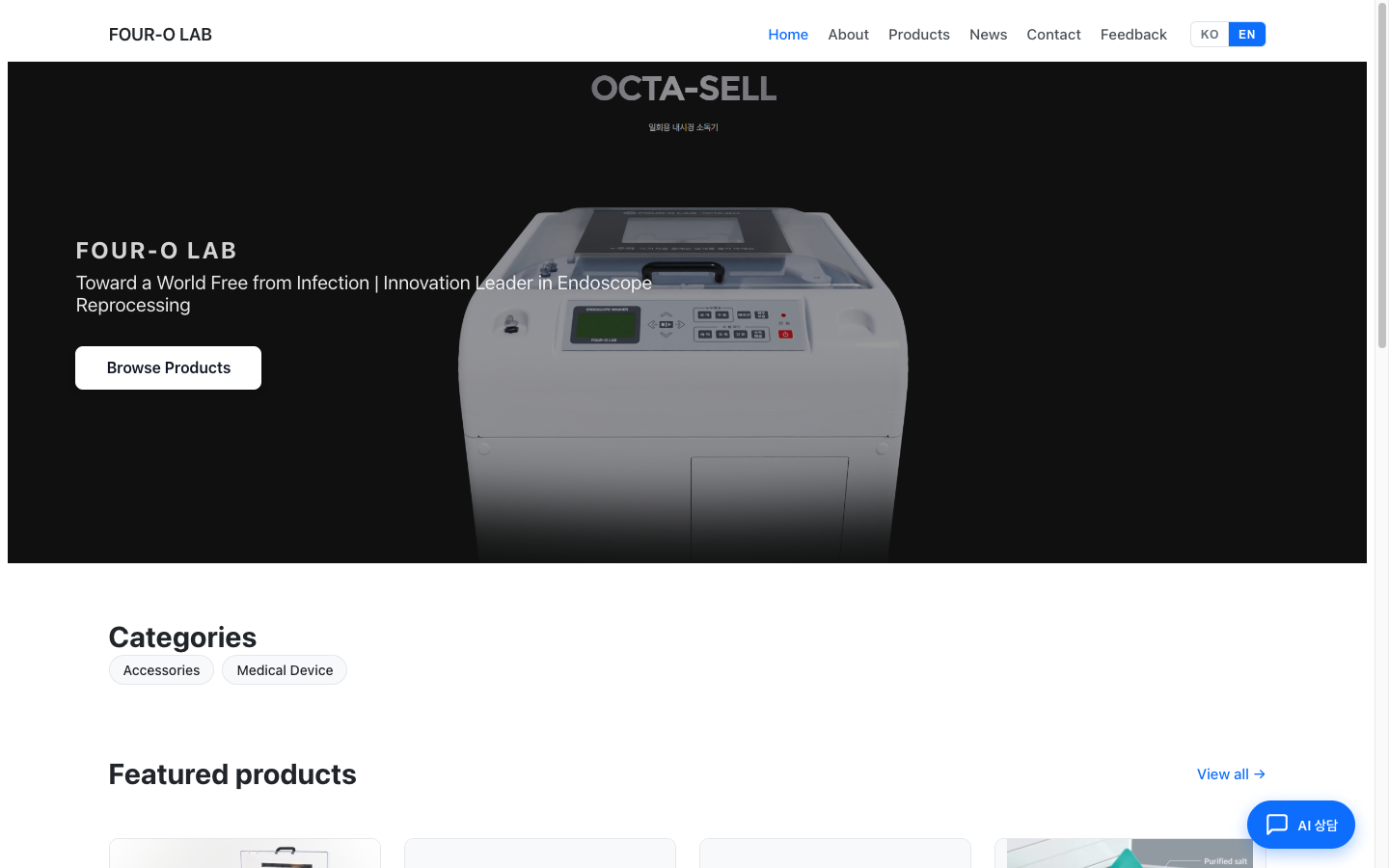
| Home | /<slug> | Hero image, key stats, categories, and popular products at a glance |
| Products | /<slug>/products | Full product list (search and category filters) |
| Company | /<slug>/company | Company story, business info, certifications, history, contact details |
| Media | /<slug>/media | News and content posted by the seller |
ℹ️ Media appears in the menu only when the seller has published at least one post. Older addresses (
/intro·/about·/contact·/feed) forward to the current pages automatically.
Home (/<slug>)
A hero image band, company stats, category chips, a popular products grid, and a one-line company introduction appear in order. Clicking "Learn more" takes you to the company introduction.
Company (/company)
The company introduction and contact details now live on one page. It runs through the company story and summary figures, certifications, history, and then address, email, phone, and business hours. This is the page to read when you want to check the counterpart company before doing business. At the end of the page a Request a quote button opens the quote cart.
Product List (/products)
- Narrow results using keyword search and the category tree in the left sidebar. (On mobile, this is a filter drawer.)
- The result count and product grid appear on the right, and you can switch between grid and list views.
- 20 items per page, navigated via the pagination at the bottom.
🖼️ Screen capture Product list — Left category filter + product grid 📍
store.tflowx.com/<slug>/products· Save pathimages/store/buyer-products.png
Product Detail (/products/<product-id>)
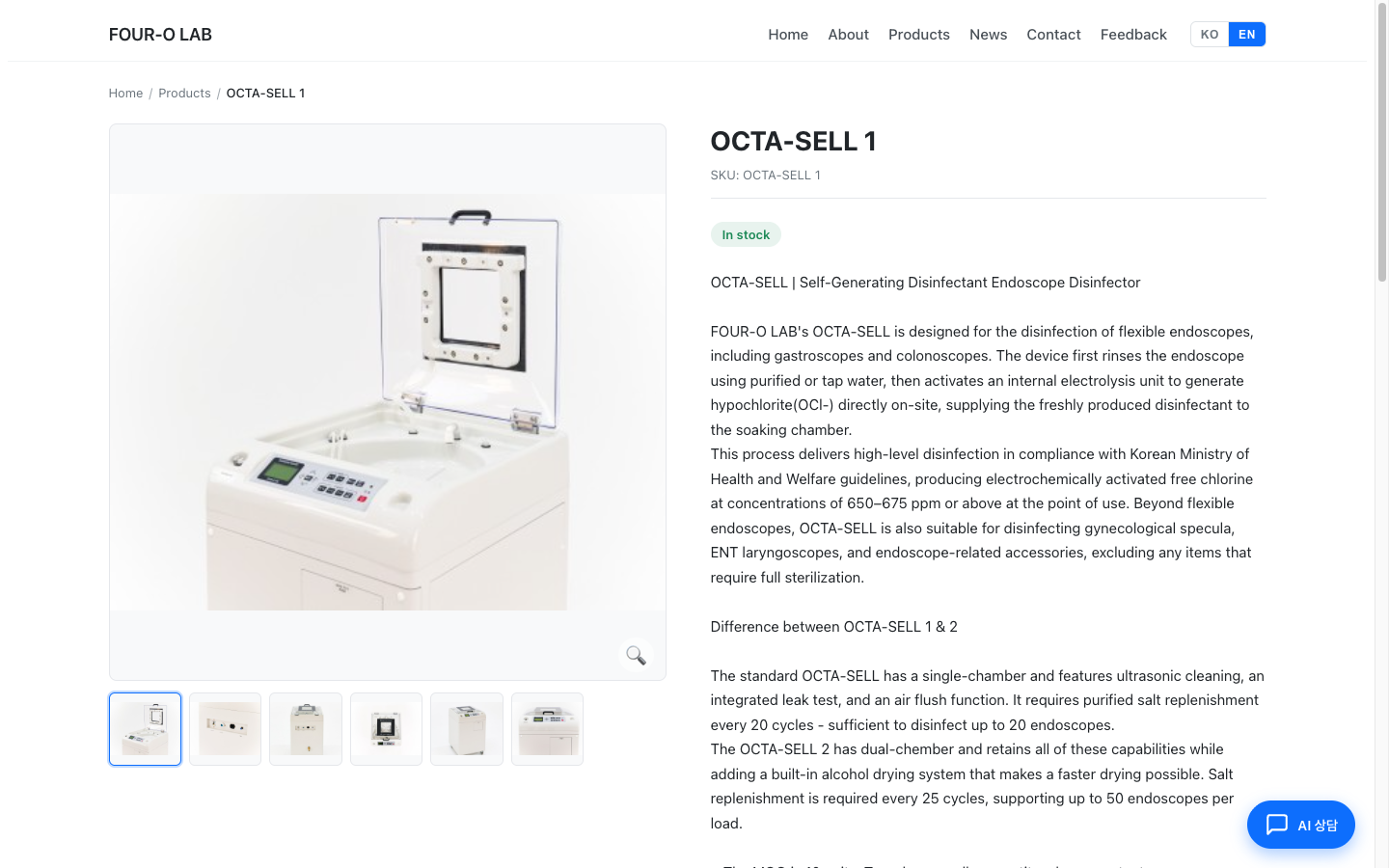
- The image gallery (zoom and lightbox) is on the left, and product information on the right.
- You can review, in order: the In stock / Sample available badges → description → purchase terms such as MOQ, lead time, origin, and packing → certifications → specifications.
- Start a quote request with the Add button at the bottom (→ 4. Quote Cart).
Media (/media)
A channel where the seller posts content such as new product news, usage tips, and trade show participation. Click a card in the list to view the cover image and body (including images, videos, and tables). Great for getting a sense of the store's recent activity. Stores with no posts yet don't show the Media menu.
Customer Feedback (/feedback)
A page where you can leave bugs, improvement suggestions, and other feedback without logging in. It is not in the top menu — you open it directly with the address the seller gives you. Choose a category and submit your name, email, and message (consent to collection of personal information required). Use this to share feedback about the service or store, not for product quote inquiries.
3. No Prices? — The Request for Quotation (RFQ) Model
TFlow Store uses a B2B Request for Quotation (RFQ) model.
- Products do not show fixed prices. The actual unit price varies depending on order quantity, destination country, Incoterms, and so on.
- Buyers add products of interest to the RFQ cart to request a quote, and the seller responds with a quotation tailored to the terms.
- Once a quote arrives, it flows directly into a TFlow project, carrying the contract, payment, and documents through in one continuous flow.
💬 If you have questions about prices or terms, you can also ask the AI Assistant chatbot at the bottom right of the store first. → Seller Chatbot
4. Adding to the Quote Cart
⚠️ Adding to and submitting from the cart requires a TFlow login. If you click the button while logged out, you'll be taken to the login screen and then automatically returned to the product you were viewing after logging in.
- On the product detail page, click Add. The button changes to Added.
- You can keep adding products from multiple stores. The number badge on the Request a quote button at the top shows how many items are in the cart.
- Use View cart on the product page, or Request a quote at the top, to open the quote cart (
/<slug>/cart).
ℹ️ What's changed: The cart used to live inside the main app, but it now lives inside the public store (
store.tflowx.com/<slug>/cart).
Submitting by Seller Group in the Cart
The quote cart automatically groups added products by seller (store), because different stores need separate quotes.
For each group (store), review and enter the following:
- Product thumbnail, name, and SKU
- Quantity (at or above the MOQ set by the seller)
- Anything to add for the seller (optional — target lead time, destination port, spec questions)
- Remove products you no longer need
Clicking Request a quote for a group issues a request for that store only, displays the RFQ number, and empties that group from the cart. Products from other stores remain in the cart to be submitted separately. Before you sign in, that button reads Sign in to send.
🖼️ Screen capture RFQ cart — Groups by seller + quantity input + Submit RFQ 📍
store.tflowx.com/<slug>/cart· Save pathimages/store/buyer-cart.png
💡 One RFQ = one seller. RFQs are not sent to multiple sellers at once; each group is submitted separately.
5. Tracking My RFQs
Track the progress of submitted RFQs in the main app.
- Go to Dashboard at the top right of the store (or the main app at
tflowx.com/app/rfqs). In the main app's left menu this is My RFQs > Sent. - In the list of RFQs you've sent, check RFQ # · Seller · Items · Status · Submitted.
- Status flow: Submitted → Under Review → Quoted → Accepted/Rejected
- When the seller sends a quote, that quote is created as a project, and you continue negotiation and contracting via Go to Project on the card.
🖼️ Screen capture My RFQ list — Status badges + Go to Project 📍
tflowx.com/app/rfqs· Save pathimages/store/buyer-my-rfqs.png
When the seller sends a quote, it is created as a quotation (QT) document in the project. Subsequent terms negotiation proceeds by exchanging this QT document.
6. One-on-One Inquiry
A one-on-one conversation for when you want to ask freely rather than request a quote for a specific product. (Login required)
- Inquiries you send are collected in My RFQs > Inquiries (
tflowx.com/app/rfqs/inquiries) in the main app. - Each inquiry continues as a two-way thread (exchanged messages). When the seller replies, you keep the conversation going in the same thread.
RFQ vs. Inquiry
- RFQ: Specifying products and quantities to receive a quote → connects to a project
- Inquiry: A one-on-one conversation in free text → a pure inquiry that does not connect to a project
7. Finding Stores and Products with Unified Search
When you don't know the store name, use the Unified Search at store.tflowx.com/ (or /search).
- When you enter a search term, results are split into two sections: STORES and PRODUCTS.
- Clicking a product card takes you straight to that product's detail page in the seller's store.
8. Getting Help from the AI Chatbot
Most stores have an "Ask this store" floating button (prefixed with the store name) at the bottom right. Click it to open the AI Assistant and chat with the chatbot the seller has set up.
- Get started quickly with suggested-question chips, and follow the follow-up question suggestions that come after each answer.
- The chatbot helps with product search and trade terms, and can even draft an RFQ based on your conversation.
- You can use it without logging in, but there's a daily usage limit; logging in makes it unlimited.
- For detailed usage, see the Seller Chatbot guide.
💡 Troubleshooting (FAQ)
Q. I clicked Add but it took me to the login screen. A. Adding to and submitting from the cart requires a login. After you log in, you're automatically returned to the product you were viewing, and you can click the add button again.
Q. I can't set a quantity lower than the MOQ. A. Quantities below the minimum order quantity (MOQ) set by the seller are not accepted. If you have special circumstances, discuss it with the seller via Anything to add in the cart or a One-on-One Inquiry.
Q. Can I request quotes for products from multiple stores at once? A. No. Quote requests are submitted per store (seller). The cart splits into groups by store, and you must click Request a quote separately for each group.
Q. Where can I check the RFQs I've submitted?
A. Check the status and quotes at My RFQs > Sent (tflowx.com/app/rfqs) in the main app.
Q. What happens after I receive a quote? A. When a quote arrives, a project is created automatically. Enter it via Go to Project on the RFQ card to review the quotation (QT), and continue with contracting, payment, and document processing.
Q. I want to know a product's price but there's nowhere to ask. A. Tell your terms to the AI Assistant chatbot at the bottom right of the store to get guidance or draft an RFQ right away. The exact unit price is confirmed by the seller's quote after you submit an RFQ.